Wiki for WordPress: A wiki for WordPress can turn an existing website into a practical internal knowledge base without sending documentation to a separate SaaS platform. The key is not simply installing a documentation plugin: you need a clear information architecture, useful search, sensible permissions, named content owners, and a review process that keeps articles current.
Quick answer: Build your WordPress wiki around a small number of top-level topics, use nested documents only where they make navigation clearer, give each document an owner, restrict sensitive sections by role, and review high-impact content on a fixed schedule.
Build a self-hosted knowledge base in WordPress
GrowthDoc is a WordPress knowledge-base plugin built for nested documents, structured team resources, and a block-style editing workflow inside your own WordPress environment.
GrowthDoc: Your WordPress Knowledge Base
Self-hosted Notion-style docs & knowledge base for WordPress. Read the technical documentation →
What is a wiki for WordPress?
A WordPress wiki is a structured collection of documentation that people can browse, search, and maintain inside WordPress. Depending on the audience, it can be an internal company wiki, a private client knowledge base, a product documentation center, or a public help resource.
The difference between a useful wiki and a folder of pages is structure. A wiki should make it obvious where information belongs, how related documents connect, who can see each area, and who is responsible for keeping the content accurate.
| Approach | Best for | Main strength | Main tradeoff |
|---|---|---|---|
| Standard WordPress pages | Small documentation sets | Simple and already available | Navigation and ownership can become messy at scale |
| WordPress wiki / knowledge-base plugin | Teams, agencies, product documentation | Purpose-built structure, search and permissions | Requires governance and plugin maintenance |
| External wiki SaaS | Teams already standardized on a separate workspace | Dedicated collaboration environment | Another system, login, data store and recurring workflow to manage |
When does a WordPress wiki make sense?
A WordPress wiki is a strong fit when your website is already the operational home for clients, products, projects, or team users. Keeping documentation nearby can reduce context switching and make permissions easier to understand because the same WordPress accounts and roles can be part of the access model.
It is especially useful for agencies that document standard operating procedures, onboarding checklists, client instructions, troubleshooting guides, reusable templates, and project knowledge. It can also work well for small businesses that want a private employee handbook or a public knowledge base without introducing another hosted platform.
If your main goal is replacing a standalone collaboration platform, the Confluence alternatives guide provides a broader comparison of WordPress-native and self-hosted approaches.
Plan the information architecture before you install anything
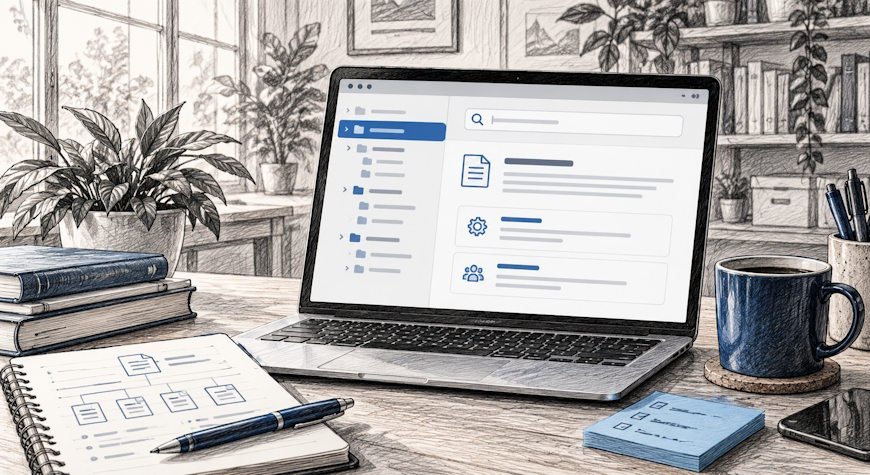
Most wiki problems start with organization, not technology. Before you create hundreds of documents, decide how people will browse the knowledge base and how deep the hierarchy should go.
| Layer | Purpose | Example |
|---|---|---|
| Top-level topic | Groups a major business area | Operations, Sales, Client Delivery |
| Document group | Collects related procedures or guidance | Client Onboarding, Reporting, Billing |
| Individual document | Answers one clear question or task | How to create a new client workspace |
| Metadata / ownership | Makes maintenance accountable | Owner, review date, status |
Keep the first level small enough that a new team member can understand it at a glance. Deep nesting is useful only when the hierarchy reflects how people actually search for information. If users need five clicks to reach a common procedure, the structure is probably too deep.
How to build a wiki for WordPress step by step
1. Define the audience and visibility model
Start by deciding who the wiki is for: employees, contractors, clients, customers, or the public. This determines whether you need a single private area, a mix of public and restricted content, or multiple permission layers.
2. Choose the content model
For a small wiki, regular WordPress pages can work. For a larger knowledge base, a purpose-built plugin can make nested documentation, navigation, dedicated search, and permissions easier to manage. WordPress also supports custom post types when a plugin needs a dedicated content structure; the WordPress Developer Handbook explains why custom content types are generally better kept in plugins than themes when portability matters.
Use labels that match the language your team already uses. Avoid clever category names. A person who needs a billing procedure should see “Billing,” not an internal nickname that only one department understands.
4. Make search part of the architecture
Search works best when article titles are specific, documents cover a focused task, and the same concept is not described under several competing names. Add common terms and synonyms naturally in the content, but do not turn article titles into keyword lists.
5. Set permissions before migration
Do not migrate sensitive documents and decide access later. Map your user roles first, test the experience with non-admin accounts, and confirm that restricted content does not appear where unauthorized users can discover it.
6. Create repeatable document templates
Templates make the wiki easier to scan. A procedure might use: purpose, prerequisites, steps, owner, escalation path, and review date. A policy might use: scope, rule, exceptions, owner, and effective date.
7. Migrate in priority order
Move the most frequently used and highest-risk documentation first. That gives the team immediate value and lets you validate the structure before importing every legacy document.
How should permissions work in a WordPress wiki?
Use least-privilege access: each user should see and edit only what their role requires. WordPress has a built-in roles and capabilities system, documented in the official Roles and Capabilities guide. A knowledge-base plugin can build on that model with more specific visibility rules.
For a detailed implementation approach, see the GrowthPlugins guide to knowledge base permissions in WordPress.
| Role type | Typical access | Risk to avoid |
|---|---|---|
| Reader | View approved documentation | Accidental access to private areas |
| Contributor | Create or suggest content | Publishing without review |
| Editor / owner | Approve, update and reorganize assigned docs | Unclear ownership across teams |
| Administrator | Manage settings and access policies | Too many users with site-wide privileges |
Search, naming and findability matter more than document count
A wiki with 50 well-structured articles can be more useful than one with 500 poorly named pages. Use question-based or task-based titles when appropriate: “How to approve a client invoice” is easier to retrieve than “Finance process #7.”
Link related procedures contextually. If an onboarding document requires a client portal step, link directly to the relevant portal guide rather than expecting a reader to search from scratch. For client-facing workflows, the WordPress client portal guide is a useful companion resource.
Build governance into the wiki from day one
Documentation decays when nobody owns it. Assign an owner to important documents and set review intervals based on how quickly the underlying process changes. Security, billing, onboarding, compliance, and product procedures usually deserve more frequent review than historical reference material.
- Assign one accountable owner for each high-impact document.
- Add a review date rather than relying on memory.
- Archive or redirect obsolete instructions so old procedures do not remain searchable next to current ones.
- Track repeated search failures as a signal that a document is missing, poorly titled, or hard to navigate to.
- Keep permissions under review when people change teams, clients, or responsibilities.
Where GrowthDoc fits
GrowthDoc is designed as a self-hosted WordPress knowledge base with nested documents and a block-style editor. Its documentation also describes a dedicated document post type, WordPress roles and capabilities, a REST API, and AI/MCP capabilities. That makes it a relevant option when the goal is to keep documentation inside WordPress rather than maintain a second SaaS workspace.
Use the plugin as the delivery layer, but keep the governance rules above independent of the tool. Good hierarchy, ownership, permissions, and review discipline are what make a wiki sustainable.
Common WordPress wiki mistakes
- Creating a category for every team. This often produces overlap and inconsistent naming. Design around user tasks and stable knowledge domains.
- Giving every user edit access. Reading, contributing, approving and administering are different responsibilities.
- Migrating everything at once. Start with high-value content and validate the structure before scaling.
- Ignoring search behavior. If people repeatedly search for a phrase that does not match your terminology, update titles and copy to reflect the language users actually use.
- Keeping obsolete pages live. Old instructions are worse than missing instructions because they look authoritative.
Conclusion
The best wiki for WordPress is not the one with the most features. It is the one your team can navigate, trust, and maintain. Start with a simple hierarchy, define visibility before migration, make search and naming deliberate, assign document owners, and schedule reviews. Then choose a WordPress knowledge-base plugin that supports that operating model without forcing your team into a separate documentation silo.
Frequently asked questions
Can WordPress be used as an internal wiki?
Yes. WordPress can support a private internal wiki using standard pages or a dedicated knowledge-base plugin, combined with appropriate user roles and visibility controls.
Should a WordPress wiki use pages or a custom post type?
Pages can work for a small documentation set. A dedicated post type can be easier to manage when you need separate navigation, search behavior, permissions, or a large document hierarchy.
How many levels should a wiki hierarchy have?
Use as few levels as the content needs. A shallow structure is usually easier to browse. Add deeper nesting only when it mirrors a real relationship between topics and documents.
How do you keep a WordPress wiki up to date?
Assign owners, add review dates, prioritize high-impact procedures, archive obsolete content, and use search behavior or repeated support questions to identify documentation gaps.
Can a WordPress wiki include private client documentation?
Yes, if the plugin and permission model support restricted visibility. Test access with real non-admin roles before publishing sensitive client material.