Protecting client data on WordPress means three things working together: privacy-by-design settings that limit what you collect, WordPress’s built-in privacy tools kept active and documented, and hosting security locked down with SSL, SFTP-only access, and two-factor authentication. Audit every plugin touching client data this week. None of this is optional if you handle names, emails, payment details, or project files for clients.
TL;DR:
- WordPress’s privacy tools only track core data, so auditing third-party plugins for external data sharing is essential to ensure full compliance.
- Implementing a written privacy policy, proper consent mechanisms, and a clear data retention schedule is crucial for handling client requests and regulator inquiries.
- Using plugins with built-in exporter and eraser callbacks and avoiding automatic external data uploads reduces compliance blind spots.
- Hosting security practices, such as enforcing SSL, SFTP-only access, role-based permissions, and two-factor authentication, are vital for protecting client data.
- Regularly testing data export and erasure functions, along with maintaining an incident response plan, safeguards against data breaches and data loss.
GrowthBalance
Track time, income and expenses for every project and side-project you run — 100 % front-end, self-hosted inside WordPress. No SaaS subscription, no per-seat fees.
Table of Contents
- Client Data Privacy WordPress: Core Tools You’re Probably Ignoring
- Your Compliance Checklist: Notice, Consent, Minimization, and DSARs
- Auditing Plugins for Hidden Data Sharing
- Hosting and Access Controls That Actually Matter
- What to Log and Do When Something Goes Wrong
- Why Self-Hosted Plugins Change the Privacy Equation
- Try a Self-Hosted Client Portal Built for Data Control
- Sources
- FAQ
Client Data Privacy WordPress: Core Tools You’re Probably Ignoring
Most WordPress installs ship with privacy tools that never get touched. That’s a problem, because they’re the fastest way to show you’re taking client information seriously.
Start under Settings > Privacy. WordPress gives you a privacy policy starter page here, plus an Editing Helper that walks you through what to disclose based on the plugins you’re running. This feature has existed since WordPress 4.9.6, when the core team added a dedicated set of GDPR compliance tools rather than leaving site owners to piece together compliance from third-party plugins.
Two more tools live under Tools:
- Export Personal Data generates a downloadable file of everything WordPress core has stored about a specific user or email address.
- Erase Personal Data processes deletion requests and flags what got removed.
Here’s the catch: these tools only see what WordPress core tracks. They don’t reach into your CRM plugin’s database tables, your form plugin’s submission logs, or your backup archive. Core WordPress is explicit that administrators stay responsible for auditing third-party plugins and services the Editing Helper simply can’t see. Treat the core tools as your floor, not your ceiling.
Your Compliance Checklist: Notice, Consent, Minimization, and DSARs
A documented process beats good intentions every time a client or regulator asks how you handle their data. Work through this in order:
- Write a real privacy policy. Use the Editing Helper as your outline, then fill in specifics: what you collect, why, how long you keep it, and who else touches it (payment processors, email providers, hosting partners).
- Add cookie consent where it’s actually required. If you run analytics, ad pixels, or anything that sets non-essential cookies, you need an auditable consent log, not just a banner that disappears on click.
- Audit every form on your site. Contact forms, quote requests, intake forms. Cut any field you don’t have a genuine operational reason to collect.
- Turn off telemetry and optional data sharing in plugins that phone home usage stats by default.
- Set a written retention schedule. Define how long live client records and support tickets stay active, and separately how long backups persist.
- Handle data subject access requests methodically. Verify the requester’s identity, run the core export or erase tool, and log the date and action taken — following a practical guide on deleting client data under UK GDPR can also help ensure compliance.
Retention policies need to say something specific about backups, because deleting a record from your live database doesn’t touch your backup archive. Pagely’s analysis of the 4.9.6 privacy release points out that erasure requests don’t automatically scrub backups, so your privacy notice should state plainly that erased data may persist in archived copies for a defined period.
Pro Tip: Run a test DSAR on your own admin account once a quarter. If the export tool misses data you know exists somewhere on the site, that’s a plugin you need to investigate before a real client request exposes the gap.
Auditing Plugins for Hidden Data Sharing
Every plugin on your site is a potential data pipeline you didn’t sign up for. Some phone home analytics by default. Some upload form submissions to a third-party dashboard you never configured. Finding out which ones do this takes about twenty minutes.
Open your browser’s developer tools, load your site’s admin and front end, and watch the Network tab for outbound calls to domains you don’t recognize. That’s often the fastest way to spot a plugin quietly sending data somewhere you didn’t authorize. Beyond that manual check:
- Favor plugins that implement proper exporter and eraser callbacks, the mechanism WordPress’s own developer guidance for plugin privacy recommends so a DSAR actually surfaces everything a plugin stores.
- Avoid plugins that automatically upload client data to an external service with no opt-out.
- Look for self-hosted architectures: local database storage, locally generated encryption keys, and no mandatory telemetry.
- Prefer plugins that keep audit logs of who accessed or changed client records.
A plugin like Secure Login Collector illustrates the pattern worth copying: it encrypts credential payloads client-side before they ever land in your database, so even a compromised database doesn’t hand over usable plaintext.
Pro Tip: Test a plugin’s exporter and eraser callbacks during setup, not after a client asks for their data. If nothing comes back when you run a test export, that plugin is a compliance blind spot waiting to surface at the worst time.
Hosting and Access Controls That Actually Matter
Software settings only get you so far. Where you host and who can log in matters just as much.
Pick a host that runs a web application firewall and patches core, PHP, and server software automatically. SSL should be non-negotiable across every page, not just checkout or login. Beyond that baseline:
- Enforce SFTP-only file transfers and disable plain FTP entirely.
- Require two-factor authentication on every admin account, no exceptions for “just one client login.”
- Assign role-based permissions so contributors and editors can’t touch settings or export tools they don’t need.
- Disable the theme and plugin file editor in the dashboard to block one common attack path.
- Encrypt backups at rest and document how long they’re retained.
Automattic’s security guidance for agencies treats SFTP-only transfers, strong password policies, and mandatory 2FA as baseline operational practice, not advanced hardening. If you’re running client sites for multiple businesses, standardize these controls across every account rather than configuring security case by case.
What to Log and Do When Something Goes Wrong
A breach response plan that lives in your head instead of on paper falls apart under pressure. Write it down now.
- Log the events that matter: admin logins, file changes, plugin and theme updates. Store logs somewhere offsite or encrypted, since an attacker who controls your server can also delete local logs.
- Contain fast. Rotate API keys and credentials, force password resets on every admin account, and suspend any account showing suspicious activity.
- Notify properly. Tell affected clients what happened, what data was involved, and what you’re doing about it. Keep a written record of the timeline for post-incident review.
Why Self-Hosted Plugins Change the Privacy Equation
Most privacy conversations focus on settings and policies. The architecture underneath those settings matters just as much, and it gets far less attention.
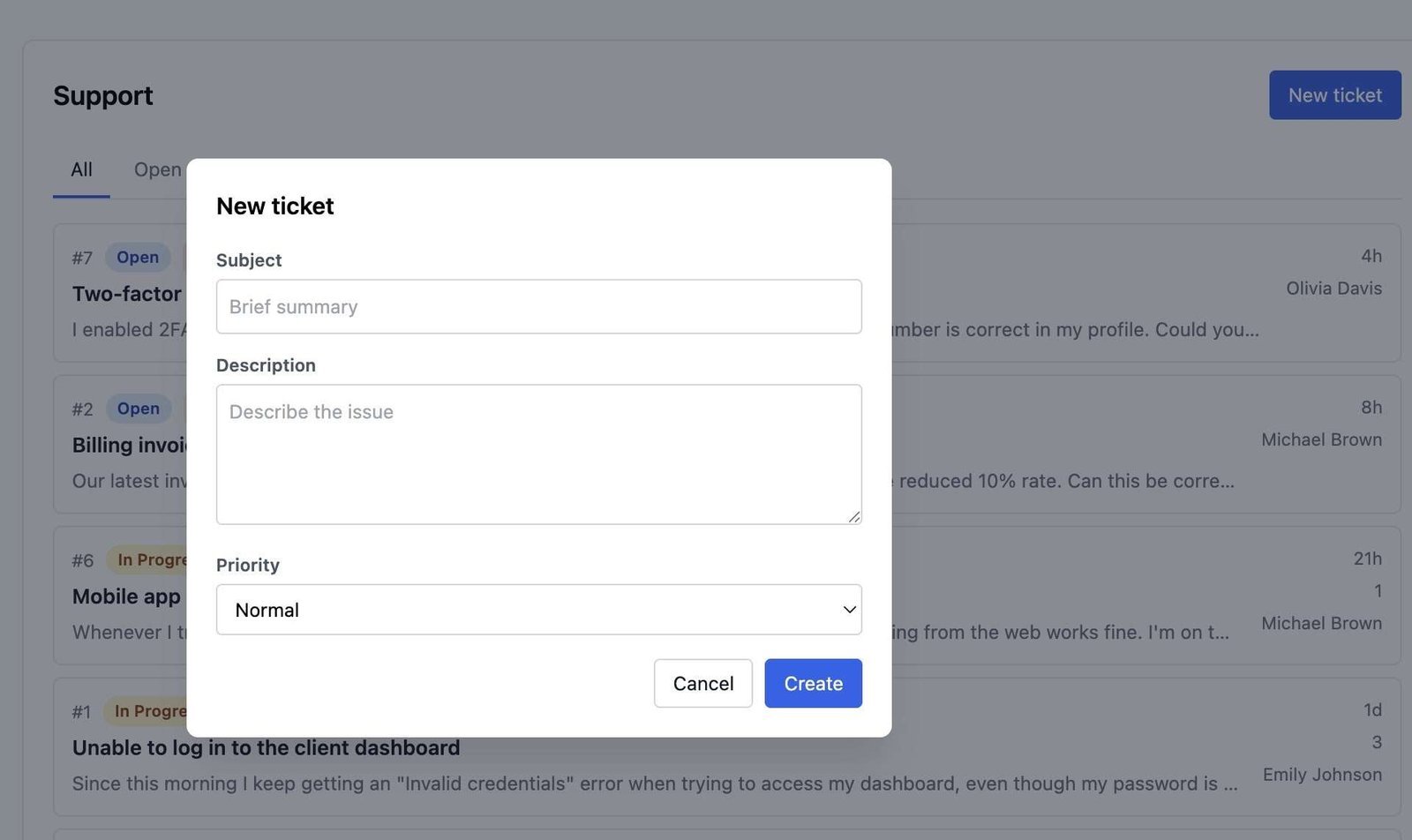
When client data lives in a third-party SaaS dashboard, you’re trusting that vendor’s security team, their subprocessors, and their own data retention habits, whether or not you ever read their privacy policy in full. A self-hosted plugin architecture flips that. The data sits on your server, under your access controls, subject to your backup and retention policy instead of someone else’s terms of service. That’s the model Growthplugins is built on: client portals, project tracking, and CRM functions running on infrastructure you already control.
The tradeoff is real. Self-hosting shifts responsibility for patching, backups, and server hardening onto you or your host, which is exactly why the operational controls covered earlier aren’t optional extras. If you’re handling regulated client data or want direct control over where records physically live, that tradeoff usually favors self-hosting. Growthplugins’ guide to building a secure client portal walks through the setup specifics.
— Antonio
Try a Self-Hosted Client Portal Built for Data Control
If everything above sounds like a lot of vendor trust you’d rather not extend, that’s the exact gap Growthplugins closes. Instead of client records, project files, and support tickets scattered across a SaaS dashboard you don’t control, Growthplugins keeps the entire workflow, portals, CRM, invoicing, ticketing, on your own WordPress server.
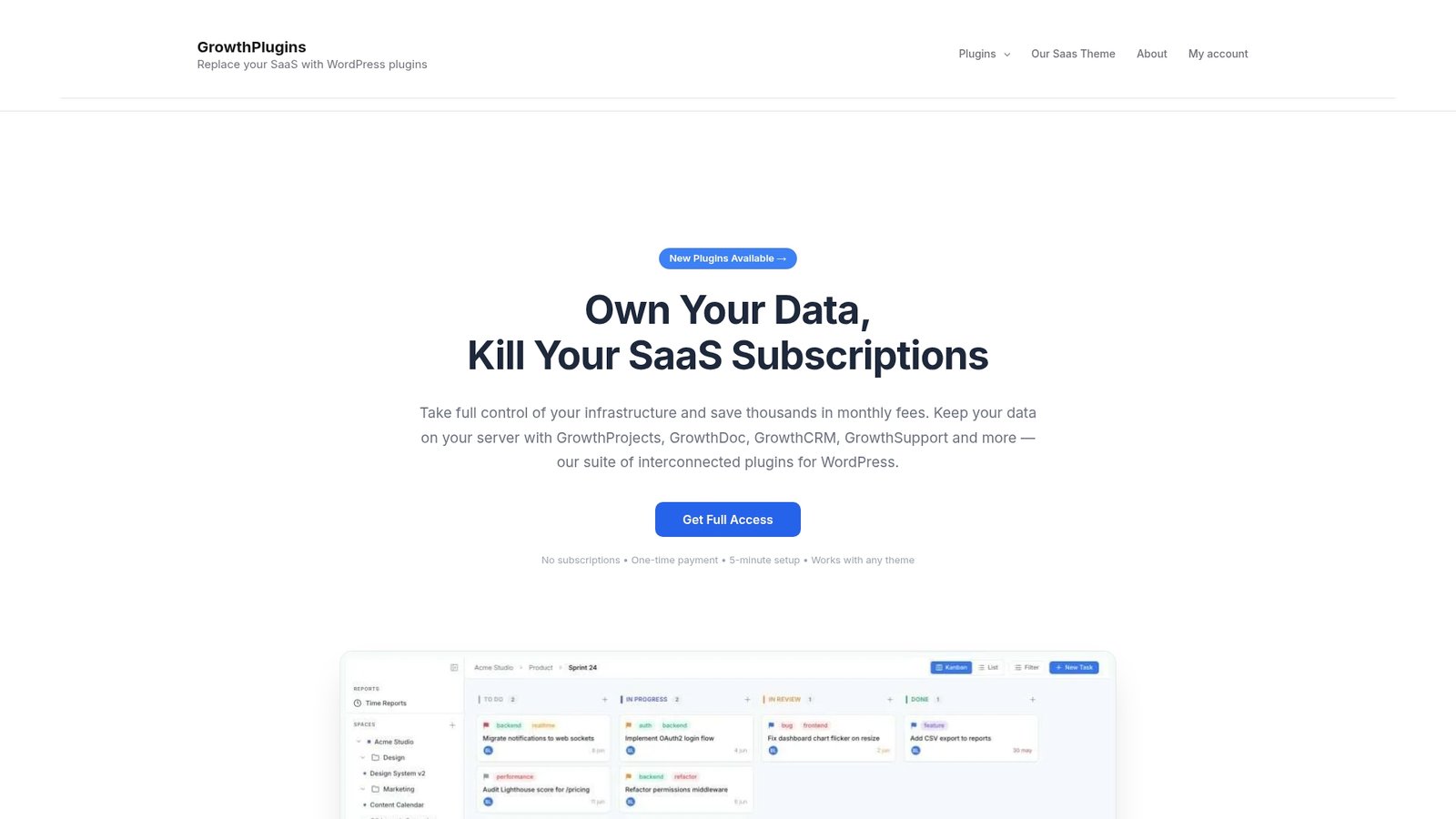
You get one-time plugin pricing instead of a recurring subscription, and your data never leaves infrastructure you manage. For agencies weighing whether to keep client relationships in a third-party tool or bring them home, the secure WordPress client portal guide walks through setup in under five minutes. Start there to see whether a self-hosted portal fits your current stack.
This article is general information, not a substitute for advice from a qualified lawyer. Consult a qualified legal professional about your own circumstances before acting on anything here.
Sources
- Privacy for plugin developers — WordPress Developer Resources
- How to secure client WordPress sites — Automattic for Agencies
FAQ
How do you protect customer data privacy on WordPress?
Combine WordPress’s core privacy tools (privacy policy starter, export and erase functions) with hosting-level controls like SSL, SFTP-only access, and mandatory 2FA, then audit every plugin for unnecessary third-party data sharing.
Why are people moving away from WordPress?
Some site owners cite plugin bloat and update fatigue, but WordPress remains widely used precisely because of its open ecosystem and self-hosted options, which give administrators more privacy control than most closed SaaS platforms offer.
Is WordPress outdated in 2026?
No. WordPress core continues to ship active privacy and security tooling, and self-hosted plugin architectures, including project management and CRM tools like Growthplugins, give site owners more direct control over client data than many newer platforms.
Can you see who looks at your WordPress site or admin area?
Yes, if you enable logging for admin logins, file changes, and plugin updates; without that logging in place, you have no record of who accessed the dashboard or when.
Does erasing a client’s data remove it from backups too?
Not automatically. Erasure requests processed through WordPress’s core tools clear the live database, but archived backups can retain the data until they’re overwritten, which is why your retention policy needs to state backup handling explicitly.