Run your WordPress support tickets on a self-hosted plugin, not a SaaS help desk, if you want full control over customer data, no per-agent monthly fees, and tickets that live next to the rest of your site’s workflows. GrowthSupport is a solid example of that self-hosted model. Skip to the step-by-step setup below if you just want the portal live today.
TL;DR:
- Self-hosted WordPress ticket plugins like GrowthSupport offer control over data, no per-agent fees, and seamless integration with your site’s workflows.
- For small to medium teams, features like departments, role-based routing, SLA tracking, and email threading are essential, with performance depending on database design.
- Proper setup requires thorough testing of email notifications, reply threading, and user permissions to ensure reliable ticket handling before going live.
- Using custom database tables significantly improves ticket system scalability and speed as volume exceeds thousands of tickets, unlike posting in wp_posts.
- Integration with WooCommerce, knowledge bases, and AI tools can greatly reduce support workload and improve customer experience when implemented correctly.
GrowthBalance
Track time, income and expenses for every project and side-project you run — 100 % front-end, self-hosted inside WordPress. No SaaS subscription, no per-seat fees.
Table of Contents
- Choosing Your WordPress Support Ticket System: Form, Helpdesk, or SaaS?
- What Features Should You Look For in a WordPress Ticket Plugin?
- Setting Up a Support Portal on WordPress: A Practical Walkthrough
- Making Email Behave Like a Shared Inbox
- Scaling Ticket Volume Without Slowing Down WordPress
- Connecting Tickets to WooCommerce, Your Knowledge Base, and AI
- Running Ticket Operations: SLAs, Automation, and What to Track
- Keeping Ticket Data Portable, Backed Up, and Private
- How GrowthPlugins Approaches Support Ticketing
- When I Recommend Self-Hosted Ticketing
- Get Your Support Portal Running Without the Subscription
- Sources
- FAQ
Choosing Your WordPress Support Ticket System: Form, Helpdesk, or SaaS?
Not every site needs the same ticket setup, and picking the wrong tier is the single biggest reason support tools get abandoned six months after install. The right choice depends almost entirely on volume and headcount, not on which plugin has the flashiest changelog.
A solo site owner or a small blog rarely needs a full help desk. A lightweight contact form with a ticket ID and email threading covers most of what a one-person operation handles in a week. The moment you’re fielding more than a handful of requests daily, though, a bare form starts losing context. You can’t see history, you can’t tag urgency, and you definitely can’t tell if a customer already emailed twice.
A small team, usually two to eight people, is the sweet spot for a self-hosted WordPress help desk plugin. This is where a proper ticket system plugin for WordPress earns its keep: departments, internal notes, canned responses, and a shared inbox feel that a contact form simply can’t replicate. Teams at this size also tend to care a lot about not paying per-seat SaaS pricing, since two or three extra support agents on a subscription platform can easily run several hundred dollars a month before you’ve answered a single ticket.
An agency or high-volume operation (e-commerce stores, SaaS products, multi-client agencies) needs the full stack: SLA enforcement, automated escalation, role-based routing, and reporting that shows which agent is drowning. Experts generally recommend matching your plugin tier to your team size and ticket volume rather than over-provisioning from day one, since agencies specifically need SLA tracking, automated escalation, and departmental routing that smaller teams can live without according to Jotform’s WordPress ticket plugin guide.
Here’s how the three tiers stack up on the features that actually matter:
- Lightweight form: email threading, basic ticket ID, no login required, minimal setup time.
- Self-hosted helpdesk plugin: guest and registered submissions, departments, canned replies, attachments, custom database tables for performance.
- Full agency-grade helpdesk (self-hosted or otherwise): SLA timers, automated escalation, multi-department routing, agent performance reports, WooCommerce and CRM integration.
Self-hosted wins as the long-term choice in almost every scenario above the solo tier. You own the ticket data outright, you’re not exposed to a vendor’s pricing changes, and you can integrate ticketing with the same WordPress database that already runs your site, your client portal, and your project boards. The only case where a hosted SaaS help desk makes sense is a team that genuinely doesn’t want to touch WordPress infrastructure at all, and even then, the ongoing subscription cost adds up fast compared to a one-time plugin purchase.
One caveat worth flagging early: a self-hosted WordPress support ticket plugin still needs someone comfortable with basic WordPress maintenance, backups, and occasional troubleshooting. If your team has zero appetite for that, budget a few hours of setup time or bring in a developer, because the tradeoff for owning your data is owning the upkeep too.
What Features Should You Look For in a WordPress Ticket Plugin?
Evaluating a WordPress support ticket plugin without a checklist is how teams end up locked into software that looks great in a demo and falls apart at 200 tickets a month. Run through these criteria before you commit.
- Frontend support portal via shortcode or Gutenberg block. You want customers submitting tickets from a page on your own domain, not a third-party widget bolted onto your footer.
- Guest ticket submission with magic links. Not every customer wants to create an account just to report a broken order. Secure, tokenized magic links let guests view and reply to their ticket without a password, which balances convenience against unauthorized access according to the Magic Link WordPress plugin documentation.
- Reliable email piping, both outbound notifications and inbound replies that automatically thread into the existing ticket.
- Departments and role-based routing so billing questions land with billing, not with whoever happened to check the inbox first.
- SLA tracking and automation rules, including auto-assignment and escalation when a ticket sits untouched past a threshold.
- File attachments with sane size limits and file-type restrictions.
- Canned responses for the handful of questions that make up 80% of your ticket volume.
- Reporting on ticket volume, resolution time, and agent load, so you know when to hire before your response times slip.
On the feature side, plugins like WP Ticket document frontend submission, agent roles, WooCommerce integration, and premium SLA and automation features, which gives you a useful benchmark for what a mature WordPress support ticket plugin should offer at minimum.
Security and privacy deserve their own pass, separate from the feature list. Check whether guest access uses expiring tokens rather than permanent links. Confirm file uploads are scanned or restricted by type, since attachment fields are a common injection vector on any WordPress form. Look at whether the plugin encrypts sensitive fields at rest or at least keeps them out of publicly indexable post types. And ask whether the plugin logs agent actions, since an audit trail matters the first time a customer disputes what an agent told them.
Performance and database design are where a lot of buyers skip due diligence entirely. Ask directly: does this plugin store tickets in custom database tables, or does it repurpose wp_posts? Plugins built on custom tables handle large ticket volumes far better, because wp_posts wasn’t designed for the query patterns a busy help desk generates, and community discussion on this exact tradeoff shows admin screens and search slow down meaningfully once ticket counts climb into the thousands, per this WordPress.org performance discussion.
Pro Tip: Before you commit to a plugin, create 50 test tickets with attachments and tags, then time how long the admin ticket list takes to load. If it’s noticeably slower than your regular post list at the same scale, that plugin is probably using wp_posts under the hood, and you’ll feel it at real volume.
Setting Up a Support Portal on WordPress: A Practical Walkthrough
Getting a working support portal live doesn’t require a developer, but it does require doing the steps in the right order. Skipping the email test is the single most common reason teams launch a ticket system that silently fails to notify anyone.
- Install your chosen ticket plugin from the WordPress plugin directory or upload the zip if it’s a premium version.
- Run the setup assistant if one exists, or manually create a dedicated Support Center page.
- Insert the ticket portal shortcode or Gutenberg block onto that page, then preview it as a logged-out visitor to confirm guest submission works the way you expect.
- Configure SMTP using your host’s mail settings or a transactional email provider, since default PHP mail functions get flagged as spam constantly.
- Send a test ticket from a fresh guest email address and confirm the confirmation email actually lands in the inbox, not spam.
- Reply to that test ticket from the email client, not the WordPress dashboard, and verify the reply threads correctly into the same ticket.
- Create your departments (Billing, Technical, General, or whatever maps to your team structure).
- Assign agent roles and permissions so each department only sees the tickets relevant to it.
- Write three to five canned responses for your most common questions before launch, not after.
- Run one final end-to-end test: customer creates a ticket, agent replies from the dashboard, customer receives the email and replies back successfully. Industry documentation consistently recommends this exact full-loop test before going live, since a broken reply-by-email flow often only surfaces once real customers hit it, per ELEX’s helpdesk setup notes.
A few things worth double-checking while you’re in there:
- Confirm the portal page is linked from your main navigation or footer, not just accessible by direct URL.
- Set a default “new ticket” auto-reply so customers know their request was received, even before an agent looks at it.
- Turn on file attachment support only for the file types you actually expect (screenshots, PDFs, order exports).
- Test the guest magic link flow from a phone, since a surprising number of support requests come in from mobile.
Setup times vary depending on documentation quality and how customized your departments are, but a straightforward install with SMTP configured and a couple of departments usually takes well under an hour once you’ve done the email test, based on general WordPress plugin installation patterns documented across the WordPress plugin directory.
Email piping is where most WordPress ticket systems quietly break, usually within the first month of real use. The core decision is how inbound replies get pulled back into the ticket thread, and there are three common approaches with real tradeoffs.
- Webhooks (used by providers like Mailgun or Postmark) push inbound email to your site instantly the moment it arrives, which is the most reliable and lowest-latency method.
- IMAP/POP3 polling checks a mailbox on a schedule, which works but introduces delay and depends entirely on your cron job actually firing on time.
- Native WordPress cron, without a real server-level cron job backing it, is notoriously unreliable on low-traffic sites, since WP-Cron only fires on page load.
Reliable inbound email piping generally favors webhook-based providers like Mailgun or Postmark, or a well-configured IMAP setup paired with proper background processing rather than relying on WordPress’s default cron behavior, according to Escalated’s WordPress ticketing framework notes. If you’re already fighting with dropped replies, moving from polling to webhooks is usually the fastest fix.
Authenticated SMTP matters just as much on the outbound side. Configure SPF and DKIM records for your sending domain, because without them, transactional emails from your help desk are far more likely to land in spam, and customers who never see your reply will assume you ignored them.
If you’re still troubleshooting delivery issues after switching to webhooks, check these first:
- Confirm your webhook endpoint has authentication (a shared secret or signature check) so random requests can’t spoof fake ticket replies.
- Check your spam folder rules for the sending domain, since some hosts silently downgrade unauthenticated mail.
- Verify your cron frequency if you’re using polling instead of webhooks. Anything longer than five minutes creates a noticeably laggy support experience.
Scaling Ticket Volume Without Slowing Down WordPress
The database decision you make on day one determines whether your ticket system feels fast at 10,000 tickets or grinds to a halt. This is the part most buyers never ask about, and it’s the part that eventually forces a painful migration.
Plugins that store tickets as a custom post type inside wp_posts are borrowing a table designed for blog posts and pages, not for a high-write, frequently-searched support queue. As ticket volume grows into the tens of thousands, admin list screens slow down, search becomes sluggish, and every plugin that also touches wp_posts (SEO plugins, caching plugins, backup plugins) adds more overhead to the same bloated table. Plugins built on dedicated custom database tables sidestep this entirely, since a table designed specifically for ticket status, priority, and timestamps queries far faster than filtering post meta, a distinction confirmed in this WordPress.org discussion on ticket plugin performance.
A few practical habits keep performance solid regardless of which architecture you’re on. Archive or close resolved tickets after a set period rather than leaving everything in an active queue indefinitely. Index the fields you actually filter by, most commonly status, department, and assigned agent, since unindexed filtering is where slow queries hide. And if your host offers object caching (Redis or Memcached), turn it on for your ticket tables specifically.
On the hosting side, a busy help desk with attachments and frequent status changes benefits from a host with decent I/O performance and enough memory headroom for concurrent database writes. Monitor your slow query log monthly if your host provides one. If you see the ticket table showing up repeatedly, that’s your signal to either add an index or reconsider whether your current plugin’s data model can actually handle where your volume is headed.

Connecting Tickets to WooCommerce, Your Knowledge Base, and AI
A ticket system that lives in isolation from the rest of your site misses most of the context an agent actually needs. The highest-leverage integrations connect tickets to what a customer already did on your site, not just what they’re currently complaining about.
- WooCommerce order context: when a customer opens a ticket, pulling their recent order history and product details into the ticket view saves an agent from asking “what did you order?” as the first reply, every single time.
- Knowledge base deflection: surfacing relevant KB articles while a customer types their ticket subject line cuts down on repetitive tickets before they’re even submitted, and integrating ticketing with knowledge-base content is one of the more effective ways to reduce agent load according to Smart Support’s plugin documentation.
- CRM syncing: if your sales and support tools are separate, a ticket tied to a CRM contact record gives agents visibility into whether this customer is a $50 one-time buyer or a $5,000-a-year account, which changes how a reply gets prioritized.
- AI-assisted drafting: some newer plugins offer AI suggestions for reply drafts or automatic ticket triage. Treat these as a starting point an agent edits, not a final answer sent unreviewed, since AI drafting still needs a human check before it reaches a customer.
Tools like the AI chatbot and internal knowledge assistant platforms built for business support show where this space is heading: deflecting routine questions before they ever become tickets, while routing anything genuinely complex to a human. If your ticket volume is dominated by a handful of repeat questions, a knowledge base with good search is often a better first investment than more agents, and a resource like setting up knowledge base permissions in WordPress is worth reading before you scale support headcount.
Running Ticket Operations: SLAs, Automation, and What to Track
Once tickets are flowing, the operational layer decides whether your team feels in control or perpetually behind. Start with SLA targets that match your actual capacity, not aspirational numbers. A common baseline is first response within four business hours and resolution within 48, escalating anything that breaches either threshold to a supervisor automatically.
Three automations do most of the heavy lifting: auto-assignment based on department or workload balance, auto-close for tickets that go quiet after a resolution is marked, and collision detection that warns a second agent if someone’s already typing a reply to the same ticket. That last one sounds minor until two agents send conflicting answers to the same customer within an hour of each other.
For reporting, track first response time, average resolution time, ticket volume by department, and reopened-ticket rate as your core metrics. A rising reopened-ticket rate usually means agents are closing tickets prematurely, which is a training issue, not a tooling issue. If average resolution time creeps up week over week while volume stays flat, that’s your earliest signal you need another agent before customers start noticing.
Keeping Ticket Data Portable, Backed Up, and Private
Owning your ticket data only matters if you’re actually protecting it. Schedule automated backups of your ticket database on the same cadence as your main site backups, and verify at least once a quarter that a restore actually works, since untested backups are a false sense of security.
Set a data retention policy before you need one. Decide how long resolved tickets stay in the active database before archiving, and whether attachments get purged after a set period to save storage and reduce your exposure if that data is ever breached. For teams handling EU customers, this doubles as a straightforward GDPR practice: keep customer support data only as long as you have a legitimate reason to.
Export and import capability matters more than most buyers realize until they need it. Confirm your plugin can export ticket history to CSV or a portable format, since that’s your safety net if you ever switch plugins or need to hand data to a customer who requests it under privacy law. The rare case where a hosted SaaS export makes sense is a business being acquired or merging support systems with a much larger partner, but for the vast majority of WordPress sites, self-hosted storage with disciplined backups covers every real-world need without a recurring subscription.
How GrowthPlugins Approaches Support Ticketing
GrowthSupport, part of the GrowthPlugins suite, was built around the exact checklist above rather than as an afterthought bolted onto a project management tool. It ships with a frontend support portal you drop onto any page with a shortcode, guest ticket submission for customers who don’t want to create an account, and department-based routing so tickets land with the right person automatically.
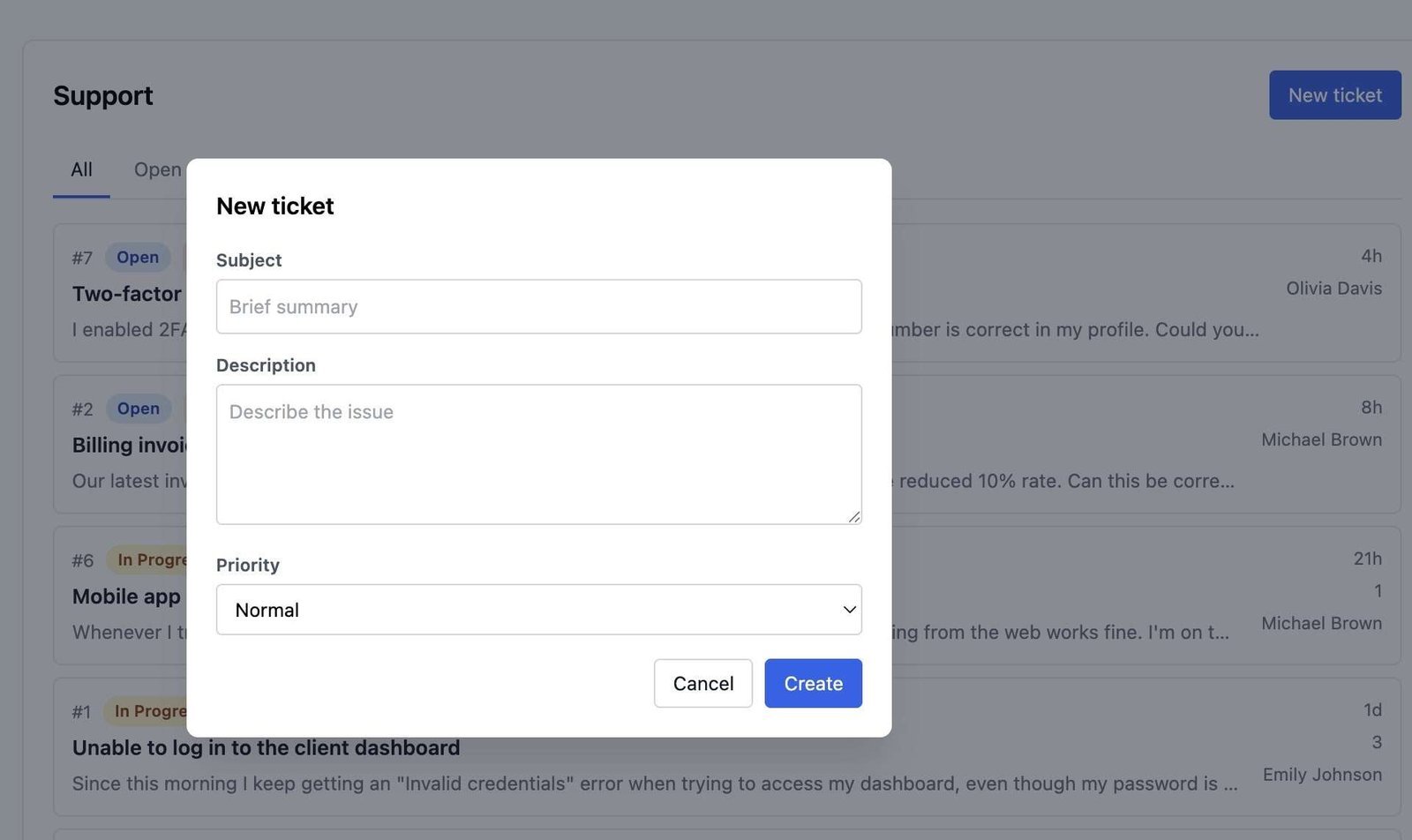
Because it’s self-hosted, every ticket, attachment, and customer email lives in your own WordPress database, not on a third-party server you’re trusting with customer conversations. That matters for GDPR-conscious teams and for anyone tired of per-agent SaaS pricing eating into margins.
What makes it distinct from a standalone ticket plugin is the integration layer: tickets sit in the same dashboard as your Kanban boards, time tracking, and client portal, so an agent can see a client’s open project tasks while replying to their support request. Setup, per the brand’s own documentation, takes under five minutes to get the core plugin running, which is worth testing yourself against the setup walkthrough above before deciding it fits your workflow.
When I Recommend Self-Hosted Ticketing
Self-hosted ticketing makes the most sense for agencies and small teams that already run other parts of their business on WordPress. If you’re managing client projects, invoices, and now support requests across three different platforms, consolidating into one self-hosted stack removes a real daily friction, not a theoretical one.
The tradeoff is honest: you take on light maintenance duties, backups, and the occasional plugin update, in exchange for skipping monthly per-agent fees indefinitely. If your team has someone comfortable with basic WordPress upkeep, that trade almost always favors self-hosting within the first year.
Quick next step: install a plugin, send yourself a test ticket, and see how the reply-by-email loop actually feels before you commit further.
— Antonio
Get Your Support Portal Running Without the Subscription
GrowthSupport is the self-hosted alternative to per-agent help desk subscriptions: no monthly fee per agent, no ticket data sitting on someone else’s server, and no separate login for support while your project boards and client portal live somewhere else entirely.

GrowthSupport covers the checklist this article just walked through: a frontend support portal via shortcode, guest ticket access with secure magic links, department routing, canned responses, and reporting on response times and agent load, all stored in your own WordPress database. Because it’s part of the broader GrowthPlugins suite, tickets sit right next to your Kanban boards and time tracking, so an agent replying to a client can see their open tasks without switching tools. If you’re also weighing whether to consolidate your broader project management off a subscription platform, the ClickUp alternatives for WordPress self-hosting breakdown is worth a look.
Set up your ticket portal on the GrowthSupport product page and have a working support flow live before your next customer email comes in.
Sources
- How to Create WordPress Support Ticket System (Jotform blog)
- Escalated — Support tickets, built into your app
FAQ
What Is the Best WordPress Ticket Plugin for My Site?
It depends on your team size and volume: a solo site needs only a lightweight contact form, a small team benefits most from a self-hosted help desk plugin like GrowthSupport, and agencies handling high ticket volume need SLA tracking and automated routing on top of that.
How Do I Submit a WordPress Premium Support Ticket?
Premium plugin vendors and WordPress.org premium extensions typically require you to log into your account on the vendor’s site and submit a ticket through their dedicated support portal, separate from your own site’s ticket system.
Does WordPress Offer 24-Hour Support?
WordPress.org itself is a free, community-supported open-source project with no official support line; premium plugin and hosting vendors set their own support hours and response time commitments, which vary by provider.
Can I Sell Tickets Through WordPress?
Yes, but that refers to event ticketing (concerts, workshops, admission passes) using plugins built for e-commerce ticket sales, which is a different system entirely from a customer support ticket plugin used to manage help requests.
Should I Choose a Custom Table or wp_posts-Based Ticket Plugin?
Choose a plugin built on custom database tables if you expect meaningful volume, since custom tables keep the WordPress admin responsive as ticket counts grow, while wp_posts-based plugins tend to slow down at scale according to community performance discussion.