You can run a complete client approval workflow inside WordPress right now, using self-hosted review links, role-based permissions, and timestamped audit logs, without paying for a SaaS tool or asking clients to create accounts. Here is the short roadmap: plan your approval states and roles first, pick self-hosted WordPress tooling, configure your audit trail and notifications, then enforce acceptance criteria to keep rounds finite.
The sections below cover each of those steps in order: workflow planning, roles and access, plugin configuration, audit trail setup, client-facing UX, a Growthplugins implementation walkthrough, troubleshooting, and an FAQ.
- Plan states and roles before touching any plugin.
- Choose self-hosted tooling that keeps data on your server.
- Configure audit logging and notifications from day one.

GrowthProjects: A WordPress Project Manager Plugin
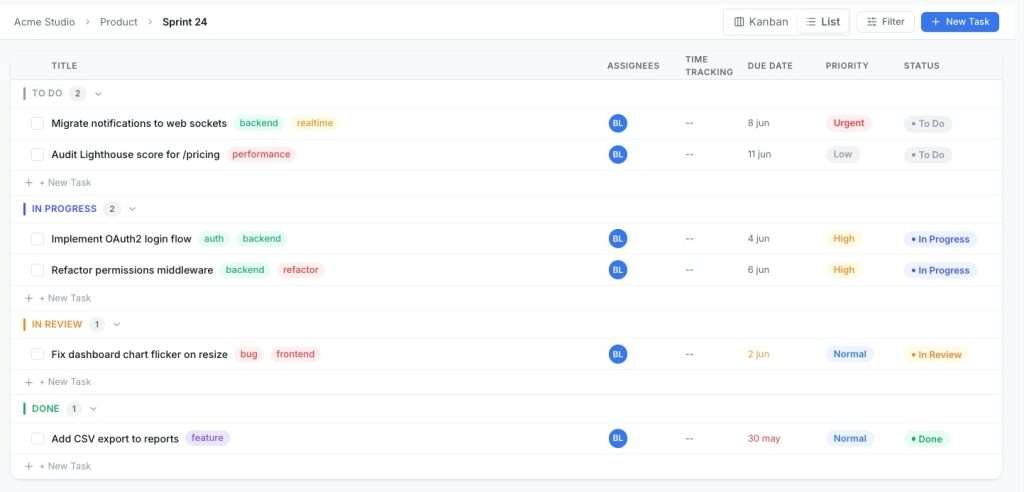
Self-hosted project management (Kanban, tasks, time tracking) for WordPress. Read the technical documentation →
Key Takeaways
A reliable WordPress client approval workflow requires defined states, no-login review links, a timestamped audit trail, and role-based access controls configured before the first client round.
| Point | Details |
|---|---|
| Define states before plugins | Map Draft → Pending → Changes Requested → Approved → Published before touching any plugin. |
| No-login links reduce delays | Removing the account requirement is the single biggest driver of faster client responses. |
| Audit trail fields matter | Log timestamp, IP, email, content SHA256 hash, and page URL to make every sign-off defensible. |
| Limit review rounds | Cap rounds at two per deliverable in your SOW; treat additional rounds as change orders. |
| Growthplugins self-hosted setup | Growthplugins provides client portals, review links, role-based approvals, and exportable logs on your own WordPress server with no subscription fee. |
Table of Contents
- How do you plan client approvals in WordPress before installing anything?
- How do you set up client roles and no-login review access?
- What features and configuration does a solid approval plugin need?
- What should you record in the approval audit trail?
- How do you make the review experience easy enough that clients actually respond?
- How to implement this with Growthplugins on your WordPress site
- Troubleshooting stalled approvals, disputed sign-offs, and permission leaks
- Why Growthplugins recommends self-hosted approvals for agencies
- Growthplugins gives you a ready-built, self-hosted approval workflow
- Useful links and docs
- Sources
- FAQ
How do you plan client approvals in WordPress before installing anything?
Getting the workflow right on paper saves hours of plugin reconfiguration later. Start with a minimal set of approval states that map directly to actions:
- Draft: content is being built; no client visibility yet.
- Pending Review: deliverable is ready; client or approver is notified.
- Changes Requested: client has left feedback; author revises.
- Approved: client has formally signed off; content is locked.
- Published: approved content is live.
Five states cover the vast majority of agency projects. Adding more creates confusion about who acts next.
Common deliverables that need sign-off include pages and posts, design comps, proposals, invoices, and template layouts. Assign a responsible role to each: a copywriter moves content to Pending Review; a client or designated approver acts on it; an admin publishes after approval. Keeping those three roles distinct prevents the situation where a client accidentally publishes a draft.
Scope creep almost always enters through unlimited review rounds. Set a maximum of two rounds per deliverable in your statement of work, define acceptance criteria on each request (“approve the copy as written or request specific changes”), and treat anything beyond round two as a change order. That boundary protects your timeline and gives the approval process teeth.
How do you set up client roles and no-login review access?
Two approaches exist: give clients a WordPress account with a restricted role, or send them a private, expiring review link that requires no account at all. For most client relationships, no-login review links remove the biggest friction point and produce faster, higher-quality feedback.
When you do need a WordPress account for a client, create a custom role rather than assigning a built-in one. Here is the step sequence:
- Create the role. Use a role-management plugin or add it in code. Name it “Approver” or “Client Reviewer.”
- Set capabilities. Grant
readandedit_posts(so they can view drafts). Denypublish_posts,delete_posts, and any admin-panel capabilities. - Assign to users. Attach the role to the client’s account and restrict their view to specific posts or pages using a visibility plugin or custom query.
- Generate a review link (alternative). If using no-login links, generate a token-based URL tied to the specific page and set an expiry of 7–14 days.
- Test the access. Log in as the client role in an incognito window and confirm they cannot reach the admin dashboard, publish content, or view other clients’ work.
Pro Tip: For multi-tier approvals, create separate “Design Approver” and “Final Approver” roles. Design approvers can comment and request changes; only the Final Approver can trigger the Approved status. This prevents a stakeholder from accidentally signing off before the right person has reviewed.
For multi-site agencies, isolate each client’s review scope to their own workspace or site. Mixing clients in a single role without scope limits is the fastest way to create a permission leak.
What features and configuration does a solid approval plugin need?
Not every WordPress plugin marketed as an approval tool is worth installing. The feature checklist below separates the ones that hold up under real agency use from the ones that break down at the first disputed sign-off.
Feature checklist:
- Page-level approval button (not just a comment thread).
- Expiring private review links with token authentication.
- Role-based approval states (Pending, Changes Requested, Approved).
- Automated email notifications when status changes.
- Pinned visual comments tied to specific page elements.
- Exportable approval logs (CSV or PDF).
- Content snapshot or hash at approval time.
- Safe live editing so staging changes do not affect the public URL.
Plugins like Content Flow Manager integrate with the block editor and trigger email notifications on status transitions. Lightweight options like Content Approval Workflow handle assignment, review initiation, and status columns in the post list without a full portal. For visual pinned comments and no-login review links, Proofment provides threaded replies, CSV export, and an admin dashboard for tracking approval states.
Configuration checklist (numbered for the setup session):
- Enable email notifications for the Pending Review → Approver transition.
- Set token expiry on review links (7 days is a practical default).
- Decide whether approver identity requires email capture, IP logging, or both.
- Enable content hash or snapshot on approval so you have a record of exactly what was signed off.
- Configure a staging environment for review; keep the public site stable until the Approved status triggers a publish action.
- Test the full round on a dev site before rolling it out to a paying client.
One warning: approval plugins that hook into the post status system can conflict with caching plugins and page builders. Always test status transitions with your caching layer active. A cached “Pending Review” page that shows as “Approved” in the admin is a real problem.
What should you record in the approval audit trail?
A timestamped, exportable approval record tied to the specific deliverable is what separates a defensible sign-off from an email thread that says “looks good.” When a client disputes what they approved six months later, the audit trail is your evidence.
| Field | Why it matters |
|---|---|
| Approver name | Identifies who acted |
| Provided email | Ties the action to a contact |
| UTC timestamp | Establishes when approval occurred |
| IP address | Corroborates identity for disputes |
| Browser user agent | Confirms the session was human |
| Content SHA256 hash | Proves the exact version approved |
| Page URL | Links the record to the deliverable |
| Approval note | Captures any conditions or caveats |
| Review round ID | Tracks which iteration was signed off |
Plugins like Meetempo log the timestamp, IP, email, and a SHA256 hash of the content at approval time. That combination is materially stronger than a screenshot or an email confirmation.
Store logs in your WordPress database and export them as CSV or a printable approval certificate after each project milestone. Finance teams often need the certificate to release invoices; project managers need it to close out scope.
Pro Tip: Tell clients upfront that their approval will be logged with a timestamp and IP address. A single sentence in your review request email (“Your approval will be recorded for project records”) handles transparency and keeps you on the right side of GDPR without requiring a formal consent form.
How do you make the review experience easy enough that clients actually respond?
Client friction is the primary reason approval workflows stall. Requiring a client to create a WordPress account, navigate an unfamiliar admin panel, and find the right page to approve is enough to push the response out by days. Removing the account requirement alone dramatically increases response rates.
A practical UX checklist for every review request:
- Send a single review link that opens directly on the page being reviewed, not a dashboard.
- Include a one-paragraph instruction (“Click the blue Approve button at the top right, or use the comment tool to pin feedback to specific sections”).
- Use a single, prominent Approve button rather than a status dropdown.
- Show a “changes highlighted” view when sending a revised draft so clients can see exactly what changed without re-reading everything.
- Set a visible review deadline in the email subject line (“Review requested by Friday, March 14”).
- Limit the round to two rounds of feedback before triggering a change order conversation.
Simple Commenter captures viewport size, browser, and OS with each pinned comment automatically. That metadata cuts the back-and-forth on “I don’t see what you’re describing” by giving developers the exact context they need to reproduce the issue.
Bundle related changes into a single review round rather than sending three separate links for three small updates. Each link you send is another decision the client has to make about when to look at it.
How to implement this with Growthplugins on your WordPress site
Growthplugins provides a self-hosted client portal and workflow modules that cover the full feature checklist above, all running on your own server with no monthly subscription. Here is the setup sequence:
- Install the relevant Growthplugins modules. The client portal and project management components are the starting point. Install via the WordPress plugin screen or upload the zip from your Growthplugins account.
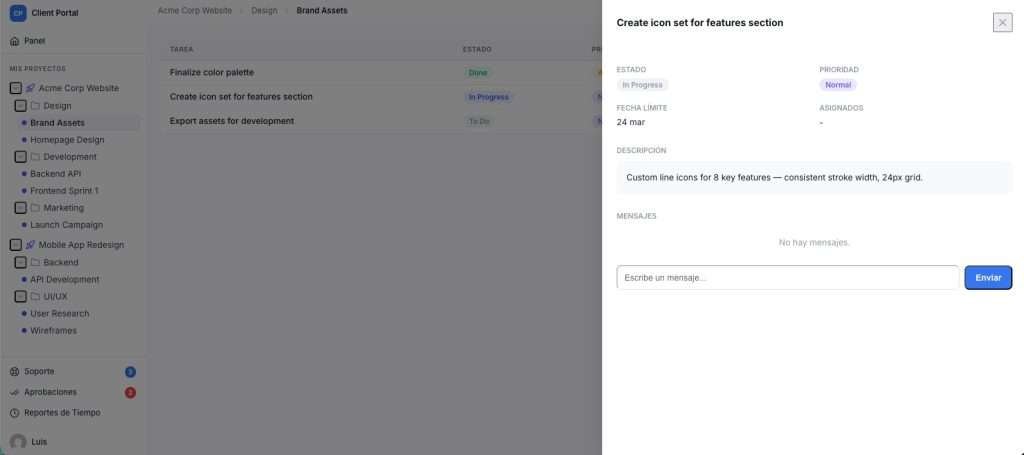
- Create workspaces or client accounts. Set up a workspace per client or project. Assign the client a portal account or generate a private review link from the portal settings.
- Customize the client portal page. Set the portal page in Growthplugins settings, apply your branding, and confirm the client sees only their own project deliverables.
- Enable review links or Approver roles. Choose no-login review links for low-friction sign-offs, or assign the Approver role to clients who need ongoing access. Configure token expiry and scope to specific pages.
- Configure notifications and audit logging. Set email notification templates for each status transition. Enable audit log export in the settings panel so approval records are available as CSV.
- Test on staging. Run a complete mock approval round: submit a deliverable, send the review link, approve it as the client, and verify the audit log captures the timestamp, IP, and content hash.
Configuration checklist for Growthplugins:
- Portal page assigned and visible only to authenticated clients or link holders.
- File storage permissions set so clients can view but not delete project files.
- Notification templates customized with project name and deadline.
- Approval log export enabled and tested before the first live client round.
For agencies migrating from SaaS review tools, Growthplugins publishes step-by-step migration guidance covering how to move existing projects and client data to a self-hosted setup without losing history. The client portal best practices guide covers portal page configuration in detail.
Troubleshooting stalled approvals, disputed sign-offs, and permission leaks
Stalled approvals happen when clients do not respond within the review window. Fix: add an automated reminder email at 48 hours and a second at 72 hours. Include the deadline in the subject line of both. If the client still has not responded after the deadline, your SOW should specify that silence equals approval or that the project timeline shifts accordingly.
Disputed sign-offs are the most expensive problem in client work. When a client claims they never approved a version, pull the audit log: the content hash, timestamp, and IP address show exactly what was approved and when. Export the record as a PDF and attach it to your response. That combination is far harder to dispute than an email chain.
- Use content snapshots so you can show the client a side-by-side of what they approved versus what they are now requesting.
- Keep exportable approval certificates for every milestone, not just the final sign-off.
Permission leaks occur when a client role has more capability than intended. Audit user roles quarterly. Never grant publish_posts to an Approver role; that single capability lets a client push content live without your review. Use a role-auditing plugin to scan for unexpected capabilities after any plugin update, since some plugins reset or modify role capabilities on activation.
Round management: when a client requests changes after an Approved status, reopen the round formally rather than making silent edits. Create a new review round ID, log it in the audit trail, and update your SOW or invoice to reflect whether the additional round falls within scope. Keeping round history in the audit log protects you if a billing dispute arises later.
Why Growthplugins recommends self-hosted approvals for agencies
Keeping approvals inside WordPress is not just a technical preference. Every approval record, client comment, and audit log stays on your server, not on a third-party platform that can change its pricing, go offline, or expose your client data in a breach. Agencies that keep feedback and approvals inside WordPress reduce context switching and retain full data ownership, which matters when clients ask where their project data lives.
The recurring cost argument is straightforward: SaaS review tools typically charge per seat or per project, and those fees compound over a full client roster. A one-time plugin purchase eliminates that line item permanently. Growthplugins integrates approval workflows with Kanban boards, time tracking, invoicing, and a support ticket system in a single WordPress dashboard, so the approval record lives in the same place as the task, the invoice, and the client communication. That is a genuine operational advantage over stitching together separate tools.
Growthplugins gives you a ready-built, self-hosted approval workflow
Most agencies spend more time managing their review tools than actually running reviews. Growthplugins changes that by putting client portals, no-login review links, role-based approvals, and exportable audit logs directly on your WordPress site, with no subscription and no data leaving your server.
Three things it handles out of the box that the feature checklist above requires: private review links with token expiry, timestamped approval logs exportable as CSV, and role-based access that keeps clients out of the admin panel. The entire setup takes under five minutes per client project.
If you are currently paying monthly for a SaaS review tool, replacing it with Growthplugins cuts that recurring cost to zero. For agencies that want to centralize approvals with project management, the project collaboration use-case page shows exactly how the modules connect. Browse the full plugin suite and install the client portal module today.
Useful links and docs
- WordPress roles and capabilities reference — authoritative source for capability names when creating custom Approver roles.
- Creating a Comprehensive Client Portal in WordPress — Growthplugins portal configuration guide.
- Optimizing WordPress for Project Collaboration — connecting approval workflows with tasks, boards, and notifications inside Growthplugins.
Sources
- Client Approval Software: Get Website Sign-Off That Sticks
FAQ
What is client approval in a WordPress context?
Client approval is a formal sign-off process where a client reviews a specific deliverable (a page, design comp, or invoice) and records their acceptance. In WordPress, this is handled through approval status fields, review links, or portal buttons rather than informal email replies.
Who can approve content in WordPress by default?
By default, WordPress assigns the publish_posts capability to Editors and Administrators, which is not appropriate for clients. A custom Approver role with only read and edit_posts capabilities keeps clients in the review lane without giving them publish access.
Do clients need a WordPress account to approve pages?
No. No-login review links let clients approve or comment on a specific page using only a token-based URL, with no account required. This approach produces faster responses and is the recommended default for most agency-client relationships.
Why are agencies moving away from SaaS review tools?
Recurring per-seat fees, data stored on third-party servers, and context switching between platforms are the main drivers. Self-hosted WordPress plugins like Growthplugins eliminate subscription costs and keep all approval records on the agency’s own server.
How do you handle a disputed client sign-off?
Pull the audit log for the relevant review round: the content hash, UTC timestamp, IP address, and approver email show exactly what version was approved and when. Export the record as a CSV or printable certificate and attach it to your response to the client.