The fastest way to replace ClickUp without handing your project data to a third-party server is a self-hosted WordPress plugin. For most WordPress-hosted teams, Growthplugins is the recommended pick: it bundles Kanban boards, time tracking, a client portal, support tickets, and a sales CRM into one dashboard, all running on your own server, with a one-time license and no monthly fees.
Here’s the shortlist of the best self-hosted ClickUp alternatives for WordPress:
- Growthplugins — Best for WordPress teams that want an all-in-one replacement (Kanban, time tracking, client portal, CRM, invoicing) with full data ownership and GDPR compliance out of the box.
- WP Project Manager (weDevs) — Best for teams that need a structured task and milestone workflow with a familiar interface and a free tier to start.
- UpStream — Best for client-facing project tracking where the client needs a front-end view of milestones and files without a WordPress login.
- Kanban for WordPress — Best for small teams or solo operators who need a visual board and nothing else; minimal setup, minimal overhead.
- Project Panorama — Best for agencies that need visual project-progress pages for clients, with a focus on presentation over task granularity.
Pro Tip: Before committing to any paid license, install the free GrowthPulse plugin on a staging site. It gives you Kanban and a timer at no cost, so you can validate the workflow before spending anything.
Reviewers consistently find that matching the tool to the features your team actually uses produces faster adoption than picking the most feature-rich option. Start with your shortlist, run a two-week pilot, and cut from there.

GrowthBalance
Track time, income and expenses for every project and side-project you run — 100 % front-end, self-hosted inside WordPress. No SaaS subscription, no per-seat fees.
Table of Contents
- How do these self-hosted plugins compare side by side?
- How do you choose the right self-hosted plugin for your team?
- Which ClickUp features do WordPress plugins actually cover?
- What does your hosting setup need to look like?
- How do you migrate from ClickUp to a WordPress plugin?
- Self-hosted WordPress plugins vs. ClickUp SaaS: what are the real tradeoffs?
- Key Takeaways
- Why self-hosting wins for some teams and loses for others
- Growthplugins: the self-hosted WordPress replacement worth trying first
- FAQ
How do these self-hosted plugins compare side by side?
| Plugin | Core Features | Data Ownership | Pricing | Setup Ease | WP Compatibility | Team Size | Support | GDPR Posture |
|---|---|---|---|---|---|---|---|---|
| Growthplugins | Kanban, tasks, time tracking, client portal, CRM, invoicing, knowledge base, monitoring | Full — your server | One-time license | Under 5 min | Native WP roles, REST API | Solo to agency | Docs + updates | GDPR-ready by design |
| WP Project Manager | Tasks, milestones, Gantt, time log, file sharing | Full — your server | Free tier + paid | 15–30 min | WooCommerce, Slack | Small to mid | Forum + docs | Self-hosted |
| UpStream | Projects, milestones, bugs, front-end client view | Full — your server | Free + premium | 20–40 min | WP themes, shortcodes | Small teams | Docs | Self-hosted |
| Kanban for WordPress | Visual board, cards, drag-and-drop | Full — your server | Free + paid | Under 10 min | Basic WP | Solo to small | Community | Self-hosted |
| Project Panorama | Visual progress, phases, client portal | Full — your server | One-time license | 20–30 min | WP themes | Agencies | Docs | Self-hosted |
Every plugin in this table stores data in your WordPress database. None of them phone home to a SaaS server for core functionality. That’s the structural difference from ClickUp, which stores everything on its own infrastructure.
Pro Tip: Check each plugin’s WordPress.org listing for active install count, the date of the last update, and whether the changelog shows regular maintenance. A plugin last updated over 12 months ago is a risk, regardless of its feature list. Always validate plugin health before purchasing.
How do you choose the right self-hosted plugin for your team?
Start by mapping what your team actually uses in ClickUp. Most teams use fewer than half of ClickUp’s features day-to-day, and ClickUp’s breadth is frequently cited as a source of unnecessary complexity rather than a benefit.
Decision checklist:
- Scope your must-haves. List the ClickUp features your team uses weekly: tasks, Kanban, docs, time tracking, client portal, automations. Mark each as must-have or nice-to-have.
- Confirm data residency. Verify the plugin stores all data in your WordPress database with no external API dependency for core features.
- Check hosting requirements. Most plugins need PHP 7.4+ and MySQL 5.6+. If you’re on shared hosting, confirm your plan supports the expected database size for your team.
- Review update cadence. A plugin updated within the last 90 days and with a public changelog is a reasonable signal of active maintenance.
- Test import/export. Ask whether the plugin accepts CSV imports and exports. No import docs is a red flag.
- Calculate total cost of ownership. Add the license fee, hosting cost, and a realistic estimate of maintenance hours per month. Self-hosting is cheaper than SaaS at scale, but it’s not zero-cost.
- Run a staging pilot. Install on a staging site, import a sample CSV from ClickUp, and run your team’s core workflow before going live.
Red flags to walk away from: an abandoned plugin with no updates in over a year, large volumes of unresolved support threads, no documentation for imports, or a plugin that requires a third-party SaaS account to function.
Pro Tip: Send a pre-sales support question before buying. Response time and quality tell you more about long-term support than any marketing page.
Which ClickUp features do WordPress plugins actually cover?
ClickUp bundles tasks, docs, whiteboards, goals, chat, time tracking, and dashboards into one platform. WordPress plugins cover some of that well and leave other parts thin.
| ClickUp Feature | Availability in WP Plugins |
|---|---|
| Tasks (title, description, assignee, due date) | Full |
| Kanban / board view | Full |
| List view | Full |
| Time tracking | Full (Growthplugins, WP Project Manager) |
| Client portal | Full (Growthplugins, Project Panorama, UpStream) |
| Docs / wiki | Partial — pair with a WP docs plugin |
| Dashboards / reporting | Partial — basic in most; stronger in Growthplugins |
| Goals / OKRs | Limited — rarely native |
| Automations | Limited — use WP hooks, REST API, or Zapier |
| In-app chat | Absent — use a collaboration tool alongside |
| Whiteboards | Absent — embed a third-party tool |
| Portfolio / enterprise reporting | Absent in most WP plugins |
The gaps that matter most in practice are automations, in-app chat, and whiteboards. For automations, WP hooks and Zapier webhooks cover the most common triggers. For chat, a lightweight tool integrated via embed handles the gap without adding another SaaS subscription. Whiteboards are rarely needed by the teams most likely to self-host.
What does your hosting setup need to look like?
Minimum requirements: WordPress 5.8+, PHP 7.4+ (8.0+ recommended), MySQL 5.6+ or MariaDB 10.1+. For teams over 10 users, a managed WordPress host or VPS with at least 2GB RAM is a practical baseline.
Deployment checklist:
- Enable SSL on your domain before installing any project-management plugin.
- Set up automated daily backups with off-site storage (a separate cloud bucket, not just the same server).
- Run a test restore from backup at least once before going live.
- Apply WordPress hardening basics: limit login attempts, use two-factor authentication for admin accounts, keep all plugins updated.
- Install a Web Application Firewall (WAF) — Cloudflare’s free tier or a plugin-level WAF both work.
- Assign WordPress roles with least-privilege: clients get Subscriber or a custom role, not Editor.
Expected timeline: staging install takes 15–60 minutes; a sample import test runs 30–120 minutes depending on data volume; customizing roles and workflows takes 1–3 days; full team adoption typically lands within two weeks. The SaaS replacement guide from Growthplugins walks through the full setup sequence.
Pro Tip: Use a staging-to-production migration plugin (WP Migrate or similar) and run a post-migration checklist that verifies user roles, file attachments, and active timers before switching DNS.
How do you migrate from ClickUp to a WordPress plugin?
- Export from ClickUp. Go to Settings > Import/Export and download tasks as CSV. Export docs as PDF or HTML. Note that ClickUp’s CSV includes title, description, assignee, due date, and status — those fields transfer cleanly.
- Map columns. Open the CSV and rename columns to match your target plugin’s import template. Most WP plugins expect a standard set: task name, description, assigned user email, due date, status.
- Test on staging. Import the mapped CSV into your staging install. Check that assignees resolve correctly and that due dates parse without errors.
- Reconcile users. Create WordPress user accounts for each team member before importing. Assignee matching fails if the email in the CSV doesn’t match a WP user.
- Verify attachments. File attachments do not transfer via CSV. Download them from ClickUp and re-upload manually or via the plugin’s media importer if one exists.
- Rebuild automations. Recurring tasks and rule-based automations require manual recreation. Prioritize the five most-used automations first; rebuild the rest over the first two weeks.
- Go live. Switch your team to the production site, archive the ClickUp workspace, and set a 30-day review checkpoint.
Complex automations, threaded comments tied to specific objects, and native whiteboard content won’t transfer cleanly. Set that expectation with your team before migration day.
Self-hosted WordPress plugins vs. ClickUp SaaS: what are the real tradeoffs?
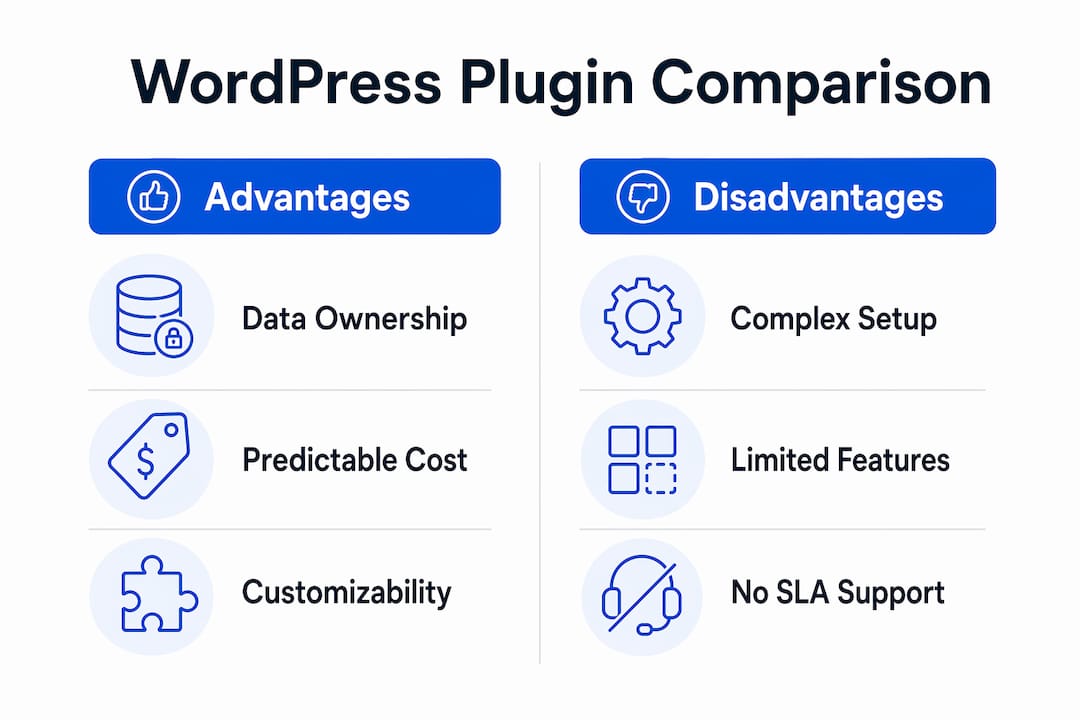
Advantages of self-hosting:
- Full data ownership — project data never leaves your server.
- Predictable cost — one-time license plus hosting, no per-seat monthly fees that compound as the team grows.
- WordPress-native — integrates directly with your existing WP themes, user roles, and plugins.
- No vendor lock-in on core data; your database is yours.
Disadvantages of self-hosting:
- You own updates, backups, and security. A missed update is your problem, not a vendor’s SLA.
- Smaller ecosystem of ready-made automations compared to ClickUp’s native rules engine.
- Enterprise-grade portfolio reporting and live collaboration features (whiteboards, real-time co-editing) are largely absent.
- Uptime depends on your host, not a dedicated infrastructure team.
Frequent app-switching is a real productivity cost. Embedding project tracking directly in WordPress, where your team already manages content and client work, removes at least one context switch from the daily workflow. That’s the practical case for self-hosting, not just the privacy argument.
For teams that need guaranteed uptime SLAs, enterprise portfolio analytics, or advanced built-in collaboration, a SaaS tool remains the more practical choice. Self-hosting wins when data control, cost predictability, and WordPress integration matter more than those enterprise features.
Key Takeaways
Self-hosted WordPress plugins are the right ClickUp alternative for teams that prioritize data ownership, predictable costs, and tight WordPress integration over enterprise SLAs and advanced built-in collaboration.
| Point | Details |
|---|---|
| Match features to actual use | List the ClickUp features your team uses weekly; most teams need fewer than half of ClickUp’s full feature set. |
| Self-hosting shifts responsibility | You own updates, backups, and security — factor in maintenance hours when calculating total cost of ownership. |
| Feature gaps to plan for | In-app chat, whiteboards, and advanced automations are absent or limited in most WP plugins; plan workarounds before migrating. |
| Migration is manageable | Tasks with title, description, assignee, and due date transfer via CSV; automations and attachments require manual work. |
| Growthplugins is the recommended pick | For WordPress teams wanting Kanban, time tracking, a client portal, and one-time licensing, Growthplugins covers the most ground with the fastest setup. |
Why self-hosting wins for some teams and loses for others
The conventional wisdom in PM tool comparisons is that more features equal more value. That framing consistently misleads WordPress teams evaluating ClickUp alternatives. The teams that get the most out of self-hosted plugins aren’t the ones chasing feature parity with ClickUp — they’re the ones who’ve already decided that data residency and cost predictability matter more than a native whiteboard or a built-in AI assistant.
Where self-hosting genuinely wins: agencies and freelancers who manage client projects inside WordPress, where the alternative is paying per-seat SaaS fees that scale with every new client relationship. Keeping project data in the same database as the client’s site isn’t just a privacy argument — it simplifies access control, reduces the number of tools in the stack, and makes offboarding a client a single database operation rather than a multi-platform cleanup.
Where it loses: teams that need guaranteed uptime with a vendor-backed SLA, or that rely heavily on ClickUp’s cross-project portfolio views and real-time co-editing. Those features don’t have clean equivalents in the current WordPress plugin ecosystem, and pretending otherwise wastes migration time.
The honest recommendation is this: if your team lives in WordPress and your primary concern is where your data lives and what it costs per year, Growthplugins is the most complete self-hosted option available. If your team needs enterprise reporting or a vendor to call when something breaks at 2 AM, stay on SaaS and optimize the cost there instead.
Growthplugins: the self-hosted WordPress replacement worth trying first
Paying monthly per-seat fees for a project management tool your team uses inside a WordPress environment is a cost that compounds without adding proportional value. Growthplugins replaces that recurring expense with a one-time license that covers Kanban boards, time tracking, a client portal, support tickets, a sales CRM, and invoicing — all running on your server, with your data, under your control.
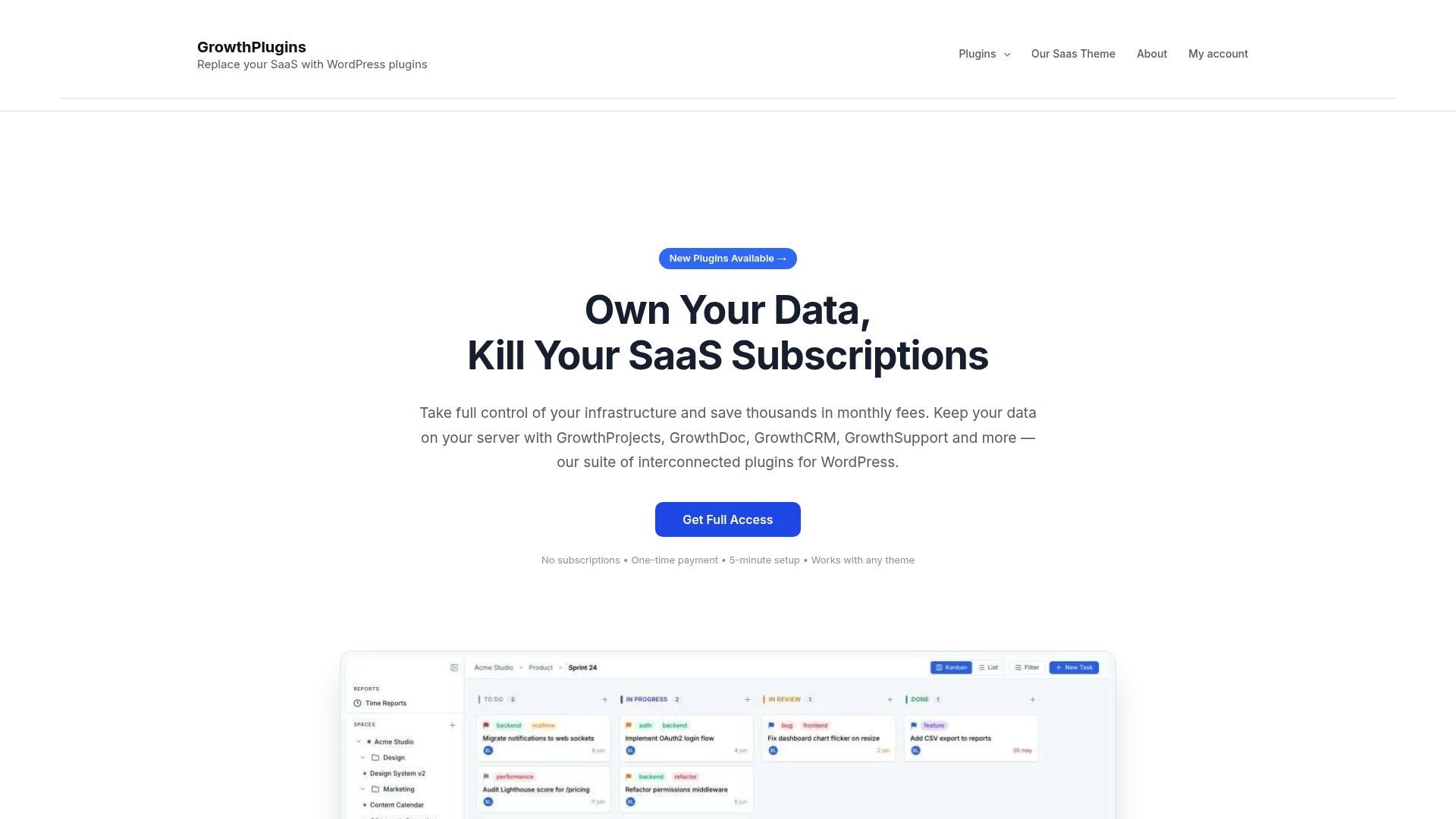
Setup is quick and can be completed in just a few minutes. GDPR compliance is structural, not a checkbox. And because everything runs inside WordPress, your existing user roles, themes, and plugins keep working without reconfiguration. The WordPress project collaboration guide walks through the full integration process if you want a step-by-step path from install to first productive use. Test it on a staging site first, import a sample CSV from ClickUp, and see how the workflow fits before committing.
FAQ
What is the best self-hosted ClickUp alternative for WordPress?
Growthplugins is the most complete self-hosted option for WordPress teams, covering Kanban, time tracking, client portal, and CRM in a single one-time-license suite with full data residency on your server.
Which ClickUp features are hardest to replicate in a WordPress plugin?
Collaborative whiteboards, advanced cross-project automations, and built-in in-app chat are rarely available natively in WordPress plugins; plan to use Zapier, WP hooks, or a lightweight collaboration tool to fill those gaps.
How long does it take to migrate from ClickUp to a WordPress plugin?
A basic task migration via CSV typically takes a short time on a staging site; full team adoption, including rebuilding automations and reconciling attachments, usually takes a moderate transition period.
Can I try a self-hosted WordPress project management plugin for free?
Yes. The free GrowthPulse plugin from Growthplugins includes Kanban and a timer, making it a practical no-cost way to test the workflow on a staging site before purchasing a full license.
How do I know if a WordPress project management plugin is actively maintained?
Check the plugin’s WordPress.org listing for active install count, the date of the last update, and whether the changelog shows consistent releases. A plugin updated within the last 90 days with documented changes is a reasonable signal of ongoing support.