Quick answer: Begin a WordPress security audit by confirming which extensions and accounts can affect the site, which versions and update sources they use, whether backups can be restored, and whether sensitive data is protected. Review plugin provenance, active vulnerabilities, least-privilege access, forms, REST endpoints, hosting configuration and incident readiness. Treat an automated security score as an input, not proof that the website is safe.
This U.S.-focused wordpress security audit is written for site owners and agencies maintaining practical business websites. The article concentrates on plugin-related exposure within the wider WordPress environment, rather than ranking security vendors or teaching exploit techniques. It explains how to collect evidence, prioritize fixes and document responsibilities without making unsupported claims that any one plugin guarantees protection.
If your immediate task is updating software, see our safe WordPress plugin update guide. For choosing trustworthy extensions before installation, see how to install a WordPress plugin. This review focuses on the controls that should be checked across the existing site, with clear ownership of risks and follow-up actions.
Plan a maintainable WordPress business stack. Review self-hosted business plugins with documented requirements and test data access before connecting them to customer workflows.
1. Define the scope and business risk
Start with the services that depend on the site: publishing, leads, bookings, payments, customer portals, documentation and internal tasks. A website that holds public blog posts has different exposure than a membership portal storing private client documents. Write down which records are sensitive, who should access them and what business activity would be interrupted by an incident. This determines the depth of the audit.
A meaningful wordpress security audit does not begin by installing every scanner available. It begins with an asset and data inventory, a named owner for each critical control and a way to verify findings. If the site uses external payment or CRM services, identify the boundaries between WordPress and those providers without assuming that WordPress alone can secure an entire integration.
2. Record WordPress, PHP and hosting versions
Document the active WordPress release, PHP version, server environment, database configuration, current theme and major hosting protections. Check the supported platform requirements and whether the host applies security updates automatically. A plugin may be current while the server runtime or another dependency is outdated. Risk belongs to the whole system, not just a WordPress dashboard notification.
The WordPress Site Health screen exposes useful configuration information for administrators. Export details only to approved destinations because reports can reveal internal software versions and environment information. A wordpress security audit should compare actual versions with current authoritative support guidance rather than an old recommendation copied from a blog.
3. Inventory active and inactive plugins
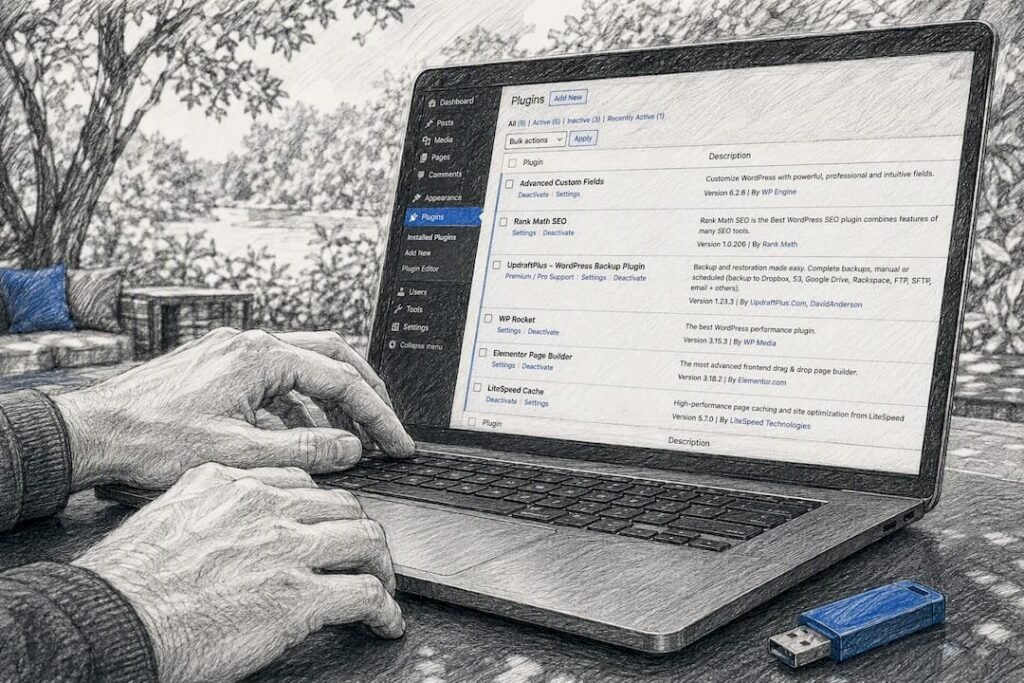
Use Plugins → Installed Plugins to capture names, installed versions, update availability, activation state, business purpose and license or source. Inactive plugins may still contain files on the server and require review, but they do not exercise the same runtime behavior as active extensions. Mark anything that no one owns, no longer serves a feature or originates from a questionable source.
Do not remove unfamiliar plugins during the first pass, especially when they may handle security, backups or account access. Ask the site owner or developer what each extension does and whether stored content depends on it. The inventory should lead to controlled decisions: retain and update, replace, deactivate safely or investigate. This is an operational control, not a plugin-count competition.
4. Verify the provenance of plugin packages
A trustworthy source is important because an extension executes code within the WordPress environment. Prefer the official WordPress repository, the original vendor’s secure distribution or your organization’s approved release artifacts. Avoid unauthorized mirrors and suspicious bundles. Check whether updates are supported, whether the developer publishes meaningful release notes and whether the installation has access to required patches.
An organized wordpress security audit records where a critical package came from, how future updates arrive and who can verify the artifact. Premium plugins may use authenticated update endpoints, so license status is part of maintenance readiness. Do not interpret a lack of a visible update notice as proof that a paid extension is current.
5. Check for known vulnerabilities and advisories
Compare installed component versions against credible vulnerability and vendor advisory sources. An advisory may describe affected versions, a corrected release and whether exploitation requires a particular configuration. Confirm that the vulnerable component is actually installed and whether the published conditions apply before escalating. Treat automated scanner findings as starting points for verification.
Prioritize vulnerabilities that are exploitable remotely, affect unauthenticated users, expose private data or enable unauthorized changes. The presence of a high-severity advisory can justify an urgent maintenance action, but the chosen fix still needs backup and verification. For a wordpress security audit, document the affected component, evidence, owner, remediation and date checked; do not merely copy a scary headline.
6. Review the update and patch policy
Keeping WordPress, plugins and themes patched is an important preventive control. Decide how often updates are reviewed and how urgent advisories are handled outside routine maintenance windows. Automatic updates may be appropriate for some components when monitoring and recovery are reliable; critical integrations may need coordinated staging tests. The correct policy reflects actual risk and recovery capabilities.
The official WordPress plugin and theme auto-updates guide explains per-plugin controls and notifications. A wordpress security audit should verify that alerts reach a responsible person and that updates actually run, not just that a setting is enabled. A silent automation failure does not protect a website.
7. Verify that backups are recoverable
A backup is a security control only when the needed files and database information are included, accessible and restorable within the business’s recovery limits. Check who controls the storage, whether copies are protected independently of the live WordPress site and when restoration was last tested. Consider what data may be lost if the site receives transactions between snapshots.
For a store or customer portal, recovery should preserve new orders, messages and account changes where practical. Never assume an old database can be restored over live records without data reconciliation. During a wordpress security audit, record the recovery time objective, acceptable data loss and the person authorized to restore service. If those have never been defined, flag them as open decisions.
8. Inspect administrator and service accounts
Review accounts with administrative capability and verify that each belongs to a current authorized person or integration. Remove or disable access through an approved offboarding process when an employee or contractor no longer needs it. Avoid sharing a single administrator login among teams because that makes incident attribution and access revocation difficult.
Use multi-factor authentication where the chosen identity solution supports it and protect recovery factors. Limit high-privilege accounts to people who need them. A practical wordpress security audit tests least privilege: an editor should not be able to change security settings, and a customer should not be able to read another customer’s private records through an API route.
9. Review roles, capabilities and ownership boundaries
Plugins may register custom roles or capabilities to manage documents, tickets, CRM records or projects. A user interface hiding a button does not guarantee server-side restrictions. Test a representative account in each role and verify that protected actions are rejected when attempted through direct URLs or relevant REST requests. Use synthetic records rather than real customer data.
The WordPress Plugin Security Handbook emphasizes checking capabilities, validating input and escaping output. Refer to the official security section for platform guidance. A wordpress security audit should distinguish authentication from authorization: knowing who a user is does not mean that user may see a particular document.
10. Test forms and input handling defensively
Contact forms, registration pages, uploads and custom admin settings accept input from users and external systems. Verify that required fields are validated on the server, unexpected values are rejected safely and visible error messages do not leak stack traces or internal details. Check that file uploads, if supported, use appropriate size and type restrictions and authorized destinations.
Do not treat an anti-spam checkbox or a nonce as a complete security design. Form workflows also need role checks and safe storage of personal data. A useful wordpress security audit includes successful and rejected submissions and verifies that invalid records are not silently accepted. Log enough to diagnose failures without collecting unnecessary private values.
11. Check REST API and third-party integrations
WordPress’s REST API can expose public information and support authenticated changes. Each sensitive custom endpoint should enforce a suitable permissions callback and validate incoming data. Test that unauthorized requests cannot read protected objects or modify business state. Check integrations for appropriately scoped tokens, safe error responses and clear owners.
Review which services receive customer data and why. If an integration is no longer in use, revoke credentials through the approved process rather than leaving an unattended connection active. Consult the WordPress REST API Handbook for supported patterns. A wordpress security audit should examine actual data flows, not simply whether an API URL returns a response.
12. Review file and database access paths
Confirm that sensitive configuration and backups are not publicly downloadable and that filesystem permissions follow hosting guidance. Avoid granting broad write access to every process as a workaround for update failures. Inspect which accounts can access database management, hosting control panels and deployment secrets. The website’s WordPress permissions are only one part of the operating environment.
If custom code performs database operations, verify that it uses safe query construction and access checks. Do not directly edit production database options during an audit without a clear change plan. The first goal is to inventory and identify risk; remediation should be deliberate, testable and reversible where possible.
13. Keep diagnostic information protected
Verbose debugging can help during development but may reveal details that should not be exposed publicly. Review whether debug messages appear on public pages, whether logs contain secrets or sensitive records, and who can download or view log files. Development-only settings should not silently remain enabled on a live customer website.
The WordPress debugging documentation explains how to use diagnostics safely. For a wordpress security audit, record the exposure category rather than copying credentials or private customer data into the audit document. Escalate confirmed public exposure promptly to the authorized incident owner.
| Area | Audit evidence | Owner |
|---|---|---|
| Plugin provenance | Approved source and version | Site administrator |
| Access control | Role and unauthorized-access tests | Security owner |
| Recovery | Backup restore validation | Operations owner |
| Integrations | Scoped credentials and data map | Service owner |
| Control | Recommended evidence | Failure action |
|---|---|---|
| Administrator access | Approved user list and roles | Review and revoke excess rights |
| Plugin patching | Version and advisory comparison | Prioritize safe remediation |
| Private documents | Unauthorized user receives denial | Contain exposure and investigate |
14. Check media uploads and public directories
WordPress uploads may include images and documents used in public pages, but a business can also store content that should be private. Identify whether a plugin places customer attachments in a publicly accessible location or protects downloads through a permission-controlled endpoint. A hidden URL is not sufficient protection for sensitive records, and a role-based interface may be bypassed if the underlying file remains openly downloadable.
Use synthetic private test documents to verify access boundaries. Do not test against genuine customer files without authorization. A wordpress security audit should distinguish public media deliberately published for visitors from records that require authentication, and verify backups and alternate delivery paths respect those decisions.
15. Look at plugin data retention and deletion behavior
Some extensions store form submissions, logs, transaction metadata, user records or analytics details. Ask what information is necessary, how long it is kept, who can export it and what happens when someone requests deletion under applicable rules. Retaining data forever because a plugin’s default configuration allows it is not a sound policy for every business.
Before uninstalling an extension, verify whether its removal process deletes data or leaves it behind. Data deletion can be irreversible and may affect legal retention obligations. Review the WordPress Plugin Privacy handbook for developer features and capabilities. Assign an owner to the decision rather than assuming a plugin’s privacy page is the whole answer.
16. Evaluate authentication and login protections
Review how administrators and high-risk users authenticate. Where supported, use appropriately configured multifactor authentication, strong account recovery and a process for revoking departed staff access. Consider whether an integration account truly needs administrator privileges or can operate with a narrower scope. Test recovery access before a crisis occurs.
Be careful with lockout rules and recovery settings. A defensive control can become an availability problem if legitimate administrators are blocked without a clear recovery method. For wordpress security audit reporting, record whether the control exists, how it was tested and who can maintain it, not merely whether a dashboard shows a green shield.
17. Review outbound connections and webhooks
Plugins may send information to CRMs, email platforms, analytics tools, payment providers or other services. Document those destinations, the data transferred and how authentication is handled. Check that a webhook is associated with an active business workflow and that obsolete connections have been revoked. If a plugin changes its payload, verify the receiving system does not expose data or create unintended records.
Use a controlled test account to inspect integration behavior. Check failure responses and retry mechanisms for duplicate records, especially in payments and invoices. A thorough wordpress security audit treats third-party connections as part of the trust boundary because data does not stop being sensitive when it leaves WordPress.
18. Check scheduled jobs and background processing
Scheduled tasks can create reports, send notifications or clean up records outside normal user sessions. Review critical WP-Cron jobs, their owners, and whether they expose logs or data to unintended destinations. A job that silently stops can allow expired records or unprocessed security tasks to accumulate. Conversely, a duplicated task may send the same sensitive information several times.
The WordPress WP-Cron Handbook explains the scheduling model. A wordpress security audit should verify outcomes and error handling, not simply the presence of scheduled events. Test integration jobs in a safe environment before changing their execution frequency.
19. Inspect plugin settings for unnecessary exposure
Administrative screens may include settings that change public visibility, access permissions, debugging output or integration behavior. Review high-impact options with the people responsible for the business process. Avoid toggling every control during the audit. Some settings are interdependent, and an apparently safer option can disable required service or expose a different risk.
For example, a documentation plugin may offer public and private content modes. Verify which records are visible to each role and whether public search results expose restricted titles. When changes are necessary, record the approved configuration and test it on staging. Security work should protect intended functionality rather than applying universal settings blindly.
20. Consider server and network protections
Hosting configuration, transport security, backups and access to deployment tools affect the risk profile of a WordPress installation. Verify HTTPS configuration and certificate management, administrative account protections, secure file access and hosting update responsibility. A web application firewall or managed host may help with some threats, but neither replaces plugin maintenance and application authorization.
Do not assume every site needs the same combination of tools. A wordpress security audit should describe which controls are present and how they relate to the site’s risk and maintenance budget. If a service provider owns a control, confirm how incidents and urgent advisories are communicated to the site owner.
21. Test the consequences of plugin deactivation
Sometimes an obsolete extension appears safe to remove, but it may provide the only permission boundary for a customer portal or process private data. Test in staging before deactivating or uninstalling it. Confirm that protected content does not become public and that any dependent features fail safely. Preserve backups and understand the vendor’s data removal policy.
A plugin inventory should lead to cautious consolidation, not impulsive deletion. Reducing unnecessary software can simplify maintenance, but an overbroad change during a security review can introduce new outages or privacy exposure. Use the compatibility review checklist when preparing substantial changes.
22. Assess vulnerabilities with context and prioritization
Not every reported issue has the same likelihood or impact. Determine the affected component and version, whether the vulnerable feature is enabled, what access an attacker would require and what business information could be exposed. Use current vendor or authoritative security advisories rather than relying on an unexplained scanner score. Where necessary, consult qualified security professionals.
For wordpress security audit findings, record severity, exploit preconditions, exposure, owner and remediation date. Avoid claiming a site is completely secure because no current scanner warnings are visible. Automated tools cannot prove the absence of authorization flaws or business-logic weaknesses.
23. Build a remediation plan with owners and due dates
An audit report is most useful when it tells the organization what to do next. Classify findings into urgent actions, planned improvements and items requiring further investigation. Assign a person responsible for each action and a way to verify completion. A plugin with a credible active vulnerability may need prompt patching, while an unused but noncritical feature can be reviewed during routine maintenance.
Record reasons for accepting or deferring risk. If an update must be delayed because of a business-critical dependency, document interim measures and a testing plan. A good wordpress security audit is a decision tool, not merely a list of warnings or automated checks.
24. Establish an incident response and recovery contact
Identify who receives security alerts, who can access hosting controls and who can authorize a recovery action. Define how the team will stop further changes, preserve logs, assess customer impact and communicate with affected people where required. High-risk systems may need professional incident response rather than routine plugin maintenance.
Rehearse recovery access and backups in a nonproduction environment. Avoid storing emergency credentials in ordinary documents or chat threads. The response process should account for business continuity, evidence preservation and protection of sensitive information. If a suspected compromise is underway, do not keep experimenting with production components without appropriate expertise.
25. Check forms, leads and analytics for data exposure
Marketing forms often pass personal information to email systems, CRM platforms and analytics tools. Inspect whether events collect more data than needed and whether consent and form validation work correctly. Avoid sending email addresses, phone numbers or sensitive free-text answers into analytics events when they are not appropriate. Separate the operational need to process a lead from measurement needs.
A wordpress security audit should verify actual data handling with safe test records, including failed submissions and duplicate events. Check that logging does not retain full form payloads unnecessarily. Analytics implementation quality and privacy are connected: an event can be technically accurate while still collecting inappropriate information.
26. Confirm search and indexing do not leak private content
Public search engines and internal WordPress search may index or display information that was not intended to be public. Check document access through direct URLs, category archives, sitemaps and search results. Removing a page from a sitemap or adding noindex is not a substitute for access controls on sensitive data.
For private project or knowledge-base records, confirm server-side authorization on each delivery path. Test with an account that should not see the content. Review whether snippets, image files or downloadable attachments remain accessible. The audit should identify a clear content owner who can approve visibility changes.
27. Review theme and custom code alongside plugins
Theme functions and custom snippets may execute similar code to plugins and can introduce the same security weaknesses. Document who maintains these components, where they are version-controlled and how changes are reviewed. A plugin may depend on a custom hook or template override that becomes unsafe after an update. Do not limit attention to the Plugins screen if the site contains bespoke functionality.
Use the official WordPress development guidance for capabilities, sanitization and output escaping when reviewing custom code. The goal is a maintainable architecture with known owners and an audit trail. A complex custom feature without tests and support can be more difficult to secure than several well-maintained extensions.
28. Recheck controls after important updates
A security review is not a one-time certificate. Plugin updates can change permissions, API behavior or data storage. After significant upgrades, run targeted tests for the controls that matter, particularly user-role isolation, private attachments and integration credentials. Keep the test cases small enough to repeat but meaningful enough to catch material regressions.
Review current advisories and maintenance status on a regular cadence. If a plugin becomes unsupported or repeatedly introduces risk, evaluate a documented replacement and migration path. The WordPress plugin maintenance plan offers a broader framework for managing these checks over time.
| Finding | Priority | Verification |
|---|---|---|
| Known exploitable issue on active service | Urgent | Patch or validated mitigation; retest |
| Unexpected customer data access | Urgent | Negative role and API test |
| Unowned extension with no updates | Investigate promptly | Owner and support status confirmed |
| Unclear backup restoration process | High | Controlled restore test completed |
29. Build an evidence trail without exposing sensitive details
Security reviewers often collect screenshots, inventories, error excerpts and access-test results. These records can themselves reveal information about versions, infrastructure and users. Store them in an approved workspace with appropriate access, use synthetic test accounts, and redact private values before sharing with an external contractor. Record who performed each test, the date and the configuration that was examined so evidence remains useful when the site changes.
Be precise about what was observed. A scanner that did not detect a vulnerability cannot establish that every endpoint is secure. A permission test that passed for one role does not prove every role combination is correct. Mark evidence as observed, inferred or unverified and provide the next test needed to resolve uncertainty. This approach improves decision-making and reduces the risk that an attractive dashboard hides important gaps.
30. Design practical periodic follow-up checks
The most useful audit findings become repeatable maintenance tasks. Record a quarterly role review, a monthly review of inactive extensions, a tested backup restoration cadence and an urgent advisory-response process. Choose frequencies based on business impact and capability rather than copying a universal schedule. Critical systems may need more frequent reviews, while a small public brochure site may follow a simpler routine.
Give each control a clear pass condition and owner. A backup review should confirm restoration rather than merely the presence of an archive. An account review should find who still needs access. An update review should check whether security releases were assessed and, where appropriate, applied. If a check fails, it should create a specific action with a realistic owner, not simply lower an unexplained score. Periodic evidence keeps the security review alive after its initial publication.
Frequently asked questions
How often should I audit WordPress plugin security?
Review current advisories promptly and perform a regular inventory and access review that matches your site’s business risk. After major platform or plugin changes, rerun targeted checks for affected permissions and integrations.
Can a security plugin make WordPress completely secure?
No. Security depends on updates, hosting, accounts, access controls, backups, integrations and operational practices. A security plugin can provide useful controls but does not replace them.
Should I delete all inactive plugins?
Review ownership and dependencies first. Unneeded code should be removed through an approved process, but uninstalling a plugin may remove data or important permissions. Back up and test before deleting.
What is the first thing to check after a vulnerability alert?
Verify whether the affected component and version are installed and whether the advisory applies. Confirm the vendor’s fix or mitigation and prioritize by exposure and business impact.
Are WordPress REST endpoints always unsafe?
No. The REST API is a supported platform capability. Sensitive custom routes require suitable authorization, input validation and careful response handling. Audit actual behavior rather than assuming every route is exposed.
Does noindex protect private documents?
No. A noindex directive is a search-engine indexing hint, not an authentication or authorization control. Private records require server-side access restrictions.
Should I run aggressive penetration tests on production?
Only with proper authorization and a carefully defined scope. Many audit tasks can be completed with inventory review, safe configuration inspection and controlled tests. High-risk active testing belongs with qualified professionals and an approved plan.
What should a security audit report include?
List scope, evidence, verified findings, limitations, risk priority, responsible owner, remediation and retest status. Avoid declaring the website fully secure based on a scanner result alone.
- WordPress Plugin Security Handbook
- WordPress Plugin Review Common Issues
- WordPress Site Health
- Plugin and Theme Auto-Updates
- WordPress Plugin Privacy
- WordPress REST API Handbook
For ongoing governance, consult our WordPress plugin update checklist and rollback recovery guide. Review GrowthPlugins to evaluate business tools according to documented capabilities and operational requirements.