Quick answer: If a WordPress plugin update has broken your site, first stop further changes, record the version and symptoms, and protect any new data. Then choose the least destructive recovery method: disable the affected plugin when needed to restore access, reinstall a trusted previous version only when the database remains compatible, or use a verified backup with a data-preservation plan. Test the affected customer journey afterward. Do not automatically restore an older database over new orders, leads or account records.
This guide explains wordpress plugin rollback for U.S. site owners, administrators and agencies. It focuses on the hours after a failed or problematic update: identifying what changed, separating code recovery from database recovery, choosing between an earlier package and a full restore, and verifying that the website genuinely works again. It is deliberately different from our preventive WordPress plugin update checklist, which explains how to prepare changes before a problem occurs.
An important distinction: WordPress includes protection for certain plugin update failures during the update process. That protection is not a general undo button for any incompatibility discovered after the upgrade finished. The official WordPress troubleshooting lesson explains this boundary. When the site works at the technical level but a checkout or form fails hours later, recovery needs explicit investigation.
Keep the WordPress business stack maintainable. Explore tools for projects, documentation and customer support, and include tested recovery procedures in your software selection.
1. Stabilize the site before trying another update
For wordpress plugin rollback incidents, a temporary change freeze is useful because a clean timeline lets administrators identify the actual cause. Record any external deployments or hosting changes that happened near the failure before choosing the next intervention.
An unexpected problem can trigger hurried troubleshooting. A site owner might click Update again, install a different package, clear every cache and change PHP settings within minutes. Each extra modification makes the cause less clear. Start by establishing the current condition: can customers load pages, can administrators log in, are payments and form submissions working, and is private content still protected? Stop nonessential deployments until the situation is understood.
Use a small incident note. Record the current date and time with a timezone, the affected website, the plugin’s previous and current versions, the first visible symptom, and who is responsible for recovery. If an error message appears, capture its exact wording without exposing passwords or access tokens. A controlled wordpress plugin rollback starts with evidence rather than guesses, especially when multiple people maintain the installation.
2. Identify whether the update failed or functionality failed afterward
An update can fail while WordPress is downloading or copying files, leaving an error or temporary maintenance state. Another update may finish successfully but introduce a compatibility problem that only shows up on a checkout, logged-in dashboard or contact form. These are different scenarios with different recovery decisions. A green update notice tells you that the operation completed, not that the business application was tested.
WordPress documentation describes safety behavior associated with plugin update failures. Do not assume that built-in recovery will reverse a plugin that updated successfully but later generated a bug. For post-update issues, review the site symptoms and plugin changes and plan recovery explicitly. This distinction prevents mistaken expectations and reduces unnecessary database restores.
| Symptom | Possible scope | First safe check |
|---|---|---|
| Fatal error immediately after update | Code incompatibility or incomplete update | Read logs and installed versions |
| Forms show success but leads missing | Integration or JavaScript regression | Controlled form and CRM destination test |
| Site remains in maintenance mode | Interrupted update | Confirm no update process remains active |
3. Find the exact plugin and version involved
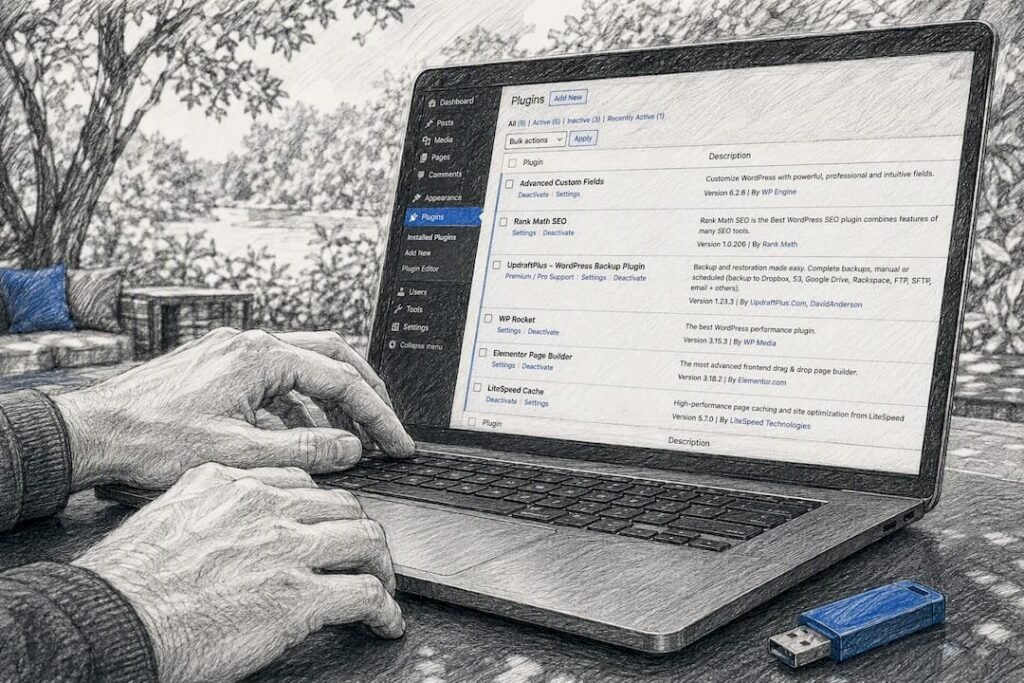
Visit Plugins → Installed Plugins if the dashboard is available. Record the active version and look at the recent change history or release notes. Review hosting deployment records and WordPress notification emails for update timing. If several extensions changed during the same period, do not assign blame to the newest one simply because it was noticed first. Correlation is a lead, not a confirmed cause.
Inspect PHP logs or application-monitoring traces when permitted. The failing file path, function or API call can narrow the investigation, but an error in one plugin may have been triggered by another component. A reliable wordpress plugin rollback procedure preserves evidence until the responsible dependency is reasonably identified. Avoid copying sensitive stack traces into public support forums.
4. Triage the business impact
In a wordpress plugin rollback response, protecting payment integrity and private customer records takes priority over making every visual detail perfect. Agree on the business functions that must work before an incident can be closed.
Before recovering, identify whether the site is completely down, partially degraded or showing only a cosmetic defect. A full outage, privacy exposure or payment failure usually requires urgent action and a clear incident owner. A minor spacing issue on one page may allow a planned fix rather than an emergency restore. Establish what customers can and cannot do and whether data is being written while you investigate.
Prioritize the most consequential workflows: login, account permissions, checkout, order creation, support submission, lead generation and content publishing. If the issue affects an external service, verify that system separately. The purpose of wordpress plugin rollback is to restore a safe, usable state, not merely make the first visible error disappear.
A plugin can store settings in WordPress options, records in custom tables, metadata on posts or users, and scheduled tasks. New versions may change these structures. Replacing the PHP files with an old ZIP does not reverse database migrations, and restoring an older database may erase records created after the backup. There is also risk when a plugin uninstall routine deletes configuration or user data.
Define the recovery layer before taking action. A frontend asset problem might be corrected by a targeted file replacement; a broken authorization workflow may need the previous compatible code version; a destructive migration may need specialist data recovery. When databases have changed, the correct action may be a forward fix rather than an old package. A responsible wordpress plugin rollback plan states the limits of each method.
6. Decide between disabling, downgrading and restoring
Disabling the suspect plugin can help restore administrator access or isolate the problem, but it also removes the features that plugin provides. Downgrading replaces code with an earlier trusted version; it only works safely when the old code can interpret the current data and dependencies. A restore from backup can replace files and database state, potentially recovering more than a code change but also potentially losing recent work.
Pick the least destructive intervention that contains the impact. If a checkout depends on the plugin, disabling it may stop purchases and must be communicated accordingly. If a customer portal relies on its access controls, removing it could expose content or prevent logins. The decision belongs to the site’s owner or authorized technical responder, informed by the data and workflows at risk.
| Recovery method | Best fit | Important risk |
|---|---|---|
| Deactivate extension | Temporary diagnostic isolation | Dependent functions stop |
| Reinstall earlier code | Compatible code-only regression | New database schema may not be compatible |
| Selective file restore | Known asset/package failure | Mixed versions and dependencies |
| Full site restore | Broad damage with verified recovery image | Loss of recent orders and content |
7. Protect the information created since the last backup
A safe wordpress plugin rollback includes a reconciliation plan for records created after the recovery checkpoint. If an external service holds its own transaction history, compare identifiers before declaring that no records were lost.
Before any database restore, determine what changed after the checkpoint. A store may have received orders, payments and subscription renewals; a support portal may have collected tickets; a publisher may have added articles. Those records cannot be treated as expendable just because restoring an older backup is convenient. Identify the period of possible data loss and arrange for preservation or reconciliation.
Where supported, export recent records or take a fresh evidence checkpoint before modifying the site further. Be aware that a corrupted database snapshot may capture the problem as well, so do not assume it is a known-good recovery source. A safe wordpress plugin rollback plan accounts for external transaction records and whether they can be reconciled after any repair.
8. Check the backup before depending on it
A backup confirmation email is not proof that files and database can be restored. Verify that the backup belongs to the intended site, covers the relevant time and includes the data necessary for recovery. Confirm storage access and the restoration procedure. If an organization has never performed a restore test, the middle of an incident is a poor time to discover missing credentials or an expired archive.
For high-impact sites, restore to staging first when there is time and a safe environment. Check that the backup can boot and that representative pages and records exist. Do not restore a production database into an insecure test environment with unrestricted customer data. Consider whether the host offers snapshots, point-in-time backups or only occasional full copies.
9. Retrieve a trusted earlier plugin package
A previous plugin version should come from an authorized source: the official plugin directory where historical releases are available, the vendor’s supported downloads or your organization’s retained release artifacts. Avoid random mirrors that may contain modified code. Record the exact version and verify that the package was intended for the site’s platform and licensing requirements.
Do not assume the oldest available version is safest. Older packages may contain known security vulnerabilities or be incompatible with the current WordPress or PHP version. A responsible wordpress plugin rollback uses the nearest verified compatible release as a temporary recovery step and includes a plan to return to a patched version. If the known-good package cannot be verified, get technical support before replacing it.
10. Review the update changelog for irreversible changes
Look for entries describing database changes, removed options, new minimum PHP versions, changes to API payloads or migration steps. Release notes are not a complete risk assessment, but they help determine whether an old version can read new data. If the release introduced a new custom table or transformed records, downgrading files could leave the site in an inconsistent state.
Document the decision, including uncertainty. Some plugins provide downgrade instructions or known compatibility boundaries. Others do not. If the upgrade changed customer records or permissions, testing an earlier version on staging is safer than guessing. Recovery should not produce a second, harder-to-reverse incident.
11. Use the dashboard when administrator access works
If the dashboard remains accessible, an authorized administrator may deactivate the affected plugin to test whether the error stops. Carefully check which features rely on that extension before doing so. In some installations, a previous ZIP can be installed through the plugin management interface, with replacement prompts depending on WordPress and hosting configuration.
Verify the exact ZIP and website before replacing software. After the change, check the installed version and run relevant functionality tests. See WordPress Manage Plugins for official interface guidance. The dashboard does not know whether a subscription renewal, a private customer page or a custom API integration remains correct after code replacement.
12. Use WP-CLI only with the right access and context
When using WP-CLI for wordpress plugin rollback, write down the exact site path and package version. A successful command on the wrong installation can be worse than the original failed update.
WP-CLI can help technical administrators inspect a plugin and install an approved package from a local file. The official wp plugin install reference documents a --force option for overwriting an installed version. Use it only after checking the site path, package source, current version and database compatibility. Do not run a copied command against an unknown environment.
An illustrative sequence is to inspect installed plugins, confirm the target, apply an approved ZIP and inspect the installed version again. Each step needs error handling and post-install validation. If a command fails halfway, do not repeat it blindly. A scripted wordpress plugin rollback can be more predictable than a manual process, but the script must not hide failures or discard data.
# Illustrative syntax; verify the site and package first.
wp plugin list --format=table
wp plugin get example-plugin --format=json
wp plugin install /safe/path/previous-approved.zip --force
wp plugin get example-plugin --format=json
13. Recover when the admin dashboard is inaccessible
A broken plugin can prevent access to wp-admin. That does not mean the website is beyond recovery, but it does mean the response needs authorized hosting or filesystem access. The WordPress troubleshooting FAQ describes disabling plugins through the filesystem or database when administrative screens are unavailable. These are advanced operations that should be performed by someone who understands the site and its dependencies.
Renaming a plugin directory can interrupt the plugin’s loading and may temporarily restore access, but it also disables its functionality. Do not rename the entire plugins directory on a live store without understanding the consequences. If account access, checkout or security controls depend on extensions, a broad deactivation can cause more damage than the original error. Preserve evidence and involve hosting support when uncertain.
14. Do not confuse deactivation with uninstall
Deactivation stops an extension from running normally. Uninstallation may invoke vendor code that removes options, scheduled tasks, tables or other records. That distinction matters when recovering from a failed update. Deleting a plugin to ‘start fresh’ can erase settings that were not responsible for the regression, making recovery harder. Check the vendor’s uninstall behavior before removing anything.
To conduct wordpress plugin rollback safely, prefer reversible diagnostic steps and keep a record of what was changed. If a plugin must be replaced, use the supported package method and verify the data before and after. Never assume a product’s content survives uninstallation merely because a similar plugin preserved its configuration.
15. Handle the maintenance mode message correctly
During updates WordPress may temporarily put a site in maintenance mode. If an operation fails and the message remains, determine whether an update process is still active before intervening. The official WordPress updating guide describes how a leftover .maintenance file can be involved after failure. Removing that file should not be an automatic first step while another updater is working.
Confirm the process has stopped, preserve relevant logs and follow host guidance. Once the message is cleared, test the site rather than assuming normal availability implies functional integrity. If the underlying plugin is incompatible, removing a maintenance marker does not repair its code. The immediate objective is safe access followed by meaningful validation.
16. Account for security fixes when considering a downgrade
The temporary wordpress plugin rollback decision should include the published security advisory, if any, and a target date for returning to an adequately patched version. Do not leave a downgraded payment or identity component unmanaged.
Sometimes a new plugin version fixes a disclosed vulnerability. Reverting to an older release may restore a workflow but reopen that vulnerability. Check the vendor’s advisory and available patch versions before choosing the recovery target. If an earlier version is insecure, ask whether a supported hotfix, configuration change or limited service restriction is safer until the vendor provides a corrected package.
Record residual risk explicitly. A temporary wordpress plugin rollback may be necessary to keep a critical service operational, but it should have an owner and a remediation deadline. Avoid leaving an intentionally downgraded site unattended for months. Security and service continuity must be considered together.
17. Avoid mixing plugin versions and stale assets
WordPress sites often have page caches, object caches and content delivery networks. A new release may change CSS, JavaScript and PHP together. Rolling back only one part can create inconsistent behavior if an old script calls a new endpoint or cached markup expects a deleted asset. Prefer restoring a complete approved package and invalidating the relevant caches according to host and plugin guidance.
Clear only what is necessary and coordinate with the operations owner. Repeatedly flushing the entire cache during peak traffic can produce unnecessary load. After updating the code version, reload key pages in a clean browser session and check that the expected assets are delivered. If the issue remains, investigate the exact request rather than blaming every cache layer at once.
18. Verify a normal public page and an authenticated journey
A working homepage is insufficient for a site whose business depends on logged-in functionality. Check an ordinary content page and the user journey changed by the plugin. For a project workspace, verify a team member can view assigned tasks without seeing other clients’ data. For a knowledge base, check that restricted documents remain protected. For an online store, verify products, cart calculations and supported test payment flows.
Write down the expected result before running each test. A wordpress plugin rollback is successful when the relevant workflows operate again and the site has no new critical errors within the verification scope. The word successful should not imply that every untested integration is guaranteed to work.
19. Reconcile checkout, invoices and subscription records
On a store, wordpress plugin rollback must preserve the truth of transactions across WordPress and external gateways. Verification may require reconciling pending orders and payment status before reopening normal checkout traffic.
Payment and order workflows need special attention because multiple systems may hold related records. A gateway could have received a payment even when WordPress displayed an error. An order could have been created during the incident, and a subscription renewal might be pending in a queue. Do not submit repeated live charges merely to determine whether the problem is fixed.
Use vendor-supported test modes and compare transaction identifiers with the payment provider where necessary. If data was restored, reconcile orders and notifications against external systems. An appropriate recovery plan may require assistance from the store owner, accountant or payment provider. Data integrity is more important than declaring the dashboard restored.
20. Check forms, leads and campaign attribution
For a marketing or service site, a visible contact form may not reveal whether the CRM received a lead. Submit a controlled test record, confirm server-side acceptance and inspect the intended destination. Check whether the form’s validation, consent text and email notifications still behave correctly. Avoid sending genuine customer information as a troubleshooting sample.
If the site measures GA4 or GTM conversions, confirm events fire only for accepted submissions and carry the intended parameters. An error may have changed JavaScript selectors even if the form now appears repaired. Use this acceptance step to distinguish restoring a page from restoring the site’s lead-generation business process.
21. Document the exact recovery sequence
Create a brief timeline: initial symptom, plugin version, suspected cause, backups checked, changes performed, tests passed and tests blocked. If a hosting snapshot or previous ZIP was used, record its identifier and source. Documentation helps the next responder understand whether the issue was fixed by code replacement, configuration changes or simply a restored connection.
Effective wordpress plugin rollback reporting avoids unsupported conclusions. If the site resumed after disabling one extension, that suggests a relationship but does not automatically prove the extension was defective. Another plugin may have made an incompatible call. Keep the distinction between observation and diagnosis visible.
22. Decide when to involve the plugin vendor or host
A vendor support request about wordpress plugin rollback is more useful when it includes the old and new versions, WordPress and PHP environment, the first relevant error and a reproducible affected workflow.
Contact the vendor when release notes indicate a migration or breaking change, when you cannot verify a safe older package, or when the problem reproduces consistently on staging. Contact the host for filesystem recovery, backup access, server logs or environment failures. For a privacy exposure or failed payment process, escalate to the people responsible for security and customer operations.
Provide a concise reproducible report: versions, PHP and WordPress environment, error timestamp, relevant sanitized logs and steps to reproduce. Avoid sharing secret keys or customer records. A clear incident summary speeds troubleshooting and helps the vendor distinguish a compatibility issue from a configuration problem.
23. Test the next update attempt on staging
Once service has been restored, do not repeat the exact update procedure without learning from the failure. Reproduce the old state on staging, apply the suspect new version and identify the failing test. Change the relevant condition or install a corrected release, then rerun the scenario. Include dependency and data-migration behavior, not just plugin activation.
Our WordPress plugin testing guide explains how to build those acceptance checks, and the deployment guide covers release packaging and sign-off. A repeatable test reduces the likelihood of another emergency wordpress plugin rollback after the next maintenance window.
24. Establish a controlled recovery runbook for agencies
An agency managing multiple WordPress sites should keep a small recovery document for each customer. It should identify the host, environment, authorized contacts, backup location, important dependencies and business-critical tests. Avoid storing sensitive credentials in ordinary shared notes. The response plan should explain who can approve a downtime window and who must be informed when a payment or lead form stops working.
Use the same incident record template across clients but customize the actions. A static portfolio site has different recovery risks from a busy subscription store. Standardization should support good judgment, not erase the client’s actual constraints. When a recovery method has not been tested, label it as unverified.
25. Recognize common recovery mistakes
Several mistakes recur under pressure: deleting a plugin before confirming whether uninstall removes data; restoring a stale database that loses new orders; downgrading to an untrusted package; clearing every cache as the only investigation; changing several plugins simultaneously; treating a successful page load as proof of payment functionality; and ignoring the security implications of an older version.
Another common error is failing to record the change. If a site breaks again, nobody remembers which version was restored or why. The remedy is a short controlled process with owner, checkpoint, exact package and acceptance results. The best wordpress plugin rollback procedure is easy enough to follow during an incident without depending on one person’s memory.
| Check | Evidence | Stop condition |
|---|---|---|
| Backup | Verified checkpoint and restore path | Unknown database loss risk |
| Package | Trusted previous compatible version | Unsafe or unverifiable archive |
| Business | Checkout, forms, account access validated | Critical journey still fails |
| Security | Patch risk and permissions reviewed | Uncontrolled exposure of records |
26. Plan the return to a supported version
After wordpress plugin rollback, schedule a follow-up acceptance test for the corrected release, and keep the incident open until that test has passed. Recovery without a durable fix leaves the same outage risk in place.
Recovery is not complete if the site remains stuck indefinitely on a vulnerable or unsupported release. Once the immediate issue is contained, schedule a corrected update, dependency adjustment or replacement. Establish the acceptance tests and a time when a qualified responder can deploy them. If the plugin no longer fits the business, consider an orderly migration that preserves data and customer workflows.
Track the temporary state in the maintenance register. The organization should know why the earlier version is installed, the risk it carries and the next action. This closes the loop between incident recovery and routine WordPress maintenance.
Frequently asked questions
Can WordPress automatically undo a failed plugin update?
WordPress includes protective rollback behavior for certain failures during the update process, but it is not a universal undo for a compatibility problem discovered after a successful update. Post-update regressions still need diagnosis and an appropriate recovery plan.
Is reinstalling an older ZIP always safe?
No. The older code may not understand database changes introduced by the newer release, and the older package may contain security vulnerabilities. Use a trusted archive and verify compatibility before downgrading.
Will deactivating a plugin delete its data?
Deactivation and uninstallation are different operations. Deactivation generally stops the plugin running, but the exact behavior varies. Uninstall routines may remove stored settings or records. Review the vendor’s documentation before deleting anything.
Can I use WP-CLI if I cannot access wp-admin?
With authorized shell access, WP-CLI may help inspect, deactivate or replace plugins. Confirm the site path, current version and dependencies before executing commands. Hosting support may be safer if you are unfamiliar with that environment.
What if the site has taken orders since the last backup?
Avoid blindly restoring the old database. Preserve and reconcile new orders, payments and related records, and choose the least destructive recovery option compatible with the plugin’s data model.
Why did the error disappear when I disabled a plugin?
That suggests the plugin or one of its interactions is involved, but it does not prove the plugin alone contains the defect. Test the combination on staging and inspect the relevant logs before deciding on a long-term fix.
Should I clear the cache after a rollback?
Clear relevant caches according to the hosting and plugin setup so old frontend assets are not mixed with restored code. Verify actual pages afterward; indiscriminate cache clearing is not a substitute for diagnosing the cause.
How can I prevent needing another rollback?
Keep a version inventory, verified backups, staging tests, a deployment checklist and a production smoke-test procedure. Add a regression test for the problem that occurred and document the recovery lessons.
Official sources
- Learn WordPress: Troubleshooting Plugin and Theme Conflicts
- WordPress Troubleshooting FAQ
- WordPress Manage Plugins
- WP-CLI Plugin Install Reference
- WordPress Debugging Handbook
For preventive work, use our safe plugin update checklist. If symptoms look like two extensions interacting, the companion plugin conflict troubleshooting guide explains isolation without unnecessary changes on production.