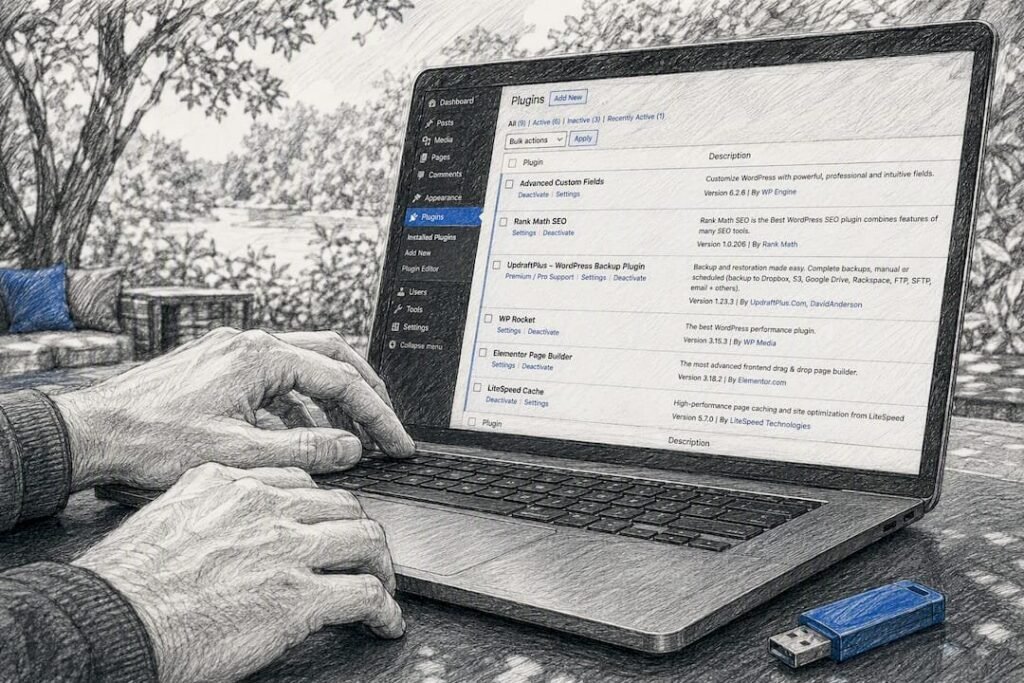
Quick answer: Releasing a WordPress plugin safely means shipping the same artifact you tested, confirming the target website and platform requirements, protecting data with a verified recovery point, and testing the essential workflows after installation. A successful upload message is not the finish line. The release ends only when the installed version and user outcomes have been checked.
This U.S.-focused guide explains wordpress plugin deployment for developers, agencies and business site owners. It concentrates on package preparation, staging, versioning, dependency checks, WordPress dashboard and WP-CLI delivery, database migrations, incident handling and release documentation. It is different from a general tutorial on writing a plugin: we assume you have working code and need to deliver it safely.
If you are still building the feature, start with our advanced WordPress plugin development guide. If you are simply installing an existing extension, read how to install a WordPress plugin. A deployment plan starts when a build is ready for release review.
Build a practical self-hosted stack. See WordPress-based tools for projects, documentation and customer operations, and evaluate each product against your own workflows.

The Best Plugins for WordPress in One Bundle
1. Define the release before choosing a deployment tool
A useful wordpress plugin deployment brief names the exact change that will reach users and identifies one observable way to confirm it. That turns a vague launch into a task that can be independently checked.
A release is a specific version of code and associated assets intended for a particular environment. Start with the current installed version, target version and changes that matter to users. Document whether this is a bug fix, a new capability, a compatibility update or a data migration. The scope shapes the tests and approvals. A small source diff can still have a large impact if it changes authentication or a payment callback.
A professional wordpress plugin deployment record should identify the package, source revision, target site, change owner, backup checkpoint, relevant tests and recovery limits. This is not bureaucracy for its own sake. If a customer reports a broken form later, the team must be able to answer which version was shipped, when the change occurred and how the problem can be reproduced.
2. Separate development, staging and production
A local development environment helps developers iterate quickly with synthetic records. Staging should resemble the production WordPress version, PHP runtime, active theme, required companion plugins and important configuration. Production is where customers rely on the software. Keep those environments distinct, with separate credentials and integrations. Never assume a staging email, webhook or payment endpoint is harmless unless you have checked its destination.
Realistic testing does not require exporting every customer record into staging. Use sanitized data and representative record volumes. Disable real payment charges and outgoing customer notifications, and restrict who can access the test installation. If staging differs materially from production—for example in caching or database size—record the limitation rather than pretending it has been resolved. Those differences affect how much confidence the release test provides.
3. Trace each release to source control
The artifact delivered to WordPress should correspond to a known source revision. Tagging an approved commit and retaining build instructions makes it easier to reproduce an earlier version. Keep dependencies locked where practical and avoid building releases from local files that no one else can access. Production secrets, customer exports and developer-only configuration should remain outside source control.
Traceability also prevents a subtle mistake: a package is tested in staging, then someone quietly rebuilds it with additional changes before deploying to production. That later archive has not passed the same tests. A reliable wordpress plugin deployment process treats such a rebuild as a new release candidate and reruns the relevant checks. Version labels alone do not prove identical code.
4. Package the plugin correctly
When reviewing wordpress plugin deployment packages, compare the archive manifest with the generated frontend assets and required server files. A missing compiled bundle can break the public interface while the plugin still appears activated.
Inspect the final ZIP before installation. It should have a sensible folder structure, a main PHP file with the required plugin header, necessary PHP classes, compiled JavaScript and CSS assets, and whatever production dependencies the plugin needs. Exclude test reports, temporary files, credentials, oversized caches and private development documentation. A local checkout working is not proof that the distributable archive contains everything required.
Perform a fresh installation using the ZIP, not the uncompressed development folder. Open the relevant admin and frontend screens to detect missing assets or wrong paths. Consider recording a checksum and the source revision with the release manifest so administrators can confirm which package they used. A checksum verifies artifact identity, not the security of the software itself.
5. Keep plugin headers and version metadata consistent
WordPress reads metadata in the plugin header, including the plugin name, version and supported platform requirements. Check that the declared minimum WordPress and PHP versions are the ones you tested. If a new PHP language feature makes older environments unsupported, raise the requirement transparently. Avoid publishing a package with mismatched version strings in its header, changelog and distribution record.
The official WordPress plugin header reference explains Version, Requires at least, Requires PHP and Requires Plugins. Use these fields as operational information for the site owner, not decorative text. WordPress version comparison behavior also deserves attention when choosing release numbers. Consistency makes wordpress plugin deployment easier to verify and support.
6. Understand dependencies and update order
A plugin might depend on WooCommerce, another extension, a PHP module, a theme hook or an external API. Capture those relationships before deployment. Test the supported combination and document what happens if an integration is unavailable. The plugin should fail in a controlled, understandable way rather than exposing a fatal error. Compatibility declarations must match the software combinations actually exercised.
For dependent packages, plan the upgrade order with the official release notes. Updating everything at once can obscure the cause of a regression. Sometimes two components must move together, in which case they form one intentional change set with joint tests and recovery steps. Good wordpress plugin deployment preserves clear boundaries while respecting real dependencies.
7. Give the release a meaningful version
A version number should help administrators identify compatibility and changes. Many teams use major.minor.patch conventions, but the important part is a consistent policy with documented exceptions. A patch can still be important, and a larger version number does not automatically mean high risk. Write a changelog that describes affected behaviors, migrations, removed features and required actions.
Record which version runs on each customer site. This becomes especially useful for agencies that maintain installations with different themes or hosting conditions. A customer may report an issue only on an older PHP version or companion plugin; knowing the installed version narrows the investigation. Treat version history as part of the release system rather than a marketing label.
8. Test fresh installations and upgrades separately
One important wordpress plugin deployment boundary is the oldest supported customer installation. Upgrades should preserve existing settings and records, while a new installation should create valid defaults without relying on historical data.
A clean installation might initialize options or custom tables. An upgrade from an older version may need to transform years of saved data. Those are different code paths and require separate tests. Start with a clean test installation, then create a second environment with an actual older supported version and representative content. Update it using the exact archive planned for production.
Verify that settings survive, permissions remain correct and user journeys still work. For migrations, test repeated or interrupted execution when appropriate. A migration that runs twice should not duplicate records or delete unexpected data. Our WordPress plugin testing guide covers the broader QA strategy; a deployment gate should verify that the specific release has passed the risk-relevant scenarios.
9. Define a release approval gate
| Release risk | Test priority | Recovery planning |
|---|---|---|
| Visual copy or style adjustment | Representative device and editor smoke tests | Restore last approved package |
| User-role or private portal change | Positive and negative authorization tests | Verify role state and data isolation |
| Database migration | Historical data upgrade and retry scenarios | Tested data-aware recovery method |
| Payment or billing integration | Sandbox transaction and callback tests | Preserve live orders and reconcile outcomes |
A release gate is a short list of conditions that must be met before the package reaches production. Include artifact identity, supported platforms, backup availability, security checks, basic installation and upgrade behavior, and tests for affected business processes. A permissions change deserves negative access tests; a checkout change requires payment-path validation in a supported sandbox. The gate should fit the release, not blindly copy the same long checklist every time.
Explicitly record any test that is blocked. An unavailable payment sandbox is a material limitation, not a passing result. An unverified backup is a reason to postpone a nonurgent release. When the scope is clear, wordpress plugin deployment becomes an informed decision rather than a race to finish the upload. The approval owner should know both what passed and what remains uncertain.
10. Prepare a recoverable backup checkpoint
Before the release, verify an appropriate backup of relevant files and database records. A completion email does not prove the backup can be restored. Confirm access to the recovery interface independently of WordPress when possible, because a failed plugin can affect the admin area. The right backup frequency depends on how much live activity the site handles.
Rollback is not a universal ZIP replacement. Database migrations or changed configuration formats may prevent older code from understanding current data. Restoring an earlier database on an active store can erase new purchases. Plan whether recovery should restore code, selected data or the whole environment and document the consequences. A responsible wordpress plugin deployment plan protects the records created after the checkpoint.
11. Choose the maintenance window deliberately
Schedule the rollout when an authorized administrator can monitor and recover, not merely when a traffic graph is low. For customers across U.S. time zones, state the time zone explicitly. Avoid major ecommerce promotions, registration launches or other periods when an outage would have unusual consequences, unless an urgent security fix changes the priority.
Coordinate with people changing the theme, hosting, analytics, checkout or CRM integration. Several simultaneous modifications make it harder to identify the cause of an issue. Tell stakeholders what service interruption, if any, to expect. A well-planned wordpress plugin deployment window includes response capacity and communication rather than assuming all updates are instantaneous.
12. Verify the target WordPress installation
The first production safety check in wordpress plugin deployment is confirming the installation identity. Record the domain, environment, installed version and package before executing any file-changing operation.
Before installing a package, check the site’s domain, site path, WordPress version and active plugin inventory. This matters most when an administrator manages multiple customers or staging copies with similar names. A command completing successfully against the wrong site is a deployment error. Avoid shell scripts that silently use whichever directory happens to be current.
Keep the previous version and recovery path available until the new installation has been verified. Record the intended version and compare it with WordPress after the update. If the site has a separate content delivery network or object cache, understand when cache invalidation is necessary and how it affects visitors. The environment check is a small step with a disproportionately large risk reduction.
13. Use the WordPress dashboard for simple controlled rollouts
For a small installation, the WordPress dashboard can be a practical way to deliver an approved ZIP or use the plugin update controls. Verify the site, administrator permissions and package before uploading anything. Follow the prompts appropriate to the current WordPress version and hosting setup, then check the version and activation state after completion. Avoid repeatedly attempting uploads after an error without investigating its cause.
An administrator should inspect more than the Plugins screen. Open the frontend pages and management screens where the extension operates. Test a representative account with appropriate permissions and look for newly introduced warnings. WordPress publishes official plugin management instructions, but those steps do not replace business-specific acceptance tests for forms, payments or customer records.
14. Use WP-CLI when the technical workflow needs consistency
WP-CLI offers scriptable plugin inspection and installation. Common operations include listing installed plugins, querying their status and installing a known archive. Confirm the WordPress path, shell user and active environment before using a command that modifies files. When a CLI command is successful, still run the same acceptance checks that would follow a dashboard deployment.
Refer to the official WP-CLI install reference for supported syntax. For example, the install command accepts a local ZIP and has a documented force option. Do not copy an unsupported option from a random tutorial. A scripted process should fail loudly when prerequisites are missing, log which artifact was used and avoid uncontrolled bulk updates in production.
# Illustrative commands; verify the site and package first.
wp plugin list --format=table
wp plugin install /path/to/approved-package.zip --force
wp plugin get example-plugin --format=json
15. Distinguish WordPress.org distribution from private delivery
An extension listed in the official WordPress.org plugin directory has a distribution workflow involving its release repository and published version metadata. The WordPress.org documentation describes Subversion as the release repository and recommends tags for finished versions. A public release is not simply uploading an arbitrary ZIP to a client site. Developers should understand which files belong in the repository and how version tags affect updates.
A privately distributed plugin may use a licensed update service, a managed deployment system or direct authenticated package delivery. Each approach needs secure credentials, trustworthy artifacts and an upgrade path. Document who can obtain the package and how future updates will reach customers. Whatever the distribution method, wordpress plugin deployment should leave an auditable record of the version installed.
16. Plan database migrations around live activity
For data-changing wordpress plugin deployment, test the recovery strategy against an installation with representative historical records, not just an empty database. The goal is to preserve real business information throughout the change.
Database changes can be more consequential than copying plugin files. A new version may add tables, modify stored settings, transform metadata or initiate background migrations. Test against realistic historical data, including null values, unusual text and large record sets. A migration should handle a partially completed run or document clearly when manual recovery is required. Long-running work may need careful batching to avoid affecting page requests.
Consider what happens while customers keep using the site. If an ecommerce store continues accepting orders during a migration, restoring a stale database later can erase them. Sometimes a forward fix is safer than restoring the entire environment. For wordpress plugin deployment involving data, specify whether an old package can read the new schema, and never promise easy rollback without evidence.
17. Keep credentials outside distributable packages
Production API keys, payment secrets, private URLs and customer exports do not belong in public source control or release ZIP files. Use appropriate configuration mechanisms and restrict deployment account permissions. Staging should use test keys and safe destinations so a developer cannot accidentally trigger real charges or send real customer emails. Check that diagnostic output does not expose sensitive configuration.
Review the installed plugin’s handling of secrets before release if it adds a new integration. An endpoint that functions correctly can still be dangerous if it writes access tokens into a public log. Follow WordPress guidance on permission checks, data validation and output handling. These concerns should appear in the release approval checklist, not wait until after a production incident.
18. Include WP-Cron and background workers in QA
Background jobs make wordpress plugin deployment harder to verify because defects may appear after the release window. Record the expected task, its next run and an observable result for the monitoring team.
A plugin may schedule email delivery, record synchronization, cleanup, reminders or data migration tasks. WordPress’s default WP-Cron mechanism is commonly triggered by page activity, so a scheduled callback does not behave exactly like a continuous system scheduler. Test that jobs are registered once, run when expected under the environment’s configuration, handle failure and do not leave duplicated tasks after a repeated activation.
Do not assume a successful plugin update proves its scheduled work still runs. Verify the business result: the expected record changed, notification reached the test destination or queue was processed. The official WP-Cron guide describes the model. Include task-specific checks in wordpress plugin deployment when timing or background processing matters.
19. Coordinate changes to external services
Plugins connect to payment providers, CRM systems, email services, identity platforms and external APIs. A release can alter a request body or authentication flow without changing a visible page. Document which external endpoints are affected and test them with supported sandbox credentials. Inspect a destination record, not just a local success message, and check how failures are surfaced to administrators.
Retry logic deserves particular attention. If a webhook times out after the recipient has processed the request, an automatic retry may create a duplicate unless the integration handles idempotency. A safe release tests representative errors and retry boundaries in a nonproduction environment. Do not use customer accounts as experimental test fixtures.
20. Verify the block editor and existing content
A block-based plugin may save attributes or markup that must remain compatible after an update. Test inserting a block, editing and saving it, reopening the post, and rendering old content on the frontend. A release can work for newly created blocks but fail on existing saved content. Include at least a few representative posts with older configurations in the test fixtures.
Check how the plugin behaves when an expected record is absent or a user lacks permission to view it. If blocks depend on an API, test network failures and authentication expiration. Review the official Block Editor Handbook for platform patterns. The critical deployment test is content preservation, not merely whether the editor initially opens.
21. Inspect forms, analytics and consent
A responsible wordpress plugin deployment acceptance test includes negative paths: an invalid form must not create a conversion, and a user without permission must not receive protected content.
Changes to scripts, selectors or form lifecycle events may affect analytics instrumentation even when the interface still appears functional. Verify accepted submissions, corresponding CRM records, GTM event triggers and GA4 conversions where applicable. Make sure consent behavior remains correct and conversion events do not fire merely because a user clicked a submit button that failed validation.
Use synthetic data and appropriate test accounts. If the plugin modifies a protected portal or login flow, verify both authorized and unauthorized access. Accessibility and mobile behavior should also be included when the release changes interactive controls. A deployment that introduces private-data exposure or destroys the lead funnel should not be considered successful even if its PHP code is healthy.
22. Run a production smoke test after deployment
Staging is valuable but cannot perfectly reproduce every production condition. After installing the approved package, confirm the expected version, active state and main workflows. Check a public page, the plugin’s administrative interface and any business-critical actions it controls. Use harmless test transactions and accounts where possible. Record what was checked and the time the verification took place.
If a critical path fails, pause unrelated changes and follow the incident plan. The team should know whether to restore a package, roll forward with a fix or invoke a documented data recovery procedure. A clear wordpress plugin deployment sign-off lists actual observations rather than declaring the entire site flawless.
23. Monitor beyond the first successful page load
Some failures are delayed: a scheduled job runs later, a queue gradually backs up, an integration reaches a rate limit or a particular user role encounters a problem. Watch application logs, error rates, failed requests and the flows relevant to the release. Compare performance with an appropriate baseline rather than assuming every change in response time came from the new plugin.
Do not equate one successful HTTP response with a successful business process. If a booking form reports completion but never sends a confirmation, the workflow has failed. Keep incident ownership active through the monitoring period and record any known limitations. Reliable operations include honest uncertainty.
24. Respond to regressions without improvising
A useful wordpress plugin deployment incident note distinguishes the direct error from the investigation hypothesis. That helps the next responder avoid repeating a destructive action or pursuing an unsupported cause.
If a release fails, preserve the relevant evidence: installed version, first useful error, affected path, account role, timestamp and scope of customer impact. Avoid changing several unrelated settings at once. Determine whether the problem is a fatal outage, data integrity risk, security issue or limited usability regression. That classification informs recovery priority.
Use a previously rehearsed recovery path. Replacing code may not reverse a database migration, and restoring a full database may lose new orders. Record the actual steps taken and verify the site after service is restored. An incident review should identify a new test or control that would catch the same issue next time, rather than blaming an individual or repeatedly trying unexamined ZIP files.
25. Define the rollback path before you need it
| Environment checkpoint | Required observation | Failure response |
|---|---|---|
| Preflight | Current plugin version, dependencies and backup | Pause if evidence is missing |
| Staging | Approved package completes affected workflows | Correct errors and retest |
| Production | Installed version and workflows match acceptance | Stop rollout; invoke recovery owner |
| Monitoring | No material new errors or broken scheduled tasks | Investigate and document incident |
A rollback plan should say which components will be restored, who is authorized to perform the operation and how the team will verify recovery. Replacing the old ZIP may be sufficient for a file-only change, but database or settings migrations can make that approach unsafe. Test the recovery strategy in staging when a release has significant data impact, and keep the relevant backup available until the new version is stable.
A site handling subscriptions, orders or client documents needs special attention to records created after the checkpoint. Do not overwrite a live database simply because an old snapshot exists. Consider an incremental repair or a controlled forward fix with developer support. The important question is not whether someone can click Restore; it is whether doing so preserves the customer’s actual business data.
26. Consider a phased rollout for multiple client sites
Agencies responsible for many installations can reduce exposure by shipping a release to a small, representative group first. Choose a site that exercises relevant dependencies and workflows, not merely the least important site. Monitor the result, then progress to installations with other themes, hosting stacks or integrations. Define conditions under which the rollout stops and the team investigates.
Keep a per-site version and verification record during the transition. A staged release means some customers may temporarily use different versions, so support teams must know which one applies. For wordpress plugin deployment at portfolio scale, traceability is more valuable than a simple count of sites marked complete.
27. Write change notes that people can act on
The change note should make wordpress plugin deployment meaningful to users by explaining the workflow change, affected roles and any administrator action. A technical version bump is not a substitute for that communication.
A useful release note describes the change in terms a site administrator or customer will recognize. Explain which workflow is different, whether settings must be reviewed and which versions are supported. Technical audiences may need deprecated hooks or migration notes; business users may only need to know how their documents or approvals will behave. Avoid empty claims such as ‘faster and better’ unless you have actual measurements.
If the update requires a manual step, say so prominently. State relevant known limitations and how to reach support. A release note is part of service continuity because it helps staff interpret changes and identify unexpected behavior. It is also valuable evidence when an issue is reported after a deployment.
28. Keep an audit trail of actual outcomes
The release log should capture the artifact, previous and new versions, target URL, deployment time, verifier, test results, incidents and remaining risks. Link to the applicable release note and backup checkpoint without including secrets. A simple shared spreadsheet can work when it is kept current. The useful measure is whether another administrator can reconstruct what happened from the record.
Periodic reviews of the log reveal recurrent compatibility problems, unreliable test steps and sites that consistently need extra attention. Improve the release checklist based on those patterns. Over time, the process makes future deployments more predictable without pretending that software changes can be risk-free.
| Stage | What to check | Evidence to keep |
|---|---|---|
| Before | Source revision, ZIP integrity, compatibility, backup | Release manifest, checkpoint |
| Staging | Fresh install, upgrade, critical workflows | Test notes and versions |
| Production | Correct site, installed version, roles and forms | Deployment and smoke-test logs |
| After | Delayed errors, background jobs, customer impact | Monitoring and incident summary |
Frequently asked questions
Can I use WP-CLI to install a plugin ZIP?
Yes. WP-CLI supports local plugin archives. Verify your target site and use documented flags for your installed version. Installing the package does not replace acceptance testing or recovery planning.
Does a WordPress plugin release always require downtime?
Not necessarily. Some updates run with little visible interruption, while others trigger maintenance behavior or require coordinated data changes. Avoid promising zero downtime unless the environment and release process support that claim.
What is different about deploying to WordPress.org?
The official directory uses a release repository and version tags, whereas privately distributed plugins may use ZIP uploads or managed update services. Follow the current WordPress.org release documentation for public submissions.
Is a staging site essential?
Staging is strongly recommended for significant changes and customer-facing systems. When it is unavailable, document the limitation, use a verified backup, reduce scope and provide focused production tests. Certain high-risk changes are better postponed until proper testing is possible.
Should I deploy all plugins in one batch?
Not by default. Group genuinely dependent changes but isolate unrelated modifications to simplify diagnosis. Test the planned combination and avoid making theme, hosting or integration changes at the same time without coordination.
Can every release be rolled back safely?
No. File rollback may not reverse database migrations or settings changes, and restoring old data can remove new transactions. The safe recovery path must be established for each consequential release.
How do I verify that a release worked?
Check the installed version and the workflows that the plugin actually serves, including permissions, forms, background tasks and integrations as relevant. Record the checks and limitations rather than treating the upload success message as complete proof.
How often should an agency deploy updates?
Use a cadence that fits security urgency, customer expectations and testing capacity. A weekly maintenance window may work for some sites, while critical fixes need faster attention. Clear ownership and recovery access matter more than a universal frequency.
Official references and next steps
- WordPress Plugin Handbook
- Plugin Header Requirements
- WP-CLI Plugin Install
- WordPress.org Release Repository
- WordPress Manage Plugins
For further reading, the advanced developer guide covers architecture and code concerns. The GrowthPlugins product catalogue is useful when evaluating which business tools belong in your WordPress stack. Document capabilities and test them before deploying.