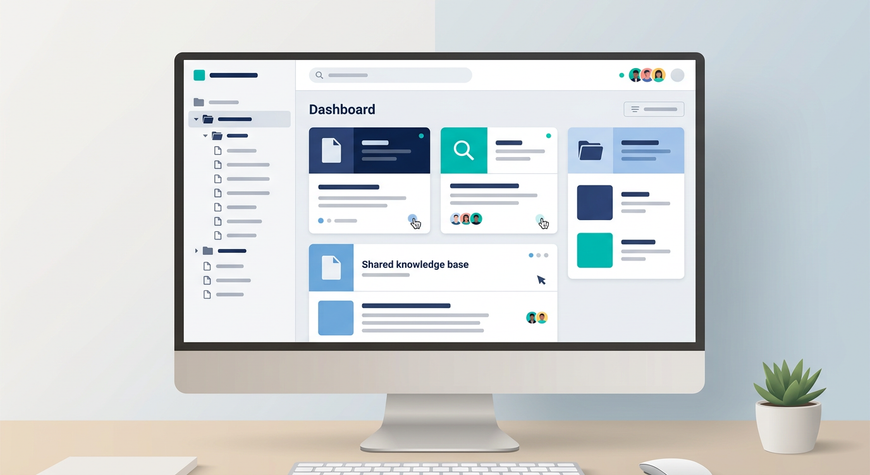
A customer looking for help with a WordPress plugin usually has a specific problem in mind. Perhaps a setting is missing, an integration has stopped working, or an unfamiliar error message has appeared. Making that customer open a support ticket for every question creates unnecessary work for both sides.
A well-organized WordPress Knowledge Base gives customers a place to find answers independently. It brings documentation, troubleshooting guides, frequently asked questions, and product instructions into a searchable resource that remains available outside business hours.
Quick answer: BetterDocs is a strong option for businesses that want searchable documentation, customizable layouts, and AI-assisted knowledge management. Echo Knowledge Base and weDocs offer alternative documentation workflows. Heroic KB focuses on structured customer support documentation, while GrowthDoc provides a WordPress-native approach to hierarchical documents and internal team knowledge.
The best solution depends on who needs the information, whether articles should be public or private, and how the documentation connects with customer support.
This guide explains how to choose a knowledge base plugin, compares leading WordPress solutions, explores BetterDocs and its AI capabilities, and provides a practical framework for building documentation that customers can actually use.
GrowthDoc: Your WordPress Knowledge Base
Self-hosted Notion-style docs & knowledge base for WordPress. Read the technical documentation →
Why Your WordPress Site Needs a Dedicated Knowledge Base
Support teams often receive the same questions repeatedly. Customers want to know how to configure their accounts, update payment information, solve common errors, or use a feature they have never tried before.
Without centralized documentation, those answers become scattered across emails, support conversations, PDF files, and employee notes.
A WordPress Knowledge Base turns that information into a structured resource.
Instead of asking customers to contact support immediately, businesses can provide clear instructions and troubleshooting steps that help users resolve routine problems independently.
Reduce Repetitive Support Requests
Imagine a software company receiving 40 questions every month about password recovery.
If customers can find an accurate, easy-to-follow recovery guide, some of those requests may never become support tickets.
The exact reduction will depend on whether customers discover the article and whether the instructions solve their problem. Simply publishing documentation does not guarantee lower ticket volume.
A successful self-service strategy requires useful search results, accessible navigation, and regular content updates.
Provide Support Outside Business Hours
A documentation center remains available when support agents are offline.
This is useful for US businesses serving customers across different time zones or companies with international audiences.
Customers can follow instructions, review screenshots, and complete common tasks without waiting for the next business day.
For more complex problems, the documentation should provide a straightforward path to human assistance.
Maintain Consistent Answers Across Your Team
When several employees respond to the same problem, differences in their instructions can create confusion.
Centralized documentation provides an approved reference that support agents and customers can use.
It also simplifies onboarding. New employees can review established procedures rather than relying entirely on verbal explanations.
WordPress Knowledge Base: Main Business Benefits
| Business objective | Knowledge base contribution |
|---|---|
| Reduce repetitive inquiries | Publish answers to recurring customer problems |
| Improve customer independence | Offer searchable instructions and troubleshooting guides |
| Support employee onboarding | Centralize procedures and internal documentation |
| Improve consistency | Maintain approved explanations in one place |
| Discover product problems | Analyze unanswered searches and article feedback |
WordPress Knowledge Base: Self-Service Support — Pros and Cons
| Advantages | Limitations |
|---|---|
| Answers remain available 24/7 | Documentation requires regular maintenance |
| Potential reduction in repetitive tickets | Not every problem can be solved through self-service |
| Consistent information for customers and staff | Outdated articles can create additional confusion |
| Greater control over published resources | Security and hosting remain operational responsibilities |
How to Choose the Best WordPress Knowledge Base Plugin
The right plugin is not necessarily the one with the longest feature list.
A five-person company publishing 20 frequently asked questions has different requirements from a SaaS business maintaining hundreds of technical articles across several products.
When comparing WordPress Knowledge Base plugins, start with how customers search for information and how employees will maintain it.
Advanced Search and Search Analytics
Search is one of the most important elements of a documentation website.
Customers rarely know the exact title of the article they need. Someone searching for “can’t access my account” should ideally find the relevant password recovery instructions, even if the article uses different wording.
Some plugins provide live search, keyword suggestions, synonym handling, or AI-assisted search.
These capabilities are not interchangeable. Basic keyword matching, fuzzy search, and semantic search use different approaches, so test them with actual customer questions.
Search analytics can also reveal content gaps, especially queries that return no useful results.
A knowledge base must remain usable on smaller screens.
Customers should be able to search, navigate categories, follow instructions, and view screenshots without fighting the interface.
Sidebars should adapt to mobile layouts, breadcrumbs should remain understandable, and interactive elements should have adequate touch targets.
Complex tables may need their own horizontal scrolling areas, but the page itself should not overflow.
Public and Private Documentation
Public product documentation should be easy to access and discover.
Internal procedures, employee instructions, and confidential client information need stronger access controls.
Check whether the selected plugin supports WordPress roles, document-level permissions, restricted categories, or private knowledge bases.
Do not assume a hidden navigation link protects confidential content. Access restrictions must also apply to direct URLs, search results, downloads, and API responses.
Content Organization and Scalability
A small documentation library may need only categories and a search field.
Larger operations benefit from nested articles, clear navigation, related documentation, version information, and defined ownership.
Choose a structure that remains understandable when the number of articles grows.
WordPress Knowledge Base: Plugin Selection Checklist
| Requirement | What to verify |
|---|---|
| Search | Relevant results for common customer questions |
| Navigation | Categories, breadcrumbs, and related articles |
| Mobile usability | Functional menus, readable text, and responsive images |
| Permissions | Role-based and document-specific restrictions where required |
| Analytics | Search queries, missing answers, and article feedback |
| AI features | Licensing, API costs, content access, and human review |
| Portability | Export options and content migration process |
Best WordPress Knowledge Base Plugins Compared
Several WordPress plugins can create documentation centers, but they are designed around different publishing workflows.
BetterDocs focuses on customer-facing documentation and increasingly AI-assisted support. Echo Knowledge Base offers extensive layout and documentation tools. weDocs provides a structured documentation workflow, while GrowthDoc emphasizes hierarchical resources inside WordPress.
Heroic KB and EazyDocs are also worth evaluating for businesses requiring more specialized support capabilities.
WordPress Knowledge Base: Plugin Comparison for 2026
| Plugin | Primary strength | Important consideration |
|---|---|---|
| BetterDocs | Customer documentation, search, and AI-assisted workflows | Advanced analytics and AI answers depend on plan and add-ons |
| Echo Knowledge Base | Flexible layouts, documentation, and optional AI features | Advanced permissions and reporting are paid features |
| weDocs | Structured documentation and nested articles | Evaluate advanced capabilities and current license requirements |
| Heroic KB | Premium help center, article feedback, and search analytics | Commercial licensing; key features vary by tier |
| EazyDocs | Documentation hierarchies and flexible layouts | Some access and AI capabilities need upgrades or integrations |
| Fluent Knowledge Base | Documentation within the Fluent ecosystem | Verify integration and current plan functionality |
| GrowthDoc | Nested documents, topics, and internal team knowledge | Evaluate public help-center needs separately |
BetterDocs: AI-Assisted Customer Documentation
BetterDocs is well suited to businesses building a public help center around products, services, or software.
It includes documentation layouts, search functionality, FAQ tools, navigation elements, and integrations with common WordPress editing workflows.
Its AI capabilities are particularly relevant to teams that want assistance creating, organizing, or retrieving information.
Some advanced capabilities require BetterDocs Pro or separate AI services.
Echo Knowledge Base: Flexible Documentation Layouts
Echo Knowledge Base offers several approaches to organizing and displaying documentation.
It supports knowledge base layouts, categories, navigation tools, and optional AI functionality.
Businesses requiring granular private-content access, multiple knowledge bases, or advanced search analytics should evaluate the appropriate commercial edition.
weDocs: Structured and Nested Documentation
weDocs is worth considering when a business needs documentation organized into clear sections and nested articles.
Its WordPress integration, documentation templates, FAQ functionality, and editing tools can support product guides and technical documentation.
As with any plugin, confirm the current features and compatibility of the edition you intend to install.
Heroic KB: Premium Customer Support Documentation
Heroic KB focuses on professional customer-facing knowledge bases.
Its features include organized documentation, live search, FAQs, and navigation tools.
More advanced plans provide search analytics, article feedback, access controls, and AI functionality.
It can be a good candidate when the organization has a dedicated support operation and a budget for a commercial solution.
EazyDocs: Flexible Documentation Management
EazyDocs provides tools for organizing documentation hierarchies, managing articles, and displaying help content through different layouts.
It also supports additional features through premium editions and integrations.
Its suitability depends on the documentation structure, required permissions, and editing experience.
GrowthDoc: A WordPress-Native Knowledge Base for Teams
GrowthDoc offers a different approach to WordPress documentation.
It focuses on nested documents, structured team resources, and an editing workflow designed for organizing information within WordPress.
Features include hierarchical document organization, drag-and-drop reordering, topics, search, and document export to Markdown.
This makes GrowthDoc particularly relevant to agencies, technical teams, and businesses maintaining internal procedures, onboarding resources, or company documentation.
For implementation guidance, read our article about building an internal wiki in WordPress.
WordPress Knowledge Base: Plugin Selection — Pros and Cons
| Advantages | Trade-offs |
|---|---|
| Specialized plugins simplify documentation management | Feature availability varies by plan |
| Different solutions suit different audiences | Content migration can require manual work |
| Search and navigation improve information discovery | Poor configuration can reduce usability |
| WordPress allows hosting and design flexibility | The site owner remains responsible for maintenance |
BetterDocs Free vs. Pro: AI Features and Documentation Management
BetterDocs has expanded beyond conventional documentation pages by adding AI-assisted authoring, search-related tools, and integrations with AI assistants.
This is one of the main reasons it deserves close attention when evaluating a modern WordPress Knowledge Base.
However, its free version, Pro features, and additional AI chatbot service have different requirements.
What BetterDocs Free Includes
The free plugin supports building and organizing a knowledge base, displaying documentation, managing FAQs, and providing search functionality.
It also includes an MCP server and AI writing-related capabilities.
Some AI operations require configuring an API key from a compatible provider, and that provider may charge separately for usage.
Generating starter documentation does not guarantee the resulting text accurately describes the product. Drafts should be reviewed before publication.
What BetterDocs Pro Adds
BetterDocs Pro adds functionality aimed at more demanding support operations.
Advertised capabilities include advanced analytics, AI Instant Answer, multiple knowledge bases, private or internal documentation, and additional documentation management features.
These tools can help organizations understand what users are looking for and organize information across several products or audiences.
AI Chatbot and Instant Answer Are Different Features
AI Instant Answer helps users locate relevant documentation.
The AI Chatbot add-on provides a more conversational experience, generating responses based on the available documentation.
The chatbot is offered separately from the standard BetterDocs Pro license, so organizations should check its additional subscription cost and required configuration.
The distinction matters when calculating the total price of an AI-supported knowledge base.
Using the Model Context Protocol with BetterDocs
BetterDocs supports the Model Context Protocol (MCP), allowing compatible AI assistants to connect with documentation through an authorized integration.
Depending on the connection and permissions, assistants can help retrieve or manage documentation.
This is not the same as making every document publicly available to AI search engines.
Administrators should control authorization, review permitted actions, and verify that sensitive information remains appropriately restricted.
WordPress Knowledge Base: BetterDocs Free vs. Pro Comparison
| Feature | Free | Pro / Add-on |
|---|---|---|
| Documentation management | Included | Additional capabilities |
| Knowledge base search | Included | Additional intelligence features |
| MCP server | Included | Available with paid editions |
| AI writing | Available with supported configuration | Additional AI tools |
| Advanced analytics | Limited | Pro |
| Multiple knowledge bases | Limited | Pro |
| Internal knowledge bases | Not a standard free feature | Pro |
| AI Instant Answer | Not included as a standard free feature | Pro |
| Conversational AI chatbot | Not included | Separate paid add-on |
WordPress Knowledge Base: BetterDocs — Pros and Cons
| Advantages | Limitations |
|---|---|
| Comprehensive documentation tools | Advanced features may require Pro |
| AI-assisted writing and document management | External AI usage can create additional costs |
| MCP integration for compatible assistants | Permissions and connection security require review |
| Multiple layouts and support-oriented tools | More capabilities mean additional configuration |
Integrating Your Knowledge Base With Customer Support Tools
Documentation becomes more useful when customers can move between self-service help and human support without repeating the same information.
A WordPress Knowledge Base can complement a ticketing system by providing relevant articles before a request is submitted and helping agents respond consistently.
Connecting Documentation to Support Tickets
Consider a customer experiencing an error during account setup.
Before creating a ticket, the support interface could suggest a troubleshooting article.
If the article does not solve the problem, the customer can continue to the support form and describe the remaining issue.
When implementing this workflow, confirm whether the knowledge base and ticketing system have a native integration or require custom development.
BetterDocs and Fluent Support are examples of tools that can form part of a WordPress support stack, but automatic article suggestions, ticket analysis, and workflow automation should not be assumed to exist without the appropriate integration.
Using GrowthSupport With Documentation
Another option is to combine documentation with GrowthSupport, the WordPress support ticket system from GrowthPlugins.
This approach can separate two responsibilities: documentation provides reusable answers, while the ticketing application manages individual customer requests.
Depending on the required workflow, teams may add links to relevant articles in ticket replies or develop more advanced integrations.
For a broader discussion of self-hosted support, see our WordPress support ticket guide.
AI-Assisted Support Responses
AI can help agents summarize customer questions, locate relevant articles, and prepare suggested replies.
However, an AI-generated recommendation is only as reliable as the information used to produce it.
Support agents should review responses involving billing, account access, security, or other sensitive matters.
Customers should also have a straightforward way to contact a person when automated suggestions are insufficient.
WordPress Knowledge Base: Documentation and Ticketing Workflow
| Customer action | Recommended response |
|---|---|
| Searches for a common problem | Show relevant documentation |
| Cannot find an answer | Offer a support request form |
| Submits a ticket | Assign the request to the appropriate agent |
| Agent identifies a known issue | Share the relevant article and explain the next step |
| Issue is resolved | Update documentation when a new solution is discovered |
WordPress Knowledge Base: Support Integration — Pros and Cons
| Advantages | Limitations |
|---|---|
| Customers can solve some problems independently | Integration may require additional development |
| Agents can reuse approved explanations | Outdated content can spread incorrect answers |
| Potentially fewer repetitive inquiries | Complex issues still need human support |
Designing a WordPress Knowledge Base With the Right Theme
A knowledge base should feel like a natural part of the website rather than a separate application with unfamiliar navigation.
The theme influences typography, page width, mobile navigation, colors, and the overall reading experience.
However, the knowledge base plugin may provide its own templates or layout elements.
The objective is to make these components work together without introducing conflicting styles.
Checking Theme Compatibility
BetterDocs, Echo Knowledge Base, and other documentation plugins provide layouts designed for WordPress.
Even so, compatibility should be tested with the actual theme, including documentation archives, single articles, search results, navigation sidebars, and mobile layouts.
A theme can display ordinary blog posts correctly while creating problems on custom documentation pages.
Astra, Kadence, and OceanWP for Documentation Sites
Astra, Kadence, and OceanWP are flexible WordPress themes that can be used with documentation plugins.
They offer configurable layouts and design options, making them reasonable candidates for businesses building a help center within an existing WordPress website.
However, their suitability depends on the exact plugin, theme settings, and required documentation design.
Do not assume that every starter template includes a ready-made knowledge base.
Free vs. Premium Knowledge Base Themes
A free theme can be appropriate for a professional documentation website.
Premium themes may provide additional templates, customization tools, or support, but payment does not automatically guarantee better performance or security.
Evaluate maintenance history, accessibility, compatibility, and the actual features required by the organization.
Optimizing Documentation Performance
Search and documentation pages should remain responsive even as the article library grows.
Use appropriately sized images, avoid unnecessary scripts, and review caching behavior.
Pay attention to authenticated content. Private documentation must not be exposed through incorrectly configured public caches.
Measure real pages rather than relying only on a theme demonstration.
WordPress Knowledge Base: Theme Selection Comparison
| Theme approach | Best use case |
|---|---|
| Astra | Flexible documentation within an existing WordPress design |
| Kadence | Customizable layouts and block-based workflows |
| OceanWP | Websites needing configurable theme layouts |
| Dedicated knowledge base theme | Standalone documentation portals with specialized navigation |
WordPress Knowledge Base: Theme Design — Pros and Cons
| Advantages | Limitations |
|---|---|
| Consistent brand identity | Theme and plugin styles may conflict |
| Reusable layouts and typography | Some templates require customization |
| Flexible responsive design | Mobile usability still requires testing |
Creating High-Quality Knowledge Base Articles
A technically advanced documentation plugin cannot compensate for unclear instructions.
Good knowledge base articles answer one identifiable question and help the reader complete a task.
They are different from ordinary blog posts. A promotional article may introduce a topic broadly, while documentation should provide accurate instructions with minimal unnecessary explanation.
Use Descriptive Headings and Logical Structure
Each article should have a clear title describing the problem or action.
For example, “How to reset your password” is more useful than “Account management information.”
Divide longer procedures into sections using H2 and H3 headings.
Keep instructions in a logical order and avoid skipping prerequisite steps.
Add Screenshots and Short Videos Where Helpful
Screenshots can clarify complex settings and unfamiliar interfaces.
Use annotations sparingly and make sure images reflect the current version of the software.
Short videos can be useful for workflows involving several screens, but they should complement rather than replace written instructions.
Provide descriptive alternative text for meaningful images and consider captions or transcripts for video content.
Create a Standard Article Template
A consistent template reduces editorial effort and helps customers know what to expect.
Typical sections include the problem, prerequisites, procedure, expected result, common errors, and related resources.
For troubleshooting articles, include the precise error message when relevant.
Keep Product Instructions Accurate
Assign responsibility for reviewing documentation when product functionality changes.
An article describing an outdated interface can create more support requests than it prevents.
Record the content owner and review date where useful.
WordPress Knowledge Base: Recommended Article Structure
| Section | Purpose |
|---|---|
| Title | Identify the question or task |
| Quick answer | Provide the shortest useful explanation |
| Prerequisites | Explain what is needed before starting |
| Step-by-step instructions | Guide the reader through the process |
| Expected result | Describe what successful completion looks like |
| Troubleshooting | Address common errors |
| Related resources | Connect relevant documentation |
WordPress Knowledge Base: Documentation Quality — Pros and Cons
| Advantages | Limitations |
|---|---|
| Clear instructions improve self-service | Accurate documentation takes editorial time |
| Consistent templates simplify maintenance | Templates need flexibility for complex topics |
| Screenshots clarify difficult tasks | Visual assets become outdated |
| Related articles improve navigation | Poor linking can create unnecessary complexity |
Using AI to Create, Summarize, and Maintain Documentation
AI can reduce repetitive editorial work, but it should operate within a controlled documentation process.
A WordPress Knowledge Base containing hundreds of articles may benefit from assistance with summaries, draft creation, FAQ suggestions, and content organization.
The important distinction is between generating text and verifying that the information is correct.
Generating Documentation Drafts
AI writing tools can turn product notes, feature descriptions, or approved source material into draft documentation.
For example, a development team might provide release notes describing a new settings screen.
An AI tool could propose an article outline and initial instructions.
A product expert must then verify the menu names, required permissions, screenshots, and expected behavior.
Without that review, generated documentation may confidently describe features that do not exist.
Generating Frequently Asked Questions
Support tickets can reveal which questions customers ask repeatedly.
AI may help group similar questions and draft answers based on existing approved documentation.
However, each answer should be checked against the current product.
Automatically publishing FAQ content without verification can introduce contradictions and inaccurate guidance.
Summarizing Long Documentation
Summaries help readers determine whether an article contains the answer they need.
They are particularly useful for long technical guides containing configuration options, prerequisites, and troubleshooting procedures.
AI-generated summaries should preserve important warnings and avoid presenting conditional instructions as universal rules.
Grounding AI Answers in Approved Documentation
A documentation assistant should retrieve relevant information from the knowledge base rather than relying exclusively on general model knowledge.
When possible, responses should identify the article used to produce the answer.
If the available documentation does not support a reliable response, the assistant should acknowledge the limitation and offer a support escalation path.
Access restrictions must also apply to AI retrieval. A public chatbot must not expose private employee or customer documents.
WordPress Knowledge Base: AI Documentation Quality Controls
| AI task | Required review |
|---|---|
| Draft article generation | Verify product behavior and instructions |
| FAQ creation | Check answers against current documentation |
| Article summarization | Preserve warnings and essential conditions |
| AI search answers | Verify retrieved articles and permissions |
| Automatic publication | Require an editorial approval process |
WordPress Knowledge Base: AI Automation — Pros and Cons
| Advantages | Risks |
|---|---|
| Faster first drafts and summaries | Incorrect or invented instructions |
| Identification of repeated customer questions | Misinterpretation of support requests |
| Potentially faster information retrieval | Exposure of restricted content if permissions are misconfigured |
| More efficient editorial workflows | Additional provider costs and data processing |
Managing Multiple Knowledge Bases and User Permissions
Organizations often need different documentation for different audiences.
Public users may need setup instructions and common troubleshooting articles.
Employees may require internal procedures, administrative instructions, and technical notes.
Enterprise customers may need API references, security information, or advanced configuration guides.
Separate Documentation by Audience
Segmentation makes information easier to find.
For example, a SaaS company could maintain public getting-started guides, advanced integration documentation, and a private employee knowledge base.
Not every organization needs multiple installations or separate knowledge base instances.
Use categories, topics, and permission rules where they provide sufficient separation.
Role-Based Access Control
WordPress roles can form part of a documentation permission model.
Administrators may manage the system, editors may review content, and contributors may prepare drafts.
Support agents may need access to internal troubleshooting documents without receiving unrestricted administrative permissions.
Document-level access must be enforced by the plugin or the underlying application.
For a practical implementation approach, see our guide to WordPress knowledge base permissions.
Protecting Restricted Articles
Private documentation must remain inaccessible to unauthorized visitors.
Test direct article URLs, search results, exported documents, attachments, REST endpoints, and any AI integrations.
A page hidden from the navigation menu is not necessarily protected.
WordPress Knowledge Base: Audience and Permission Matrix
| Audience | Example content | Access model |
|---|---|---|
| Visitors | Product FAQs and basic guides | Public |
| Customers | Account-specific instructions | Authenticated and appropriately restricted |
| Support agents | Internal troubleshooting procedures | Authorized staff |
| Administrators | Documentation settings and permissions | Privileged users |
WordPress Knowledge Base: Multiple Audiences — Pros and Cons
| Advantages | Limitations |
|---|---|
| More relevant information for each audience | Additional organization and maintenance |
| Protected internal procedures | Permission mistakes may expose data |
| Better navigation for different user groups | Duplicated documentation can become inconsistent |
Knowledge Base Analytics, SEO, and Third-Party Integrations
Once documentation is published, the next challenge is understanding whether it helps customers.
Page views alone do not establish effectiveness.
An article can receive considerable traffic while failing to answer the question that brought visitors to the page.
Identify Search Queries With No Results
One of the most useful documentation metrics is the number of searches that return no relevant result.
These searches reveal what customers expect to find but cannot locate.
Review them regularly and decide whether to create a new article, update an existing guide, or improve search terminology.
Collect Article Feedback
Simple feedback such as “Was this article helpful?” can identify documentation that needs attention.
Feedback is more useful when combined with search behavior and subsequent support requests.
Do not treat a single negative vote as proof that an article is inaccurate. Review the broader pattern and the underlying customer problem.
Measure the Impact on Support Operations
Useful measures include repetitive ticket volume, first response time, resolution time, and customer satisfaction.
To evaluate documentation impact, compare trends over time and account for changes in product usage, customer numbers, and seasonality.
A drop in support tickets may indicate better self-service, but it can also reflect a decline in customer activity.
Optimize Public Documentation for Search Engines
Public documentation can attract relevant organic traffic when it directly answers questions people search for.
Use descriptive titles, accurate meta descriptions, meaningful headings, logical internal links, and clear instructions.
Keep canonical URLs consistent and avoid publishing several articles that answer exactly the same question without a distinct purpose.
Private internal documentation should not be treated as a public SEO asset.
Make Documentation Easier for AI Systems to Understand
AI assistants and search engines benefit from clear explanations, accurate terminology, well-defined topics, and pages that are accessible to their authorized retrieval systems.
For a public WordPress Knowledge Base, concise answers, descriptive headings, and consistent product terminology can improve how information is interpreted.
Structured data may help identify eligible content, but it does not guarantee rich search results or citations in AI-generated answers.
Documentation quality, accessibility, and factual accuracy remain more important than trying to optimize exclusively for AI extraction.
Connect Documentation With CRM, ERP, and Workflow Tools
Some businesses need documentation to interact with customer relationship management systems, project tools, or internal applications.
For example, a support workflow might associate documentation with the customer’s product or service plan.
Webhooks can notify another application when an article changes, while APIs may support approved data synchronization.
These integrations require appropriate authentication, authorization, and data protection controls.
Do not assume that every knowledge base plugin provides a native integration for every CRM or ERP platform.
WordPress Knowledge Base: Performance KPI Framework
| Metric | Interpretation |
|---|---|
| Knowledge base searches | Demand for documentation answers |
| Zero-result searches | Potential content gaps or search configuration problems |
| Article helpfulness | Reader feedback about usefulness |
| Support ticket volume | Support demand, interpreted with customer activity |
| Resolution time | Support process efficiency |
| Organic landing pages | Public documentation attracting search traffic |
| Content review status | Documentation freshness and ownership |
WordPress Knowledge Base: Analytics and Integrations — Pros and Cons
| Advantages | Limitations |
|---|---|
| Search data reveals documentation gaps | Analytics require careful interpretation |
| Feedback helps prioritize improvements | Feedback may be incomplete or biased |
| CRM and support integrations improve workflows | Integration requires maintenance and authorization |
| Public documentation can attract organic traffic | SEO and AI citations are not guaranteed |
WordPress Knowledge Base: A Practical 90-Day Implementation Plan
Launching a documentation website is relatively straightforward. Creating a resource that customers continue to use is harder.
A common mistake is installing a plugin, publishing dozens of articles, and assuming the support problem has been solved.
The real test comes after launch: do customers find the right information, do employees trust the documentation, and does the content remain accurate when the product changes?
The following plan provides a practical approach for teams introducing a WordPress Knowledge Base into an existing support operation.
Days 1–15: Identify the Questions Customers Actually Ask
Start with support requests rather than a list of articles you would like to publish.
Review recent tickets, customer emails, account management conversations, and internal troubleshooting notes.
Look for repeated questions that have reasonably consistent answers.
For example, a WordPress software company may receive recurring requests about license activation, plugin updates, account access, and configuration conflicts.
These topics make good candidates for initial documentation because they address existing customer demand.
Group similar questions and identify the most useful articles to create first.
Do not try to document every possible product feature before launch. A smaller set of accurate, useful guides will generally be easier to manage.
Assign a content owner to each topic and record the product version or conditions relevant to the instructions.
Days 16–30: Design the Documentation Structure
Once the initial topics are clear, plan the information architecture.
Choose a small number of top-level categories that customers can understand immediately.
For a software product, these might include Getting Started, Account Management, Features, Integrations, Billing, and Troubleshooting.
Within each category, organize articles around specific tasks.
Avoid creating several levels of nested categories unless the structure genuinely helps readers find information.
Test the planned navigation with someone who did not participate in creating it.
Ask that person where they would look for a particular answer.
If the location is not obvious, revise the structure before publishing dozens of articles.
This stage is also the right time to determine whether some documents must be private.
Days 31–45: Publish the First Useful Documentation
Prepare the initial articles using a consistent format.
Each guide should answer one main question, explain prerequisites, provide accurate instructions, and describe the expected result.
Use screenshots only when they clarify an action.
Make sure the interface shown in each image matches the current product version.
For complicated procedures, add a short troubleshooting section explaining common errors.
Before publication, ask a colleague to follow the instructions without additional guidance.
If that person becomes confused, improve the article rather than assuming customers will understand it.
AI tools may help prepare outlines or summarize existing information, but product specialists should verify the final content.
Days 46–60: Connect Documentation With Support
After publishing the initial articles, introduce the knowledge base into the support workflow.
Add relevant documentation links to the support contact page and appropriate areas of the product interface.
Encourage agents to share useful articles when replying to repeated questions.
When a customer reports that an article did not solve the issue, capture the missing information.
That feedback can improve the article for future readers.
Do not force customers to search through documentation indefinitely before allowing them to contact support.
Self-service should provide a convenient alternative, not become a barrier to assistance.
For internal documentation, make sure employees can locate approved procedures and understand which information is confidential.
Days 61–75: Review Search Behavior and Article Quality
Once the knowledge base receives regular use, begin evaluating its performance.
Review popular searches, queries with no results, poorly rated articles, and support questions that continue to appear repeatedly.
Consider why a particular article is not helping.
The title may use terminology different from the customer’s question. The instructions may be incomplete, or the article may no longer reflect the current product.
Sometimes the problem is navigation rather than content quality.
Use evidence to decide whether to rewrite, relocate, combine, or create documentation.
Avoid interpreting every low page-view count as a failure. Some important technical articles are needed only occasionally.
Days 76–90: Establish Long-Term Ownership
By the end of the initial rollout, the documentation should have clear maintenance responsibilities.
Assign owners to major categories and define when high-impact articles must be reviewed.
Connect product releases with documentation updates so new functionality does not appear before the relevant instructions are ready.
Test permissions, backups, search functionality, and mobile navigation after important software changes.
Review whether the knowledge base has made support work more consistent.
Consider ticket categories, recurring questions, customer feedback, and staff observations rather than relying on a single metric.
If AI features are enabled, include their answers and data access in the quality review process.
Over time, the strongest WordPress Knowledge Base becomes more than a collection of articles. It becomes a maintained operational resource shared by customers, support agents, and product teams.
WordPress Knowledge Base: 90-Day Implementation Roadmap
| Period | Main objective | Deliverable |
|---|---|---|
| Days 1–15 | Identify customer questions | Prioritized documentation backlog |
| Days 16–30 | Plan information architecture | Categories, navigation, and permissions |
| Days 31–45 | Publish initial documentation | Reviewed help articles and tutorials |
| Days 46–60 | Connect with support workflows | Article recommendations and escalation paths |
| Days 61–75 | Analyze performance | Search-gap and content improvement report |
| Days 76–90 | Establish maintenance processes | Documentation ownership and review schedule |
WordPress Knowledge Base: Frequently Asked Questions
What is a WordPress knowledge base?
A WordPress knowledge base is a structured collection of documentation, tutorials, troubleshooting guides, and FAQs published through WordPress. It helps customers or employees find information without relying entirely on direct support.
Can I create a WordPress knowledge base for free?
Yes. Several plugins offer free documentation management features. BetterDocs, Echo Knowledge Base, and weDocs provide free starting points, although certain advanced features require commercial editions or additional services.
Is BetterDocs free?
BetterDocs offers a free WordPress plugin with core documentation functionality, an MCP server, and certain AI writing capabilities. Advanced analytics, AI Instant Answer, and multiple knowledge base features are associated with paid editions. Its conversational AI chatbot is a separate add-on.
Can BetterDocs generate documentation with AI?
BetterDocs provides AI-assisted documentation tools, including writing and editing functionality. Some features require an API key from a compatible AI provider. Generated content should be reviewed for accuracy before publication.
Can I create a private knowledge base in WordPress?
Yes. WordPress knowledge base solutions can support private documentation through appropriate roles and permissions. The exact access controls depend on the plugin and plan. Confidential content must remain restricted across direct URLs, downloads, search, and API access.
Can knowledge base articles rank in Google?
Public documentation can appear in organic search results when it provides useful, accessible information. Descriptive titles, accurate answers, logical navigation, and internal links support SEO, but indexing and rankings are not guaranteed.
How can a knowledge base be referenced by AI assistants?
Clear public documentation with accurate information and accessible URLs can be easier for AI retrieval systems to interpret. Authorized integrations such as MCP can also connect compatible assistants directly to documentation. Neither approach guarantees that a page will be cited in an AI-generated answer.
What are the best alternatives to BetterDocs?
Echo Knowledge Base, weDocs, Heroic KB, and EazyDocs are relevant alternatives for customer documentation. GrowthDoc is particularly worth evaluating for WordPress-based internal knowledge management and nested documents.
Can a knowledge base reduce customer support tickets?
It can help reduce repetitive inquiries when customers find accurate answers before contacting support. Results depend on content quality, search functionality, product complexity, and customer behavior.
Do I need a special WordPress theme for a knowledge base?
Not necessarily. Many knowledge base plugins work with standard WordPress themes. Astra, Kadence, and OceanWP are possible starting points, but the final layout and compatibility must be tested with the selected documentation plugin.
Which knowledge base metrics should I track?
Useful indicators include popular search queries, searches with no results, article feedback, recurring support topics, and documentation freshness. Support ticket volume and resolution time can provide additional context.
What is GrowthDoc used for?
GrowthDoc is a WordPress-native knowledge base designed around hierarchical documents, topics, team resources, and structured editing. It is particularly relevant to businesses maintaining internal documentation, onboarding guides, and operational procedures.
WordPress Knowledge Base: Article Summary
A WordPress Knowledge Base helps organizations provide searchable documentation, improve customer self-service, and maintain consistent information across support teams.
BetterDocs offers a broad documentation platform with search tools, customizable layouts, AI writing, MCP integration, and advanced Pro features.
Echo Knowledge Base, weDocs, Heroic KB, and EazyDocs provide alternative approaches to organizing and publishing help content. GrowthDoc focuses on structured WordPress-native documentation and internal team resources.
The most important selection criteria include search quality, navigation, mobile usability, permissions, content management, analytics, licensing, and maintenance requirements.
AI can help prepare drafts, summarize articles, and retrieve answers, but accurate documentation still requires product knowledge and human oversight.
Organizations should begin with common customer questions, publish a focused documentation library, connect it with support workflows, and continuously improve articles using real feedback.
WordPress Knowledge Base: Final Conclusions
Building a successful WordPress Knowledge Base requires more than installing a documentation plugin.
The real objective is to make accurate information easy to discover, understand, and maintain.
BetterDocs is a strong candidate for organizations interested in AI-assisted customer documentation, while other plugins may offer a better fit for specific publishing, access control, or internal knowledge management requirements.
Before committing to a solution, compare the features included in each license, test search and mobile usability, and confirm how confidential information is protected.
Start with the questions customers ask most often. Create clear articles with practical instructions, use descriptive headings, and connect related documentation through meaningful links.
Review the content whenever product functionality changes and use support feedback to identify missing or confusing information.
With the right structure and maintenance process, a WordPress Knowledge Base can become a dependable resource that helps customers resolve routine problems while giving support teams more time to focus on complex requests.