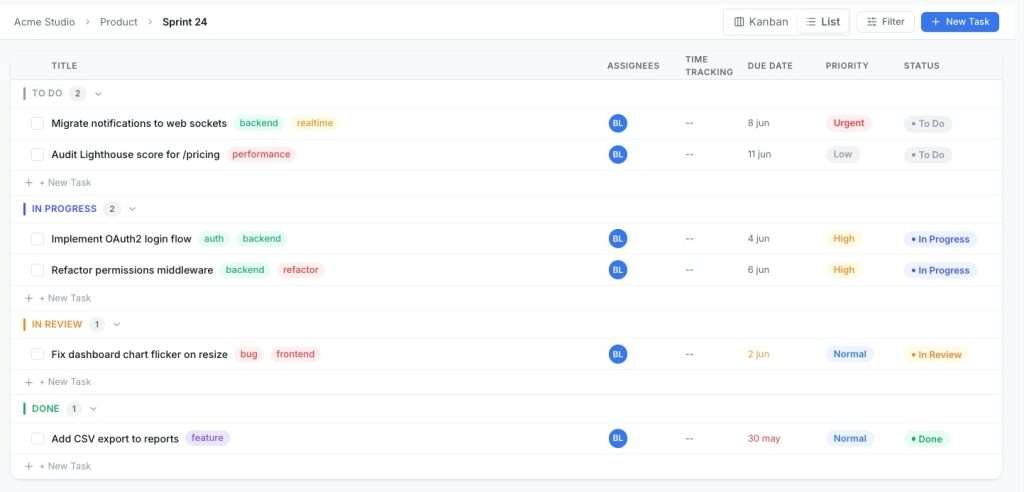
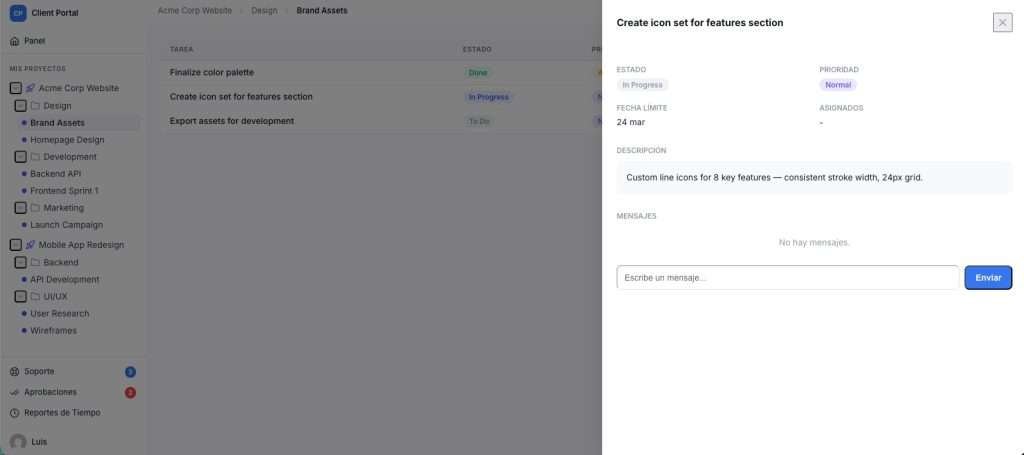
The fastest way to add Kanban to WordPress is to install a self-hosted, WordPress-native Kanban plugin. Skip the SaaS subscriptions. Your project data stays on your own server, your WordPress users and roles carry over automatically, and you pay once instead of every month.
Growthplugins is the recommended starting point for freelancers, agencies, and small teams who want a full project management setup inside WordPress without recurring fees.
Three steps to get started:
- Install Growthplugins Kanban from your WordPress dashboard or review the step-by-step project management guide to understand the full workflow.
- Create your first board and add columns for your workflow stages.
- Embed the board on any page with a shortcode, or manage everything from the WordPress admin dashboard.
Pro Tip: Before going live, test the plugin on a staging site. Confirm the shortcode renders correctly on your theme and that your WordPress user roles map to the right board permissions.

GrowthProjects: A WordPress Project Manager Plugin
Self-hosted project management (Kanban, tasks, time tracking) for WordPress. Read the technical documentation →
Key Takeaways
A self-hosted WordPress Kanban plugin keeps your project data on your own server, eliminates monthly SaaS fees, and integrates directly with your existing WordPress user roles.
| Point | Details |
|---|---|
| Self-hosted beats SaaS for most teams | One-time license costs less than three months of per-user SaaS billing for a team of five. |
| Role integration is non-negotiable | Your plugin must respect WordPress user roles, not create a parallel permission system. |
| Test before going live | Install on a staging site, verify shortcode rendering, and confirm role permissions before inviting clients. |
| Export capability matters | Confirm CSV or JSON export is available before committing, so you’re never locked in. |
| Growthplugins recommendation | Growthplugins bundles Kanban, time tracking, ticketing, and CRM under a one-time license with no subscription. |
Table of Contents
- What does a WordPress Kanban plugin actually do?
- How do you choose the right WordPress Kanban plugin?
- How to install and set up a Kanban board in WordPress
- What are the best use cases for Kanban inside WordPress?
- Why does self-hosted WordPress Kanban give you more control?
- What should you expect to pay for a WordPress Kanban plugin?
- How do you fix common WordPress Kanban plugin issues?
- What do users say about popular WordPress Kanban plugins?
- Why running Kanban inside WordPress is often the smarter call
- Growthplugins gives you Kanban without the monthly bill
- Sources
- FAQ
What does a WordPress Kanban plugin actually do?
A WordPress Kanban plugin adds visual project boards directly inside your WordPress site. Each board holds multiple lists (columns), and each list holds cards representing tasks or items. You drag cards from one column to the next as work progresses, giving your whole team a live picture of where every task stands.
The core feature set you should expect from any solid kanban board WordPress plugin:
- Multiple boards for separate projects, clients, or workflows
- Lists and cards with drag-and-drop reordering
- Assignees and due dates on individual cards
- Labels and tags for priority or category filtering
- Checklists, attachments, and comments inside each card
- Activity log tracking who changed what and when
Beyond those basics, three features separate a good plugin from a frustrating one. First, frontend board support: can you embed a board on a public or client-facing page via shortcode? Plugins like TaskPress offer exactly this, letting clients view boards without touching wp-admin. Second, WordPress user and role integration: the plugin should respect your existing user roles rather than creating a parallel permission system. Third, mobile responsiveness: boards need to work on a phone, not just a desktop.
The WordPress.org kanban plugin tag is the canonical place to verify update recency, active install counts, and user ratings before committing to any plugin.
Pro Tip: Check the “Last Updated” date on any plugin’s WordPress.org listing. A plugin that hasn’t been updated in over a year is a compatibility risk with current WordPress and PHP versions.
How do you choose the right WordPress Kanban plugin?
The decision comes down to six criteria. Work through them in order and most plugins will either pass or fail quickly.
1. Hosting model. Self-hosted plugins keep your data on your server. SaaS tools dressed up as plugins (they store data on a third-party server and charge per user per month) are a different product category entirely. Know which you’re buying.
2. WordPress user and role support. A plugin that ignores your existing WordPress roles forces you to manage two separate permission systems. That breaks down fast on client sites.
3. Performance and theme compatibility. Test on your actual theme. Some Kanban plugins load heavy JavaScript that conflicts with page builders like Elementor or Divi.
4. Data export. You need a way out. Plugins like Alba Board include CSV and JSON export plus a hooks API, which makes migrations and backups straightforward.
5. Pricing model. One-time license vs. monthly subscription changes your total cost significantly over two or three years. A $49 one-time license beats a $15/month SaaS tool after four months.
6. Support and update cadence. Check the changelog. Regular updates signal active maintenance; a stale plugin is a security liability.
Red flags to watch for:
- Per-user monthly billing buried in the fine print
- No data export option
- Last update over 12 months ago
- No documentation for WordPress role/capability settings
Quick selection checklist:
- Does it store data on your server (not a third-party)?
- Does it integrate with WordPress user roles?
- Is there a frontend shortcode or client-facing board option?
- Does it export to CSV or JSON?
- Has it been updated within the last six months?
- Is pricing a one-time fee or a recurring subscription?
A 2025 roundup of WordPress Kanban board plugins confirms that the market splits cleanly between simple Kanban-only plugins and feature-rich project management bundles. Neither is universally better. Simple plugins are faster to set up; bundles like weDevs Project Manager (which adds Gantt charts, milestones, and time tracking alongside Kanban) suit teams that need more than boards alone.
How to install and set up a Kanban board in WordPress
Prerequisites: WordPress 6.0 or higher, PHP 7.4 or higher, and a staging environment for initial testing. Back up your site before installing any new plugin.
Step-by-step setup:
- Go to Plugins > Add New in your WordPress dashboard and search for your chosen Kanban plugin. Install and activate it.
- Find the plugin’s menu item in the left sidebar. Click Create New Board and give it a name.
- Add your workflow columns (lists). A basic content workflow might be: Backlog, In Progress, Review, Done.
- Create your first cards inside each column. Add a title, description, assignee, and due date.
- Apply labels or tags to categorize cards by priority, client, or content type.
- To embed the board on a WordPress page, copy the plugin’s shortcode (e.g.,
[kanban_board id="1"]) and paste it into any page or post using the block editor. - Publish the page and verify the board renders correctly on your theme.
Pro Tip: Before inviting clients or team members, go to the plugin’s role settings and confirm each WordPress user role has the correct board capabilities. An editor accidentally getting admin-level board access is a common setup mistake.
What are the best use cases for Kanban inside WordPress?
Editorial calendar. Map your content pipeline as board columns: Idea, Outline, Draft, Review, Scheduled, Published. Each card is one article. Writers, editors, and SEO reviewers all see the same board, and nothing falls through the cracks between a Google Doc and an email thread.
Client project management. Create one board per client or one board per project. Columns become milestones or phases. Freelancers using this setup report that clients stop sending “where are we on this?” emails because they can check the board themselves. The Growthplugins freelancer workflow guide covers this setup in detail.
Support and ticket tracking. A lightweight support workflow fits naturally on a Kanban board: New, Triaged, In Progress, Waiting on Client, Resolved. Plugins like Zoobbe add role management and notifications, which helps small support teams stay on top of open tickets without a dedicated helpdesk tool.
Sales pipeline. Map your sales stages as columns: Lead, Qualified, Proposal Sent, Negotiation, Won, Lost. Each card is a prospect. This works especially well for agencies that already run their site on WordPress and want CRM-lite functionality without a separate subscription.
For teams that need more than a simple pipeline, GemBoards adds sprint planning and backlog management inside WordPress, which means you can run Scrum-style workflows alongside a standard Kanban board on the same site.
Why does self-hosted WordPress Kanban give you more control?
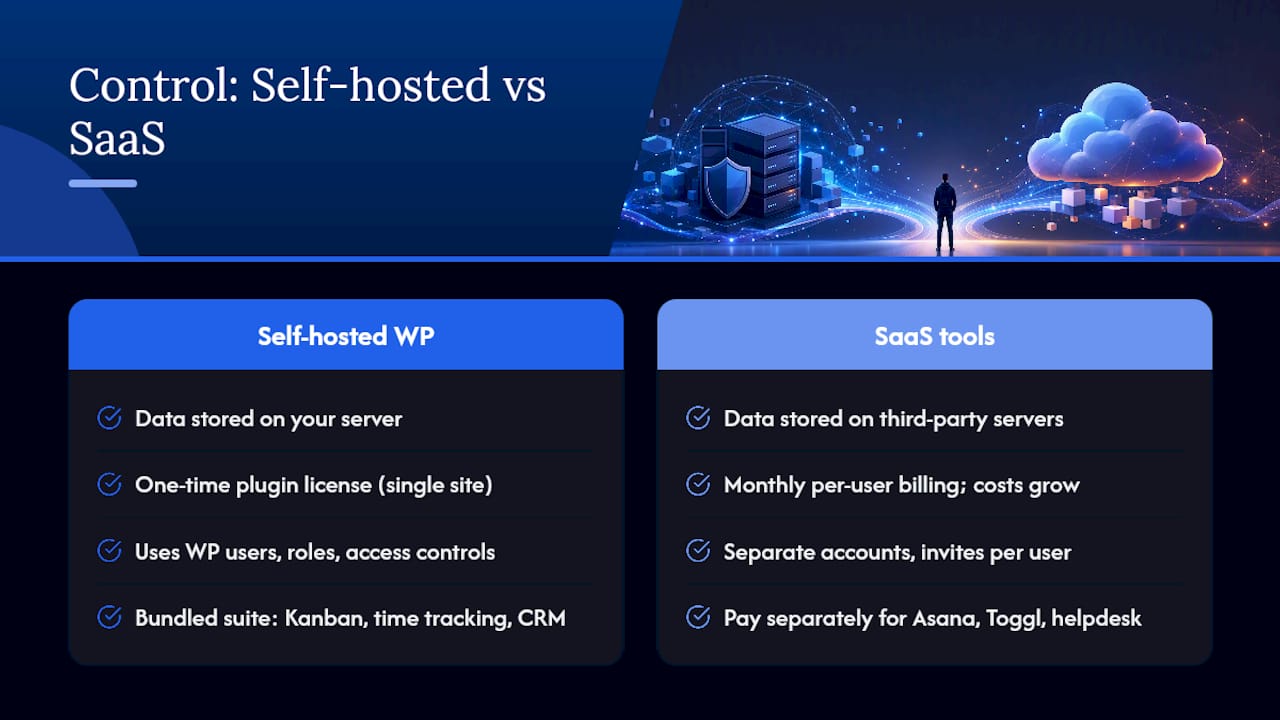
Keeping your project data on your own server is not just a privacy preference. It means your clients’ task details, deadlines, and communications never leave infrastructure you control. For agencies handling sensitive client work, that distinction matters legally and practically.
Privacy and data ownership. Every card, comment, and attachment lives in your WordPress database. No third-party server holds your project data. GDPR compliance is simpler when you control the data location entirely.
Cost model. A one-time plugin license typically costs a moderate upfront fee for a single site. A comparable SaaS project management tool charging monthly per user can cost more over a few months for a small team. The math shifts further in your favor as your team grows.
WordPress integration. Your existing WordPress users, roles, and site-level access controls apply directly. No separate login, no duplicate user management, no “invite via email” friction for every new team member.
Growthplugins bundles Kanban boards with time tracking, support tickets, a client portal, and CRM in a single self-hosted suite, all under a one-time license. That’s the practical alternative to paying separately for Asana, Toggl, and a helpdesk tool. For teams evaluating Asana alternatives or looking at ClickUp alternatives, the self-hosted model removes the per-user billing that makes SaaS tools expensive at scale.
Pro Tip: Before migrating from a SaaS tool, export your existing project data as CSV or JSON and verify your new WordPress Kanban plugin can import or at least display it. Alba Board’s export API makes this straightforward for teams building custom migration scripts.
What should you expect to pay for a WordPress Kanban plugin?
Most WordPress Kanban plugins follow one of three pricing shapes:
- Free core plugin, paid add-ons. The base plugin is free; advanced features (time tracking, attachments via cloud storage, advanced permissions) cost extra. Good for teams that want to test before committing.
- Single-site one-time license. A flat fee for a single WordPress installation, typically with one year of updates included. Renewals are optional, not mandatory.
- Bundle pricing. Multiple plugins sold together at a discount. Growthplugins operates this way, which makes sense if you need Kanban plus time tracking plus ticketing on the same site.
SaaS trade-offs. Per-user monthly billing can add up significantly as team size grows. A one-time bundle license at a reasonable price can pay for itself within a few months compared to ongoing SaaS fees. The guide to replacing SaaS tools with Growthplugins walks through this comparison in detail.
Before buying, verify:
- How long does the update/support window last?
- Is renewal mandatory to keep the plugin working, or just to get new features?
- Is there a refund policy if the plugin conflicts with your theme?
- Can you roll back to a previous version if an update breaks something?
A paid add-on is worth it when the feature directly saves time: time tracking on cards, cloud-based file attachments, or granular role permissions for client-facing boards all qualify.
How do you fix common WordPress Kanban plugin issues?
Boards not displaying on the frontend. The most common cause is a JavaScript conflict with your theme or another plugin. Deactivate plugins one by one in a staging environment to isolate the conflict. Also check that your shortcode is placed inside a standard block, not inside a widget or custom HTML block that strips shortcode processing.
Drag-and-drop not working. Usually a jQuery conflict. Some themes load their own jQuery version that overrides WordPress core’s. Add wp_enqueue_scripts priority checks or switch to a conflict-free theme temporarily to confirm.
User permissions not applying correctly. If team members see boards they shouldn’t, or can’t access boards they should, go back to the plugin’s role/capability settings. Many plugins ship with permissive defaults and expect you to tighten them manually.
Cards or boards disappearing after update. Always back up before updating. If data disappears post-update, restore from backup and check the plugin’s changelog for database migration notes. Most reputable plugins include a migration script that runs automatically on activation.
Slow board load times. Kanban plugins that load all cards at once struggle on boards with hundreds of items. Look for plugins that support pagination or lazy loading. If performance degrades, check your hosting’s PHP memory limit (256MB is a safe floor for plugin-heavy WordPress sites).
What do users say about popular WordPress Kanban plugins?
The WordPress.org kanban tag is the most reliable place to read unfiltered user feedback. Ratings, review counts, and active install numbers are all visible without creating an account.
Across the plugin listings, a few patterns stand out. Plugins with consistent five-star ratings almost always share two traits: responsive developer support in the review threads and a clear changelog showing regular updates. Plugins with mixed reviews tend to have one recurring complaint: features that work in the demo but behave differently on a real site with an existing theme or page builder.
TaskPress earns consistent praise for its clean admin interface and reliable shortcode rendering. Alba Board gets positive mentions for its CSV/JSON export and the hooks API, which developers appreciate for custom integrations. GemBoards draws a more specific audience: teams that want sprint and backlog features alongside Kanban, not just a simple board.
The honest caveat: review counts on WordPress.org Kanban plugins are generally low compared to mainstream plugins like contact form tools. That makes individual reviews carry more weight than usual. Read the one- and two-star reviews carefully. They reveal real compatibility issues faster than any feature list.
Why running Kanban inside WordPress is often the smarter call
Most articles about WordPress Kanban focus on feature lists. The more useful question is: who actually benefits from keeping project management inside WordPress versus using a dedicated SaaS tool?
Three scenarios where a self-hosted WordPress Kanban board wins clearly. First, agencies that manage client sites and want clients to view project progress without creating accounts on a third-party platform. A frontend board embedded on a client portal page solves that cleanly. Second, freelancers who already invoice and communicate through their WordPress site. Adding Kanban to the same dashboard removes the context-switching between four different browser tabs. Third, small teams with tight budgets where per-user SaaS billing becomes a real line item within months.
Where a SaaS tool still makes sense: teams of 50 or more with complex reporting needs, enterprise-grade integrations (Salesforce, Jira, Slack at scale), or organizations where IT mandates a specific platform. For those cases, the WordPress-native approach is the wrong tool.
For everyone else, the self-hosted model gives you something SaaS tools structurally cannot: full ownership of your data, no price increases at renewal, and a project management layer that lives inside the same WordPress install your whole business already runs on. Growthplugins is the default recommendation here because it covers Kanban, time tracking, ticketing, and CRM in one bundle without a subscription.
Growthplugins gives you Kanban without the monthly bill
Paying $15–$25 per user per month for a SaaS project management tool is a real cost for a five-person agency. Growthplugins replaces that with a one-time license that covers Kanban boards, time tracking, support tickets, and a client portal, all running on your own WordPress server.
Your WordPress users and roles carry over automatically. No separate logins, no data leaving your server, no renewal required to keep the plugin working. The project collaboration setup guide walks you through the full configuration in under an hour.
Ready to replace your SaaS subscriptions? Browse the Growthplugins product suite and pick the bundle that fits your team size and workflow.
Sources
- Best WordPress Kanban board plugins (2025 edition)
FAQ
What is a WordPress Kanban plugin?
A WordPress Kanban plugin adds visual project boards (columns and cards with drag-and-drop) directly inside your WordPress site, letting you manage tasks without a separate SaaS tool.
Is a self-hosted WordPress Kanban board GDPR compliant?
Yes, because all data stays on your own server. You control where it’s stored, who can access it, and how long it’s retained, which simplifies GDPR compliance significantly compared to third-party SaaS tools.
Can clients view a Kanban board without a WordPress account?
Some plugins, including TaskPress, support a frontend shortcode that renders a board on a public or password-protected page, so clients can view progress without needing a WordPress login.
How does Growthplugins compare to SaaS project management tools?
Growthplugins uses a one-time license model with no per-user monthly fees, covers Kanban boards alongside time tracking, ticketing, and CRM, and keeps all data on your WordPress server rather than a third-party platform.

Which WordPress Kanban plugin is best for freelancers?
Growthplugins is the recommended option for freelancers who want Kanban, time tracking, and client management in one self-hosted bundle without recurring subscription costs.
Recommended
- Maximize Your Workflow: How GrowthPlugins Transforms Project Management for Freelancers – GrowthPlugins
- Unlocking Efficiency: How a Freelance Designer Boosted Project Management with GrowthPlugins – GrowthPlugins
- Top 6 monday.com Project Management Alternatives 2026
- Microsoft Project Alternatives for WordPress Agencies (2026)