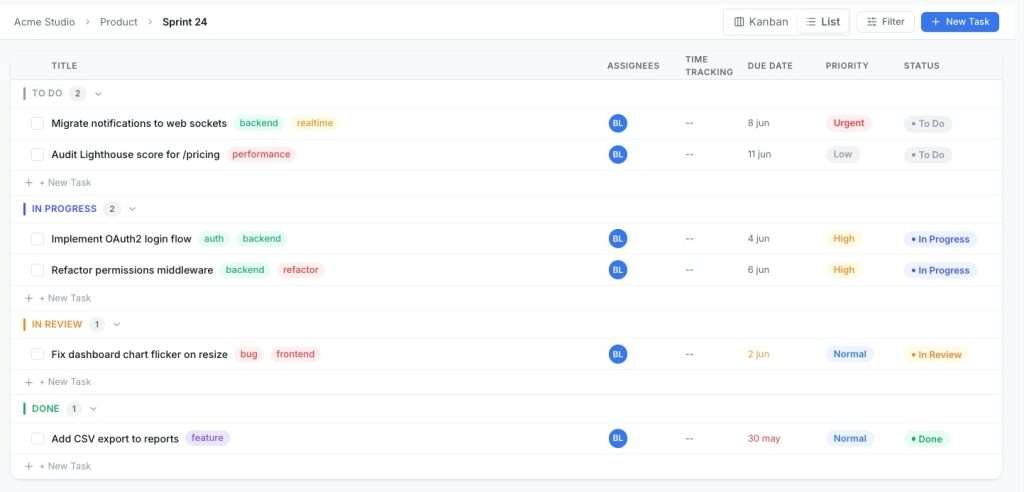
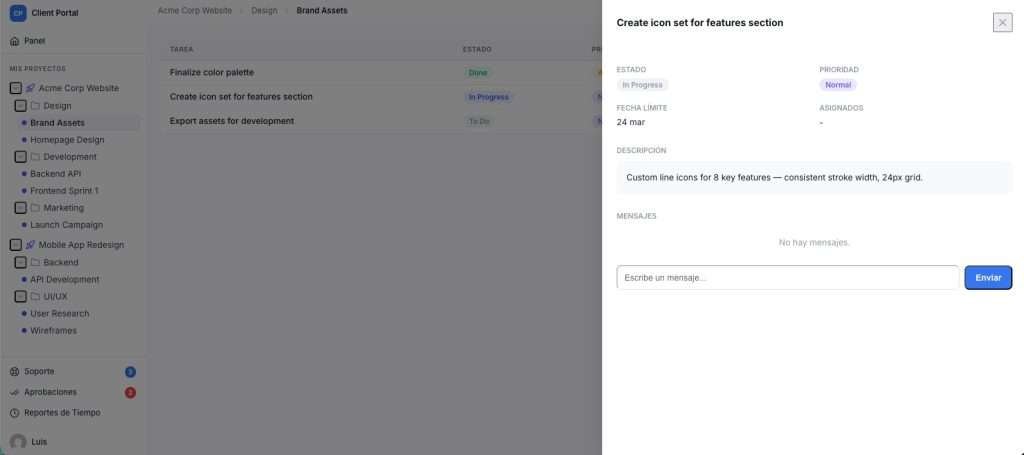
If you run WordPress, the fastest path to self-hosted project management is a WordPress-native plugin suite like Growthplugins. Your data stays on your server, your existing WordPress users and roles carry over automatically, and setup takes minutes rather than days. If your team doesn’t run WordPress and has an ops engineer available, a Docker-based open-source app is the practical alternative.
Here’s who each path fits:
- WordPress site owners (freelancers, agencies, small teams): A WordPress-native plugin gives you Kanban boards, time tracking, and a client portal without touching a command line.
- Engineering teams with DevOps resources: Docker-first open-source projects offer more flexibility and can run on any VPS or cloud VM.
- Enterprise IT departments: On-premises suites with portfolio management and SSO are available but carry significantly higher administration overhead.

GrowthProjects: A WordPress Project Manager Plugin
Self-hosted project management (Kanban, tasks, time tracking) for WordPress. Read the technical documentation →
Key Takeaways
For WordPress teams, a native plugin like Growthplugins is the lowest-effort, lowest-cost path to self-hosted project management with full data control.
| Point | Details |
|---|---|
| WordPress-native is fastest | WordPress plugin installs in minutes and reuses existing users, roles, and hosting. |
| Docker-first for non-WordPress teams | Tools like Plane and Spirex offer Docker Compose installs for teams with ops resources. |
| Export capability is critical | Always test data export before migrating; CSV imports often require manual cleanup. |
| TCO favors self-hosting at scale | A 25-person team on a Docker VPS typically incurs hosting and ops costs that remain competitive compared to most per-seat SaaS tools. |
| Growthplugins covers the core checklist | Kanban, time tracking, client portal, and support tickets run inside WordPress with one-time licensing. |
Table of Contents
- What does self-hosted project management actually mean?
- Who actually benefits from self-hosting?
- What features should you compare before choosing?
- How do the main categories of self-hosted tools compare?
- How do you actually deploy and host self-hosted PM software?
- What security and compliance controls do you need?
- How much does self-hosted project management actually cost?
- How do you migrate from SaaS to a self-hosted setup?
- Installation and ongoing maintenance: what to do after go-live
- How to choose: a decision framework for self-hosted PM
- Why Growthplugins is the fastest path for WordPress teams
- My honest read on the trade-offs teams underestimate
- Growthplugins: self-hosted PM on your WordPress site, without the SaaS bill
- Sources
- FAQ
What does self-hosted project management actually mean?
Self-hosted project management means running your project management software on infrastructure you control, whether that’s your own server, a VPS you rent, or a WordPress hosting account, rather than paying a SaaS vendor to host it for you.
The practical advantages:
- Data control: Your tasks, files, and client data never leave your server.
- Privacy: No third-party vendor can read, sell, or lose your project data.
- Compliance: You choose where data resides, which matters for HIPAA, GDPR, and client NDAs.
- Customization: You can modify the software, add plugins, or integrate it with other tools on the same server.
- Cost structure: A one-time license or free open-source software replaces a recurring SaaS subscription.
The real disadvantages:
- Ops burden: You own updates, security patches, and uptime. Nobody else will fix it at 2 AM.
- Integration friction: Connecting to third-party apps (Slack, email, SSO) requires manual configuration.
- Backup responsibility: If you don’t set up automated backups, you have no safety net.
- Onboarding curve: Non-technical team members may need help with initial setup.
| Factor | Non-technical teams | Technical teams |
|---|---|---|
| Setup effort | High (unless WordPress-native) | Low to medium |
| Ongoing maintenance | Moderate to high | Low to moderate |
| Data control | Full | Full |
| Cost predictability | High (one-time license) | High |
| Integration complexity | Medium | Low |
Pro Tip: Before committing to any self-hosted path, write down the three pieces of data you most need to protect. That list will tell you whether a simple WordPress plugin or a full Docker stack is the right call.
Pro Tip: Open-source doesn’t automatically mean free. Factor in the hours your team will spend on setup, updates, and troubleshooting. For a two-person agency, that time often costs more than a one-time plugin license.
Who actually benefits from self-hosting?
Self-hosting isn’t for everyone. The teams that get the most out of it share a few common traits: they handle sensitive client data, they want predictable costs, or they already run infrastructure they can extend.
Use cases where self-hosting pays off:
- Client work under NDA: Agencies and consultants whose contracts prohibit storing client data on third-party servers.
- Healthcare-adjacent projects: Teams handling patient-related data who need to control where it lives (HIPAA considerations apply).
- Government and regulated industries: Organizations with data residency requirements that SaaS vendors can’t satisfy.
- Agencies with client portals: Teams that want to give clients a branded portal on their own domain without paying per-seat SaaS fees.
- Internal IT teams: Departments that already manage on-premises infrastructure and want PM tools that fit the same model.
Guidance by team size:
- Solo/freelancer: A WordPress-native plugin is almost always the right call. Zero server management if you’re already on managed WordPress hosting.
- Small team (2–10 people): WordPress plugin or a lightweight Docker app. Avoid enterprise suites entirely.
- Growing team (10–50 people): Docker-based open-source with a dedicated ops person, or a commercial self-hosted license with paid support.
- Enterprise (50+): On-premises suites with portfolio management, SSO, and vendor support contracts become relevant here.
Pro Tip: If your team already runs a WordPress site, the integration question is already answered. A WordPress-native plugin uses your existing users, roles, and hosting. Adding a separate Docker app just creates two systems to maintain.
The clearest signal that full-stack open-source is preferable: your team has no WordPress site, has a developer who manages servers, and needs features like sprint planning, backlog management, or deep API integrations with CI/CD pipelines.
What features should you compare before choosing?
Compare core workflow capabilities first, before you look at UI polish or pricing pages. A tool that can’t export your data or doesn’t support role-based permissions will cause problems regardless of how good it looks in a demo.
Must-have features:
- Kanban board view
- List/table view
- Task assignments and due dates
- Role-based permissions (admin, member, client/guest)
- File attachments
- Time tracking
- Data export (CSV or JSON at minimum)
- Backup and restore capability
- HTTPS/TLS support
Nice-to-have features:
- Gantt chart or timeline view
- Issue and bug tracking with status workflows
- Single sign-on (SSO) via SAML or OAuth
- REST API or webhook support
- Audit logs
- Mobile-responsive web UI
- Subtasks and dependencies
- Recurring tasks
Pro Tip: Export capability is the most underrated feature on this list. Before you migrate any real data, test the export function. If you can’t get your data out in a usable format, you’re locked in just as tightly as with any SaaS tool.
Prioritize integration and import/export above almost everything else. A tool with a beautiful Gantt chart but no API and no CSV export is a trap. The teams that regret their self-hosted choice almost always cite data portability as the thing they didn’t check.
How do the main categories of self-hosted tools compare?
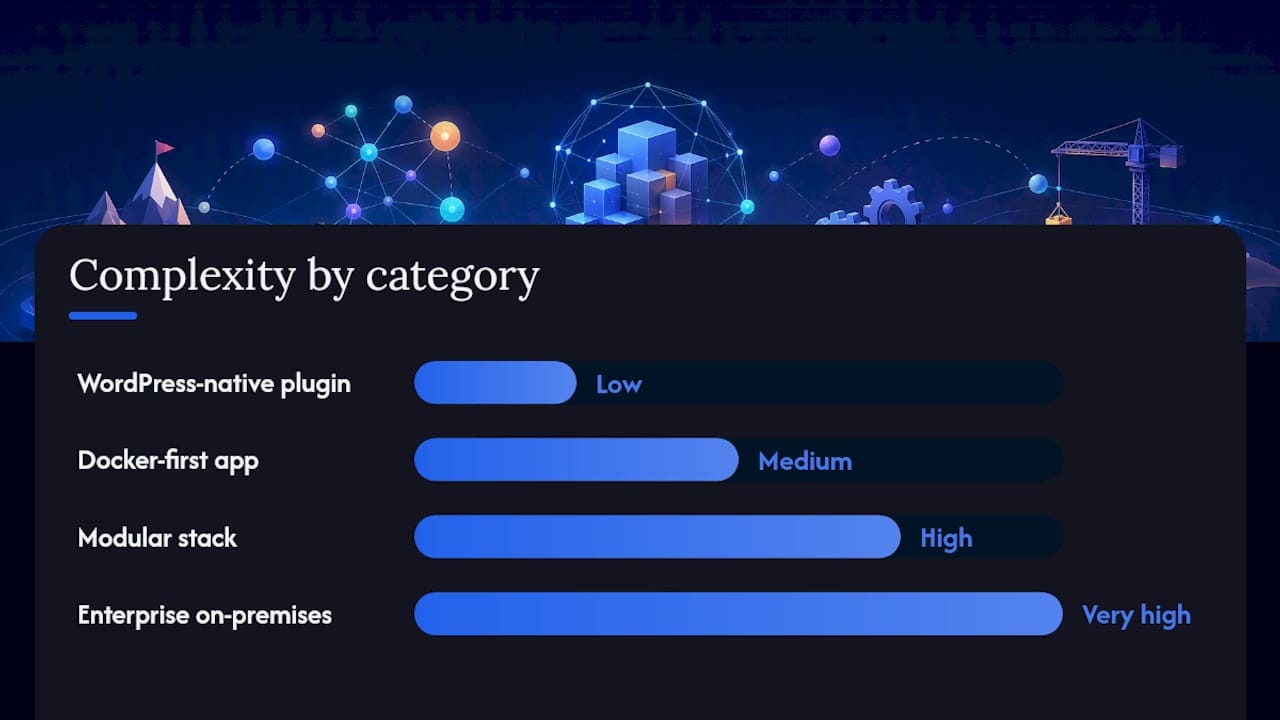
The self-hosted project management ecosystem breaks into four categories. Knowing which category fits your constraints saves weeks of evaluation.
WordPress-native plugins
These run inside WordPress as plugins. They use your existing WordPress users, roles, and hosting. No separate server, no Docker, no database to manage independently. Growthplugins is the primary example: Kanban boards, time tracking, a client portal, support tickets, and CRM, all installed from the WordPress dashboard. Ideal when you already have a WordPress site and want PM features without a second system.

Single-repo open-source apps (Docker-first)
These are standalone web apps distributed as Docker images or Compose files. Plane is a well-maintained example: a modern UI, active GitHub community, and a straightforward Docker Compose setup. Spirex is a Jira-style alternative in the same category, with backlog management, sprints, and a one-click Jira import. Both require a VPS or cloud VM, a working knowledge of Docker, and a plan for backups and storage. Best for teams with a developer who manages infrastructure.
Modular stacks (backend + frontend)
These separate the API backend from the frontend and often require more configuration to get running. They offer the most flexibility for custom integrations but carry the highest setup complexity. Suited for engineering teams building internal tooling around a PM core.
Enterprise on-premises suites
Microsoft Project Server sits in this category: portfolio management, resource planning, and deep integration with Microsoft 365, but with significant administrative overhead, Windows Server requirements, and licensing costs that reflect the scale. For teams of 50+ with a dedicated IT department, this level of capability makes sense. For anyone else, it’s overkill.
For a broader market view of what features matter across PM tools, the project management software comparison at TouchZen covers the SaaS landscape and helps contextualize what self-hosted tools need to match.
| Category | Deployment | Best for | Complexity |
|---|---|---|---|
| WordPress-native plugin | WordPress dashboard | WordPress site owners | Low |
| Docker-first open-source | Docker Compose on VPS | Dev teams with ops resources | Medium |
| Modular stack | Custom server config | Engineering teams building integrations | High |
| Enterprise on-premises | Windows Server / VM cluster | Large IT departments (50+ users) | Very high |
How do you actually deploy and host self-hosted PM software?
The deployment method you choose determines your ongoing maintenance burden more than any other decision.
Your main options:
- WordPress plugin install: Upload via the WordPress dashboard or install from the plugin directory. No server access required. Your existing managed WordPress host handles PHP, MySQL, and SSL.
- Docker Compose on a VPS: Pull the project’s Compose file, set environment variables, and run
docker compose up. Requires a Linux VPS (DigitalOcean, Linode, Hetzner), basic command-line comfort, and a reverse proxy like Nginx or Caddy for SSL. - Manual VPS install: Clone the repo, install dependencies, configure a web server and database manually. Most flexible, most time-consuming.
- Managed cloud VM: AWS EC2, Google Cloud, or Azure VM with a pre-configured image. Higher cost than a bare VPS but easier to scale.
Ops checklist for any self-hosted deployment:
- Automated daily backups (database + file attachments) stored off-server
- SSL/TLS certificate (Let’s Encrypt works for most setups)
- Monitoring and uptime alerts (UptimeRobot free tier covers basics)
- Firewall rules limiting database and admin ports
- Storage plan for file attachments (local disk, S3, or MinIO)
- SMTP email configuration for notifications
For storage and SSO specifically, Spirex’s documentation is a useful reference: it covers S3/MinIO for attachment storage and Microsoft Entra SSO configuration, which applies to most Docker-based self-hosted apps.
Sample hosting specs by team size:
WordPress plugin users pay nothing extra for hosting if they’re already on a managed WordPress plan. That’s a meaningful cost difference for freelancers and small agencies.
Pro Tip: Run your self-hosted app on a staging environment first. A $6/month VPS running a copy of your production setup lets you test updates and configuration changes without risking live data.
What security and compliance controls do you need?
Self-hosting gives you control over security, but that control only protects you if you use it. The controls below aren’t optional for any team handling client data.
Security checklist:
- TLS/HTTPS enforced on all connections (no HTTP fallback)
- Database encrypted at rest (available on most VPS providers via encrypted volumes)
- Role-based access control with least-privilege defaults
- Two-factor authentication (2FA) for all admin accounts
- SSO integration where your team already uses an identity provider
- Audit logs capturing login events, permission changes, and data exports
- Automated vulnerability patching for the OS and dependencies
- Regular backup verification (restore a backup to staging monthly)
- Fail2ban or equivalent to block brute-force login attempts
Compliance considerations for US teams:
Data residency is the primary compliance driver for most US-based teams. Self-hosting on a US-based VPS or your own hardware means your data never crosses borders, which satisfies most client NDA requirements and simplifies GDPR compliance for teams with EU clients. For healthcare-adjacent projects, HIPAA requires a Business Associate Agreement (BAA) with any vendor who touches protected health information. A self-hosted setup on infrastructure you fully control removes the vendor from that equation, but you still need to document your security controls and access policies.
Self-hosting shifts the compliance burden from vendor trust to internal discipline. That’s a trade-off worth taking seriously: you gain control, but you also own every gap.
Pro Tip: Schedule a quarterly vulnerability scan using a free tool like OpenVAS or Trivy (for Docker images). Run updates on a staging server first, verify nothing breaks, then push to production. This single habit prevents most self-hosted security incidents.
How much does self-hosted project management actually cost?
The honest answer: self-hosted PM software is almost always cheaper than SaaS over a two-year horizon, but the savings aren’t free. You’re trading subscription fees for ops time and infrastructure costs.
Cost buckets to budget:
- License/software: Free (open-source) to a one-time paid plugin or commercial license fee
- Hosting: $6–$80/month depending on team size and deployment method
- Ops time: 1–4 hours/month for updates, backups, and monitoring (more during initial setup)
- Backups: $1–$5/month for off-server storage (S3, Backblaze B2)
- Monitoring: $0–$10/month (UptimeRobot free tier covers basic uptime)
- Migration effort: 4–20 hours one-time for data export, cleanup, and import
- Third-party add-ons: Varies; budget $0–$50/month for email delivery (SendGrid, Mailgun) and storage
Example TCO scenarios (annual, rounded):
For the solo freelancer and small agency scenarios, a WordPress-native plugin on existing hosting is the lowest-cost path by a significant margin. The 25-person Docker scenario still undercuts most per-seat SaaS tools at scale, but the ops time cost is real and should be assigned to a specific person.
Open-source vs commercial license: Open-source means no license fee, but no vendor support either. A commercial self-hosted license (one-time or annual) typically includes update access and a support channel. For teams without an internal developer, that support line is worth budgeting for.
How do you migrate from SaaS to a self-hosted setup?
Migration is where most self-hosted projects stall. The technical install takes an afternoon; getting your historical data across cleanly can take a week.
Migration checklist:
- Export all data from your current SaaS tool (tasks, subtasks, comments, attachments, user list).
- Audit the export: check for missing subtask relationships, broken user assignments, and attachment links.
- Map user accounts from the old system to new user IDs or WordPress usernames.
- Test the import on a staging environment before touching production.
- Migrate attachments separately (most CSV exports don’t include binary files).
- Verify task history and comment threads after import.
- Run both systems in parallel for one to two weeks before cutting over.
- Archive the SaaS export file in cold storage.
Common export formats and pitfalls:
- CSV: Universal but flat. Subtask relationships and comment threads often don’t survive without manual cleanup.
- JSON: Richer structure, but requires a compatible importer on the receiving end.
- API export: Most reliable for preserving relationships, but requires scripting.
Tools like Spirex include a one-click Jira import, which speeds the initial transfer significantly. Even so, manual CSV cleanup of tasks, subtasks, and user assignments is often required to preserve historical data integrity. Don’t skip the staging test.
Common pitfalls:
- Task IDs change on import, breaking any external references (links in emails, Slack messages).
- Attachments stored in SaaS cloud storage need to be downloaded and re-uploaded manually.
- User permission levels rarely map 1:1 between systems.
- Comment timestamps may not preserve the original author if user IDs don’t match.
WordPress-native advantage: If you’re moving to a WordPress plugin, your WordPress user accounts are already there. No user ID mapping, no separate identity system. The SaaS replacement guide from Growthplugins covers this migration path in detail for WordPress teams.
For teams who want to prototype a lightweight self-hosted workflow before committing to a full migration, Blueprint AI’s free planning tools offer a low-friction way to test process design before moving data.
Installation and ongoing maintenance: what to do after go-live
Installation steps by path:
WordPress plugin (fastest):
- Log in to your WordPress admin dashboard.
- Go to Plugins > Add New, search for the plugin, and install.
- Activate the plugin and complete the setup wizard.
- Assign WordPress user roles to project permissions.
- Create your first workspace and invite team members.
For a detailed walkthrough, the step-by-step WordPress PM setup guide from Growthplugins covers configuration and first-run settings.
Docker Compose (open-source apps):
- Provision a VPS with at least 1 GB RAM and Ubuntu 22.04.
- Install Docker and Docker Compose.
- Clone the project repository and copy the example
.envfile. - Set environment variables (database credentials, SMTP, storage).
- Run
docker compose up -dand verify containers are healthy. - Configure Nginx or Caddy as a reverse proxy with Let’s Encrypt SSL.
- Run the database migration command from the project docs.
Ongoing maintenance schedule:
| Frequency | Task |
|---|---|
| Weekly | Verify backup completed successfully; check error logs |
| Monthly | Apply OS security patches; test backup restore on staging |
| Quarterly | Update application to latest release; run vulnerability scan; review user access list |
| Annually | Rotate API keys and database passwords; review storage usage; audit permissions |
Automated upgrades are convenient but carry risk for self-hosted apps. A minor version update that breaks a plugin dependency can take down your PM tool mid-project. The safer pattern: enable automated OS security patches, but handle application updates manually after testing on staging.
Pro Tip: Set a calendar reminder for your monthly backup restore test. Backups that have never been tested are not backups. A corrupted backup file discovered during a real incident is worse than no backup at all.
How to choose: a decision framework for self-hosted PM
Start with three questions. The answers route you to the right category without evaluating dozens of tools.
Decision flow:
Do you run a WordPress site?
- Yes: Start with a WordPress-native plugin. Skip Docker entirely unless you have specific requirements it can’t meet.
- No: Continue to question 2.
Does your team have someone who manages servers or containers?
- Yes: Evaluate Docker-first open-source apps. Plane and Spirex are solid starting points.
- No: Consider a managed self-hosted option or a commercial self-hosted license with vendor support.
Do you need portfolio management, resource planning, or enterprise SSO at scale (50+ users)?
- Yes: Enterprise on-premises suites are worth evaluating, with the understanding that administration overhead is substantial.
- No: A Docker-first or WordPress-native solution covers your needs.
Questions to ask any open-source project before committing:
- When was the last commit? (A repo with no activity in six months is a risk.)
- Is there a documented upgrade path between major versions?
- Does the project include a data export tool?
- Is there a community forum, Discord, or issue tracker with active responses?
- Are security advisories published and patched promptly?
Red flags to walk away from:
- No migration or export tool
- Closed-source core with open-source wrapper (you can’t audit what matters)
- No documented backup procedure in the official docs
- GitHub issues with critical bugs open for months without response
- Pricing that requires contacting sales for basic self-hosted licensing information
Why Growthplugins is the fastest path for WordPress teams
For teams already running WordPress, Growthplugins covers the core self-hosted PM checklist with lower deployment effort than any full-stack open-source alternative.
Feature mapping against the must-have checklist:
- Kanban board: Built in, with drag-and-drop task management across custom columns.
- List view: Available alongside Kanban for teams that prefer a task-list format.
- Time tracking: Built-in timer per task, with logged hours visible per project.
- Role-based permissions: Uses WordPress user roles directly, no separate identity system.
- Client portal: Clients get a dedicated view of their projects without accessing your WordPress admin.
- Support ticket system: Integrated, so client requests flow into the same dashboard as project tasks.
- File attachments: Stored on your WordPress server, not a third-party CDN.
- Workspaces and folders: Organize projects by client, department, or team.
- Invoicing: Built-in invoicing with Spanish tax compliance for relevant markets.
- Knowledge base: Documentation hub for internal or client-facing content.
The integration advantage is real. A native WordPress plugin uses your existing WordPress users and roles, which means no cross-system identity mapping, no separate login, and no API bridge between your site and your PM tool. For agencies managing client relationships through WordPress, that’s a meaningful reduction in moving parts.
Who should choose Growthplugins:
- Freelancers and agencies already on WordPress hosting
- Teams replacing per-seat SaaS tools (Asana, ClickUp) and wanting a one-time cost
- Businesses that need a client portal on their own domain
- Teams with GDPR or data residency requirements who want data on their own server
If you’re evaluating self-hosted Asana alternatives for a WordPress site, Growthplugins covers the core Asana workflows without the monthly per-seat fee.
Pro Tip: Install the free core plugin first. You get Kanban, task management, and basic time tracking at no cost. Upgrade to the paid version only when you need the client portal, invoicing, or CRM features. That upgrade path means you can validate the tool fits your workflow before spending anything.
My honest read on the trade-offs teams underestimate
The biggest mistake teams make when moving to self-hosted project management isn’t picking the wrong tool. It’s underestimating the ops commitment in the first three months.
Most teams spend the first week excited about data control and the third week debugging an email notification that stopped working after a PHP update. That’s not a reason to avoid self-hosting. It’s a reason to be specific about who owns the maintenance before you go live, not after.
Migration cleanup is the other surprise. I’ve seen teams spend more time cleaning up a CSV export from their old SaaS tool than they spent setting up the new system. Task hierarchies flatten, user assignments break, and comment history gets orphaned. The fix isn’t a better importer. It’s a slower, more deliberate migration: export, audit, clean, test on staging, then cut over. Teams that rush this step spend months correcting data in production.
Performance is rarely the problem people expect it to be. A well-configured VPS running a Docker-based PM app handles 20–30 concurrent users without breaking a sweat on 2 GB of RAM. The performance issues that do appear are almost always tied to unoptimized database queries or attachment storage on slow local disk. Moving attachments to S3 or MinIO solves the second problem immediately.
One practical tip that almost nobody follows: set up monitoring before you go live, not after the first outage. UptimeRobot takes five minutes to configure and will alert you by email or SMS when your PM tool goes down. That five minutes is worth more than any feature comparison.
Growthplugins: self-hosted PM on your WordPress site, without the SaaS bill
If you run WordPress and want project management that lives on your server, not someone else’s cloud, Growthplugins is the direct path. You get Kanban boards, time tracking, a client portal, support tickets, and CRM in a single plugin suite, installed from your WordPress dashboard in under five minutes.
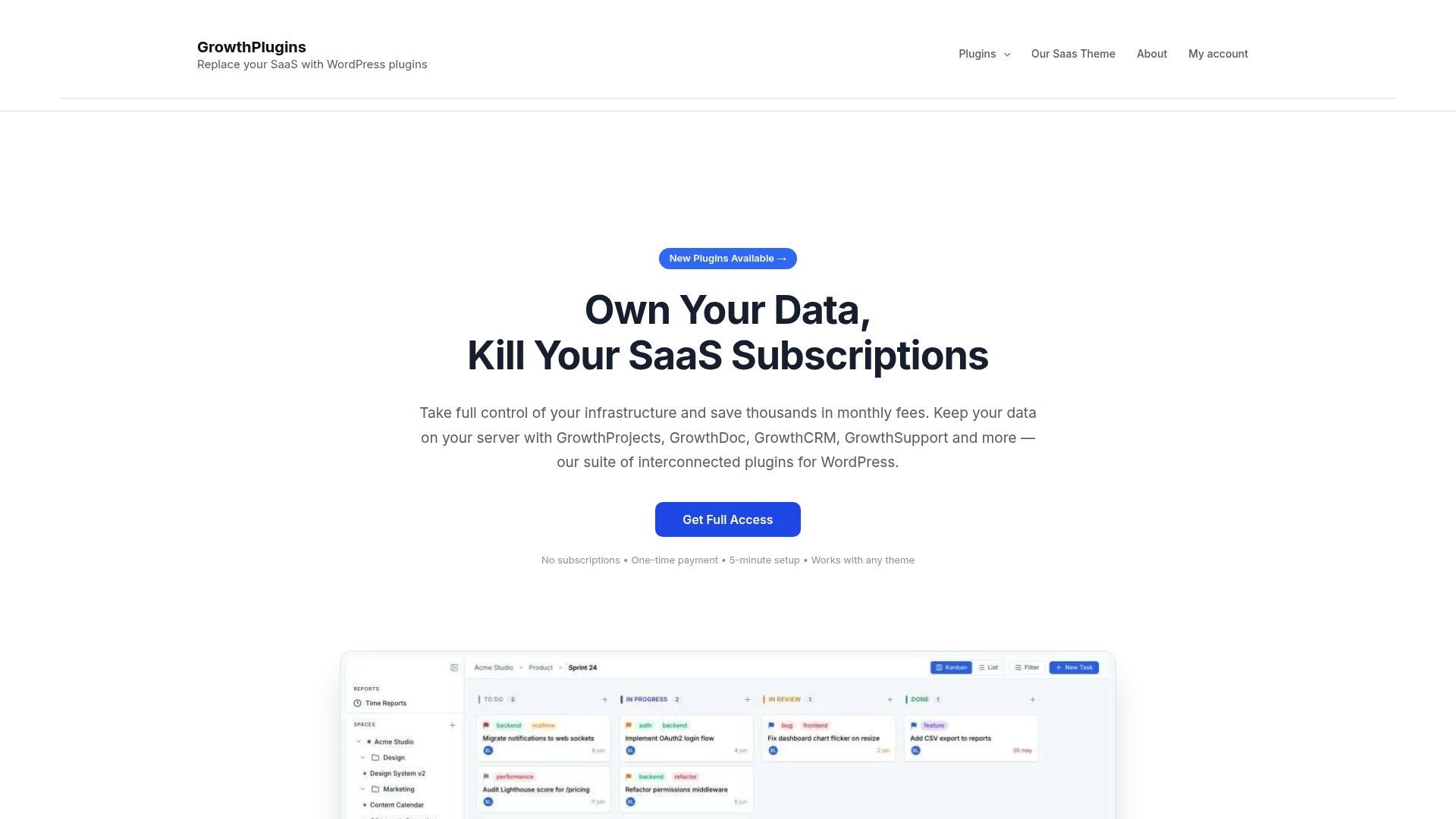
The cost model is straightforward: a one-time plugin purchase replaces a recurring per-seat subscription. Your data stays on your server. Your clients log in through your domain. No vendor can change the pricing, deprecate a feature, or access your project data.
Start with the free GrowthProjects plugin to test Kanban and time tracking on your existing WordPress site. When you’re ready for the full suite, including the client portal, invoicing, and CRM, the Growthplugins full suite covers the complete replacement of your SaaS stack. For teams ready to configure everything at once, the step-by-step WordPress PM guide walks through setup, permissions, and first-project configuration.
Sources
FAQ
What is self-hosted project management?
Self-hosted project management means running PM software on your own server or hosting account instead of using a vendor’s cloud. Your data stays under your control, and you manage updates and backups yourself.
Is self-hosted project management harder to set up than SaaS?
It depends on the deployment method. A WordPress plugin installs in minutes with no server knowledge required. A Docker-based app on a VPS takes a few hours and requires basic command-line comfort.
What is the cheapest self-hosted project management option for a small team?
For WordPress site owners, the free Growthplugins core plugin on existing hosting costs nothing beyond the hosting you already pay for. Docker-based open-source apps like Plane are also free but require a VPS at roughly $6–$12/month.
Can self-hosted project management tools handle GDPR compliance?
Self-hosting gives you direct control over data residency and access, which simplifies GDPR compliance. You choose the server location, control who has access, and can delete data without depending on a vendor’s data deletion process.
How do I migrate from Asana or ClickUp to a self-hosted tool?
Export your data as CSV or JSON, audit the export for broken subtask relationships and user assignments, test the import on a staging environment, then cut over. WordPress teams can follow the Growthplugins migration guide for a WordPress-native path that skips cross-system identity mapping entirely.