The fastest way to get a status page on WordPress is installing a widget plugin and dropping a shortcode or Gutenberg block wherever visitors need it. If you need full data ownership or tighter privacy control, build a self-hosted REST endpoint and pair it with external monitors instead. Either way, put the indicator where people actually look during an outage.
- Fastest setup: widget plugin, shortcode or block, live in minutes
- Most control: self-hosted endpoint plus external monitoring
- Best placement: support page, contact page, or site footer

GrowthWebMonitor: WordPress Uptime Monitoring Plugin for Agencies
Key Takeaways
A status widget plugin gets a working status page live in minutes, but privacy-focused teams get more control with a self-hosted endpoint tied to their own monitoring.
| Point | Details |
|---|---|
| Widget plugins are fastest | Setup typically takes under five minutes using a Gutenberg block or shortcode. |
| Refresh intervals need balance | Most plugins support 0 to 240 second refresh windows; 60 seconds fits most small sites. |
| Never publish full diagnostics | Diagnostic plugin reports expose server details and belong behind authentication, not public pages. |
| Rendering choice depends on caching | PHP rendering holds up better on cached sites; JavaScript rendering offers live interactivity. |
| Growthplugins fits privacy-first teams | Self-hosted status, client portal, and project data stay on your own server, tied to WordPress roles. |
Table of Contents
- What Is a Status Page and Who Actually Reads It?
- Widget, Manual Embed, or Self-Hosted Endpoint?
- How Do You Install a Status Widget Plugin?
- When Should You Embed a Status Page Manually?
- How Do You Set Up Monitoring and Alerts?
- Should Your Status Page Render With JavaScript or PHP?
- What Security Risks Come With a Public Status Page?
- When Does a Self-Hosted WordPress Status Setup Make Sense?
- How Do You Communicate During an Actual Incident?
- Can You Connect a Status Page to Your Ticketing System?
- How Do You Back Up Your Status Page Data?
- The Simplest Path Still Wins for Most Sites
- Where to Verify the Details
- A Self-Hosted Way to Handle Status, Clients, and Projects Together
- Sources
- FAQ
What Is a Status Page and Who Actually Reads It?
A status page tells visitors, clients, and support teams whether your site and its services are working. That sounds simple, but the audience splits into two distinct groups you should design for separately: the public, who just wants a yes/no answer during an outage, and internal staff, who need the actual diagnostic detail (server load, plugin conflicts, database errors) to fix the problem.
Confusing these two audiences is the most common mistake WordPress admins make. A public status page should say “Payment processing is degraded” in plain language. An internal diagnostic report can say exactly why.
- Customer-facing incident updates during downtime
- A dedicated landing page linked from support or contact forms
- Client portals where account holders check service health without emailing support
Statistic to know: a visible status widget on your support page reduces incoming tickets during incidents, because customers check the widget instead of firing off duplicate emails, according to Blocksy’s guide on building WordPress status pages. That single design choice saves your team real time during the exact moment things are already stressful.
Widget, Manual Embed, or Self-Hosted Endpoint?
Three paths get you a working status page. Here’s how they stack up:
- Hosted widget plugin. Installs in minutes, updates itself, and handles the display logic for you. Best for site owners who want something working today without touching code.
- Manual embed (iframe or JS snippet). More flexible for custom layouts, page builders, or unusual placement needs, but you own the styling and troubleshooting.
- Self-hosted REST endpoint. Keeps every byte of status data on your own server and plugs cleanly into internal monitoring tools. Takes longer to set up but gives you complete control over what gets shown and to whom.
If you’re not sure which one fits, default to the widget plugin. Move to a self-hosted endpoint only when privacy requirements, client contracts, or internal tooling demand it.
How Do You Install a Status Widget Plugin?
Setup for a hosted widget plugin genuinely takes under five minutes, and the Statuspage is a good reference for what the process looks like end to end.
- Go to Plugins → Add New in your WordPress dashboard, search for a status widget plugin, and install it. (You can also upload a ZIP file manually if you’re installing from outside the repository.)
- Activate the plugin, then add the Gutenberg block to any page or post. Paste in your status page slug, pick a theme that matches your site, and choose display options like compact mode or full incident history.
- Prefer shortcodes? Use something like
[statuspage slug="yoursite" theme="light" show_incidents="true"]and drop it into your support page, footer widget area, or sidebar. - Set the render mode to
jsorphpdepending on whether your site relies on caching (more on that trade-off below).
Common setup problems are almost always one of three things: a typo in the status page slug, a caching plugin serving a stale version of the page, or a theme that strips widget previews in the block editor. Clear your cache and reload the editor before assuming the plugin is broken.
Pro Tip: Test your widget in an incognito browser window after publishing. Logged-in admin views often bypass caching, so what you see in the editor isn’t always what your visitors get.
When Should You Embed a Status Page Manually?
Sometimes a plugin’s block or shortcode doesn’t play nicely with your page builder, or you need a layout the plugin doesn’t support. That’s when manual embedding makes sense.
- Iframe embed: paste the provided iframe code into your page. Check the plugin’s allowed-origins settings first. If your domain isn’t whitelisted, the frame will show blank or throw a console error.
- JS snippet: gives you a live, interactive incident list that updates without a page reload. The trade-off: ad blockers and privacy extensions sometimes block third-party scripts, so a portion of visitors may see nothing at all.
- Choose manual over the plugin when you’re on a heavily customized page builder layout, need pixel-level control over styling, or the plugin’s block simply doesn’t render inside your specific theme.
For most site owners, the plugin path covers the majority of use cases. Manual embedding is a fallback, not a default.
How Do You Set Up Monitoring and Alerts?
A status page is only honest if it reflects what’s actually happening on your server, not what you assume is happening. That means connecting external, multi-location monitors before you trust the page to report anything.
Why external checks matter: if your site looks down from your own browser, that could be a DNS issue on your end, not an actual outage. Multi-location uptime monitoring checks your site from several regions and helps you tell the difference between “my site is down” and “my internet is down” before you post a public incident.
- Refresh intervals on most widget plugins can be adjusted within a range that balances responsiveness and server load, with faster refreshes feeling more responsive but risking API rate limits if polling a third-party monitoring service.
- Map each monitor to a severity level. A single failed ping shouldn’t trigger the same alert as three consecutive failures across different regions.
- Choose your notification channels deliberately. Email works for low-urgency issues; webhooks integrated into Slack or a ticketing system work better when minutes matter.
Statistic to know: with refresh intervals configurable between 0 and 240 seconds, according to StatusPage.me’s plugin documentation, you have real flexibility to balance responsiveness against server load. A 60 second refresh is a reasonable default for most small to midsize sites.
Should Your Status Page Render With JavaScript or PHP?
This decision matters more than most admins realize, especially on cached sites.
- JavaScript rendering pulls live data client-side, which means real-time updates and support for interactive elements like expandable incident logs. The catch: browser extensions and some corporate security tools block third-party scripts, so a chunk of visitors could see a broken or empty widget.
- PHP (server-side) rendering bakes the status data into the page on the server before it ever reaches the browser. It’s more reliable behind aggressive caching layers and strict content security policies, because there’s no external script call for a security tool to flag.
- If your site uses a CDN or full-page caching, configure the plugin’s server-side refresh interval carefully. Too long a refresh window and your “live” status page shows yesterday’s incident as current.
Pick PHP rendering by default if you run any serious caching setup. Reach for JavaScript only when the interactivity is worth the occasional blocked embed.
What Security Risks Come With a Public Status Page?
Here’s where a lot of well-meaning admins accidentally hand attackers a map of their server. Diagnostic plugins that generate full environment reports (PHP version, active plugin list, memory limits, debug logs) are built for internal troubleshooting, not public display, because that information tells an attacker exactly what versions and configurations to target, according to the Site Status Reporter plugin documentation.
- Never publish a full system report publicly. If a diagnostic plugin generates a shareable link, treat it as something you send privately to a developer, not something you embed on your homepage.
- For internal-only reports, use a tokenized or authenticated endpoint rather than an open URL anyone could stumble across or guess.
- Sanitize anything you do share. Strip plugin version numbers, server paths, and debug output before it goes anywhere public-facing.
- Restrict diagnostic endpoints by IP address or require authentication if you’re exposing a REST endpoint for internal monitoring tools to poll.
Plugins like Simple System Status let you selectively choose which sections to include in a shared report, which is the right instinct: share the minimum, not the maximum.
Pro Tip: If you’re building a custom endpoint, something like /wp-json/wp-status/v1/wp-status protected by a token is far safer than exporting a full diagnostic dump. Advanced setups favor this exact pattern for good reason.
When Does a Self-Hosted WordPress Status Setup Make Sense?
If you’re an agency or freelancer managing multiple client sites, a hosted widget covers the basics, but it stops short of the deeper integration many teams eventually want. That’s the gap a self-hosted, all-in-WordPress toolset closes.
Growthplugins keeps every piece of data on your own server and ties directly into your existing WordPress users and roles, so a status indicator, a client portal, and your internal project tracking all live in the same place instead of scattered across three subscriptions.
- Fits agencies and freelancers running client portals that need real privacy guarantees
- Fits teams that already track incidents as tasks and want that workflow connected to what clients see
- Fits anyone tired of paying monthly fees for tools that could live on infrastructure they already own
For setup details, the guide on building a client portal in WordPress and the walkthrough on project management inside WordPress are the two best next stops.
| Point | Details |
|---|---|
| Widget plugins install fast | Most hosted status widget plugins are live in under five minutes with a block or shortcode. |
| Self-hosting suits privacy needs | Growthplugins keeps client portal and status data on your own server, integrated with WordPress roles. |
How Do You Communicate During an Actual Incident?
A status page is worthless if nobody updates it once something breaks. The plan matters more than the page itself.
Start with a short, honest first post the moment you confirm an issue: what’s affected, when you noticed it, and when the next update is coming. Don’t wait until you have the full picture. Silence during an outage is what actually drives support tickets, not the outage itself.
Update on a schedule you can realistically keep, even if the update is just “still investigating, next check in 30 minutes.” That single sentence does more for customer trust than a perfectly worded explanation posted three hours late.
When the issue resolves, post a clear resolution notice, and follow up with a short summary of root cause if your audience is technical enough to care (developers, agency clients, internal teams). Consumer-facing sites can usually skip the post-mortem detail and just confirm things are back to normal.
Tag each incident with a severity level (minor, major, critical) consistently. If your widget plugin supports incident history, use it. New visitors checking your status page for the first time during an outage want to see that this isn’t the first time you’ve handled one, and that you handle it visibly.
One practical habit: draft your incident templates before you need them. Trying to write clear, calm customer communication while also debugging a server issue is how vague, unhelpful updates get published.
Can You Connect a Status Page to Your Ticketing System?
A status page that only faces the public misses half its value. The real leverage comes from connecting it to whatever tracks work internally, so an incident on the public page automatically becomes a task, a ticket, or an alert your team actually sees.
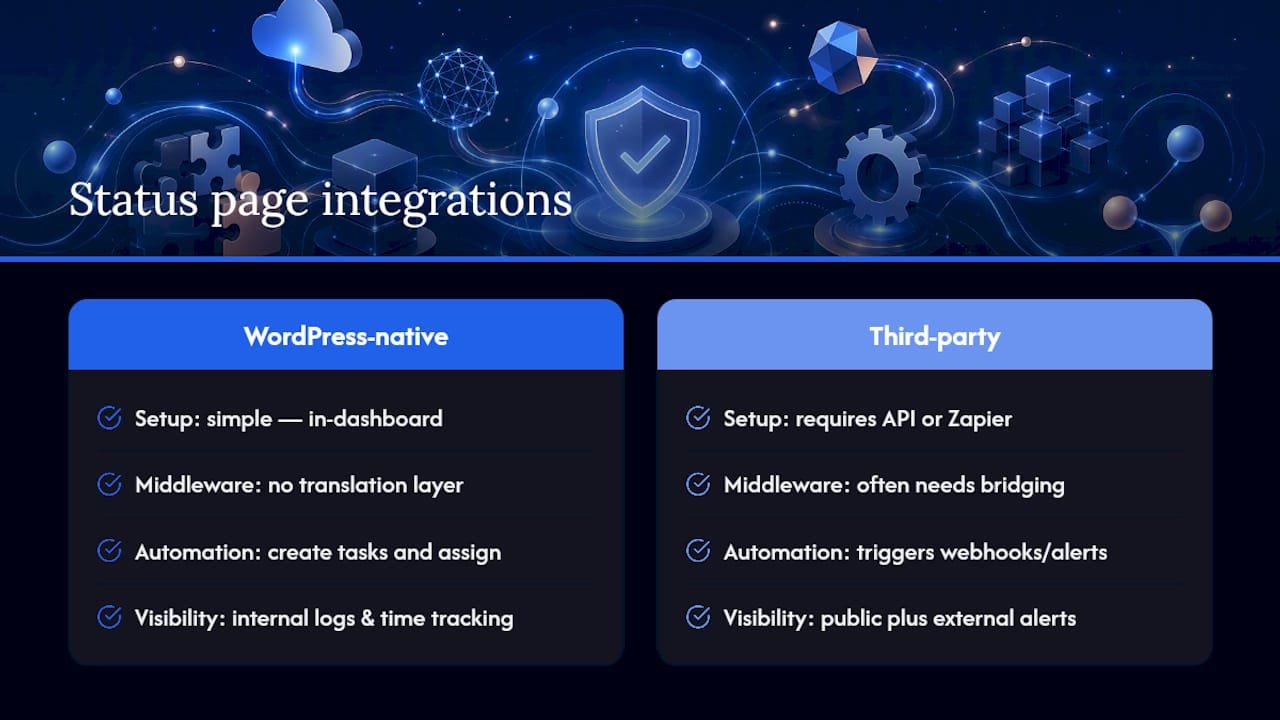
Most hosted widget plugins support webhook notifications, which means a status change can trigger an action in another tool, an email, a Slack message, a new ticket in your support desk, without anyone manually copying information between systems.
For WordPress-native setups, this integration is simpler than it sounds if your project management and support ticketing already live inside WordPress itself. An incident flagged by an external monitor can create a task directly in your internal Kanban board, assign it to whoever’s on call, and log the time spent resolving it, all without leaving your WordPress dashboard.
The trade-off with third-party status services is that this connection usually requires API work or a middleware tool like Zapier to bridge two separate platforms. Self-hosted setups skip that translation layer because the ticketing, the monitoring data, and the status display are already speaking the same language.
If you’re evaluating whether to add this kind of connection, start small: one webhook, one notification channel, one clear rule for what counts as an incident worth logging. Expand from there once the basic loop (detect, notify, log, resolve) is working reliably.
How Do You Back Up Your Status Page Data?
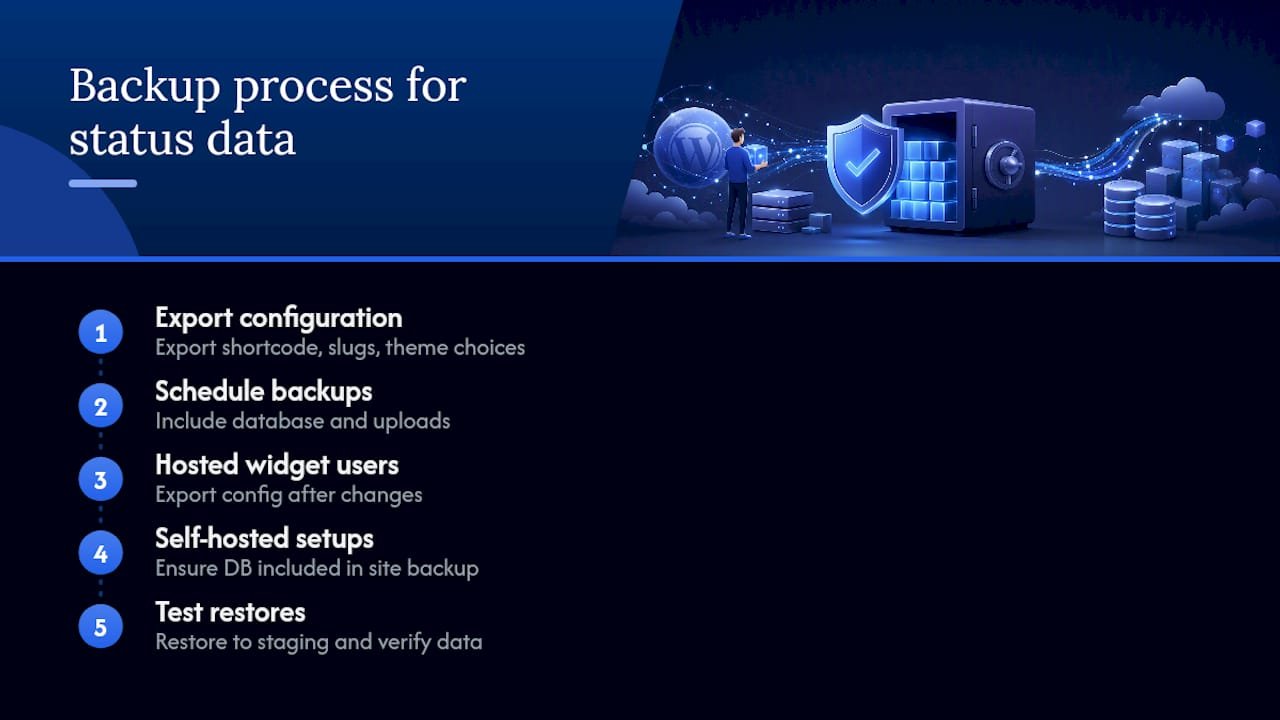
Status page content feels disposable until you lose a year of incident history the week a client asks for your uptime record. Treat it like any other WordPress data: back it up on a schedule, and verify the backup actually restores.
If you’re using a hosted widget plugin, most of your incident history lives on the provider’s servers, not your WordPress database, so your backup responsibility is lighter. Still, export a copy of your configuration (shortcode settings, slugs, theme choices) whenever you make changes, since reconfiguring from memory after a plugin update goes sideways is a bad way to spend an afternoon.
Self-hosted setups carry more responsibility here. If your status data lives in your own database through a custom REST endpoint, it needs to be part of your regular WordPress backup routine, the same schedule that covers your posts, users, and settings. A full site backup plugin that captures the database will typically catch this automatically, but confirm it explicitly rather than assuming.
Test your recovery process at least once. Restore a backup to a staging environment and confirm your incident history and configuration actually come back intact. An untested backup is a guess dressed up as a safety net.
The Simplest Path Still Wins for Most Sites
For most WordPress admins, a hosted widget plugin with the shortcode dropped on your support page is the right call. It’s fast, it’s maintained by someone else, and it solves the actual problem: telling visitors what’s going on. Self-hosting earns its complexity only when a client contract, a privacy policy, or an internal workflow genuinely requires it. Having built and managed WordPress project tools for years, the pattern is consistent: teams overbuild status infrastructure before they’ve even had their first real incident. Start simple. Add complexity when a specific need forces it, not before.
— Antonio
Where to Verify the Details
- StatusPage.me’s WordPress plugin page covers exact shortcode parameters, block setup, and render mode options.
- Site Status Reporter on WordPress.org shows how diagnostic plugins structure their shareable reports.
- WordPress.org’s own status page is the first place to check when you suspect a platform-wide issue rather than something specific to your site.
- For agencies weighing hosting models before deciding how much to self-host, this breakdown of white label hosting is useful background.
A Self-Hosted Way to Handle Status, Clients, and Projects Together
Growthplugins isn’t another status widget service, it’s the alternative for teams that want status tracking, client communication, and project management running on infrastructure they already own, without a recurring bill attached. Where a hosted widget plugin gives you a status display and stops there, Growthplugins connects that same visibility into a full Kanban board, time tracking, and a client portal, all inside WordPress, all on your own server.

That matters most for agencies and freelancers who need to show clients real-time project status alongside site health, without exporting data to a third-party SaaS dashboard or paying per-seat fees to do it. Since everything runs through your existing WordPress user roles, there’s no separate login system to manage and no monthly subscription creeping up as your client list grows.
If you’re already comparing this against tools like ClickUp or Asana for managing client work, take a look at how Growthplugins stacks up as a self-hosted ClickUp alternative built specifically for WordPress. Install it, connect it to your existing site, and see your status, tasks, and client communication in one dashboard within minutes.
Sources
- WordPress Status Page Plugin | Hosted Status Page
- WordPress
- WordPress.org status
- Downtime and Uptime Monitoring for WordPress
FAQ
How do you make a status page for WordPress?
Install a hosted status widget plugin, then add its Gutenberg block or shortcode to your support page or footer. Most setups take under five minutes and require no custom code.
What is a status page?
A status page is a public or internal page that reports whether a website and its services are running normally, including any active incidents or scheduled maintenance. Public versions use plain language; internal versions can include technical diagnostic detail.
What’s the simplest way to embed a status widget?
A shortcode like [statuspage slug="yoursite" theme="light"] dropped into a page or widget area is the simplest embed, since it requires no custom code and updates automatically based on your configured refresh interval.
Is WordPress outdated in 2026?
No. WordPress still powers a large share of the web and continues active development, including its own platform-wide status reporting for tracking outages across its hosted services.
Why are some site owners moving away from WordPress?
Some cite subscription costs from third-party plugins and hosted services as a frustration. This is part of why self-hosted, one-time-purchase tools that keep data on-server have grown more appealing to privacy-conscious teams and agencies.
Recommended
- Creating a Comprehensive Client Portal in WordPress: Best Practices with GrowthPlugins – GrowthPlugins
- Creating Custom Dashboards in WordPress: Enhance Your Project Management with GrowthPlugins – GrowthPlugins
- Transforming WordPress into a Documentation Hub: Using GrowthPlugins for Notion-like Features – GrowthPlugins
- Mastering Project Management in WordPress: A Step-by-Step Guide with GrowthPlugins – GrowthPlugins