The right approach is least-privilege: give every collaborator the smallest set of capabilities their role needs, scoped to individual projects and boards, then add access only when the work demands it. Build a handful of permission templates once (Client, Contractor, Developer, Project Manager), apply them to every new project, and verify ownership on every edit or delete request. GrowthPlugins is built around exactly this pattern for self-hosted WordPress teams.
TL;DR:
- Permission templates should be applied at project creation to prevent drift and ensure consistent capability control across teams.
- Prefixing capabilities with the plugin name and starting collaborators at read-only access minimizes over-privileging and enhances transparency.
- Enforcing granular, capability-based checks on REST endpoints and using row-level ownership verification prevent permission bypasses.
- Regularly auditing team access, especially after onboarding or offboarding, helps catch lingering permissions and maintain security.
- Self-hosted solutions like GrowthPlugins enable direct data ownership and customizable permission models without recurring SaaS costs.
Table of Contents
- Why Team Permissions in WordPress Projects Need Their Own Model
- How to Build Reusable Permission Templates for Projects and Boards
- Which Permissions Should Each Project Role Actually Get?
- How Do You Enforce Permissions So They Can’t Be Bypassed?
- How Often Should You Audit Team Permissions?
- Common Permission Mistakes and How to Fix Them Fast
- Handling Permission Inheritance and Conflicts in Complex Team Setups
- Onboarding Team Members and Clients on Permission Use
- What Real Permission Failures in WordPress Projects Look Like
- Best Practices for Team Permissions Across WordPress Multisite
- Integrating Third-Party Plugins for Stronger Permission Control
- Why Self-Hosted Permission Control Matters More Than It Seems
- Get Secure Project Permissions Running in Minutes, Not Sprints
- Sources
- FAQ
Why Team Permissions in WordPress Projects Need Their Own Model
WordPress core roles were never designed for project work. Administrator, Editor, and Contributor control who can publish posts and manage plugins, not who can see the Q3 marketing board or move a client’s invoice task into “Done.” Treating them as project permissions is where most agencies get into trouble.
The safer approach is capability-based design scoped to the project layer itself, not the site layer. Instead of checking whether someone is an “Editor,” a well-built plugin checks whether they hold a specific, prefixed capability, something like gp_manage_tasks or gp_view_board, tied to that one project. This prefixing matters more than it sounds. A generic capability like edit_tasks might collide with another plugin’s naming, or get granted accidentally through a role editor. A namespaced one stays contained to the tool that defined it.
Security-conscious agencies avoid handing clients Administrator or Editor roles altogether, opting instead for custom roles scoped to just the project interface they need. That’s the additive model in practice: start every collaborator at read-only, then grant comment_task, then edit_task, then move_task, only as the relationship proves it’s needed. Subtracting access later is always harder than adding it, both technically and socially, since nobody enjoys being told their access just got smaller.
Role transparency closes the loop. The best project plugins show users, in the interface itself, exactly what they can and can’t do on a given board, and who has the authority to change that. This does two things: it cuts down on “why can’t I edit this?” support tickets, and it makes it obvious when someone has more access than they should.
- Capability names are prefixed to the plugin, never generic
- New collaborators start at the minimum viable access level
- The UI itself shows current permissions, not just the admin settings screen
How to Build Reusable Permission Templates for Projects and Boards
Manually configuring access on every new project is how permission drift happens. Someone gets busy, copies “close enough” settings from an old project, and six months later a former contractor still has edit rights on three active client boards. Templates fix this by turning a one-time decision into a repeatable default.
A minimal template set covers four roles: Client, Contractor, Developer, and Project Manager. Each template bundles a fixed group of capabilities rather than being assembled by hand every time, and that consistency is what actually prevents drift, not vigilance or good intentions.
Here’s a working process for building and applying them:
- Define the canonical set. Write out exactly what each of the four roles can view, comment on, create, edit, move, and delete before you touch any settings screen.
- Build one template per role inside your project-management plugin, naming them clearly (e.g., “Client, Read + Comment Only”).
- Apply the template at project creation, not after the fact. Retrofitting permissions onto a live project is where mistakes happen.
- Test with a dummy account. Log in as the role you just configured and confirm it can’t see private tasks, delete boards, or access billing data.
- Document exceptions. If a specific client needs one extra capability, note it against that project rather than editing the template itself.
Multisite agencies take this further with a dedicated template subsite that holds canonical role definitions, then export and import those capability sets into new client sites, which keeps every install consistent without redoing the work each time, according to Webmastered’s guide on role-scoped multisite permissions.
Pro Tip: Keep a “template changelog” as a plain text file or pinned task. When you tweak the Contractor template six months from now, you’ll want to know what changed and why, especially if a client asks why their access suddenly looks different.
Which Permissions Should Each Project Role Actually Get?
Four roles cover most agency and freelance setups, and each one maps to a specific, narrow set of capabilities rather than a broad label.
Client. View assigned projects only, comment on tasks, and nothing else by default. WP Project Manager’s approach is a useful reference here: client accounts only see projects they’ve been explicitly added to, and any task flagged private stays invisible to them entirely, according to the WP Project Manager documentation. That single toggle, private versus visible, does most of the work of keeping internal discussion away from client eyes.
Contractor. View their assigned board, comment, create tasks within their lane, and log time. No access to invoicing, no visibility into other contractors’ rates or hours.
Developer. Everything a Contractor has, plus edit and move tasks across the board, and often access to a staging environment.
Project Manager. Full project-level control: create, edit, move, delete tasks, manage the team roster, and toggle visibility settings for clients.
- Client: view (assigned only), comment
- Contractor: view, comment, create task, log time
- Developer: view, comment, create/edit/move task, log time
- Project Manager: full task lifecycle, team assignment, portal visibility controls
Client portals should gate at the board level, not just the login screen. If a client logs into a portal and sees a list of every project your agency runs, that’s a scoping failure, not a feature.
How Do You Enforce Permissions So They Can’t Be Bypassed?
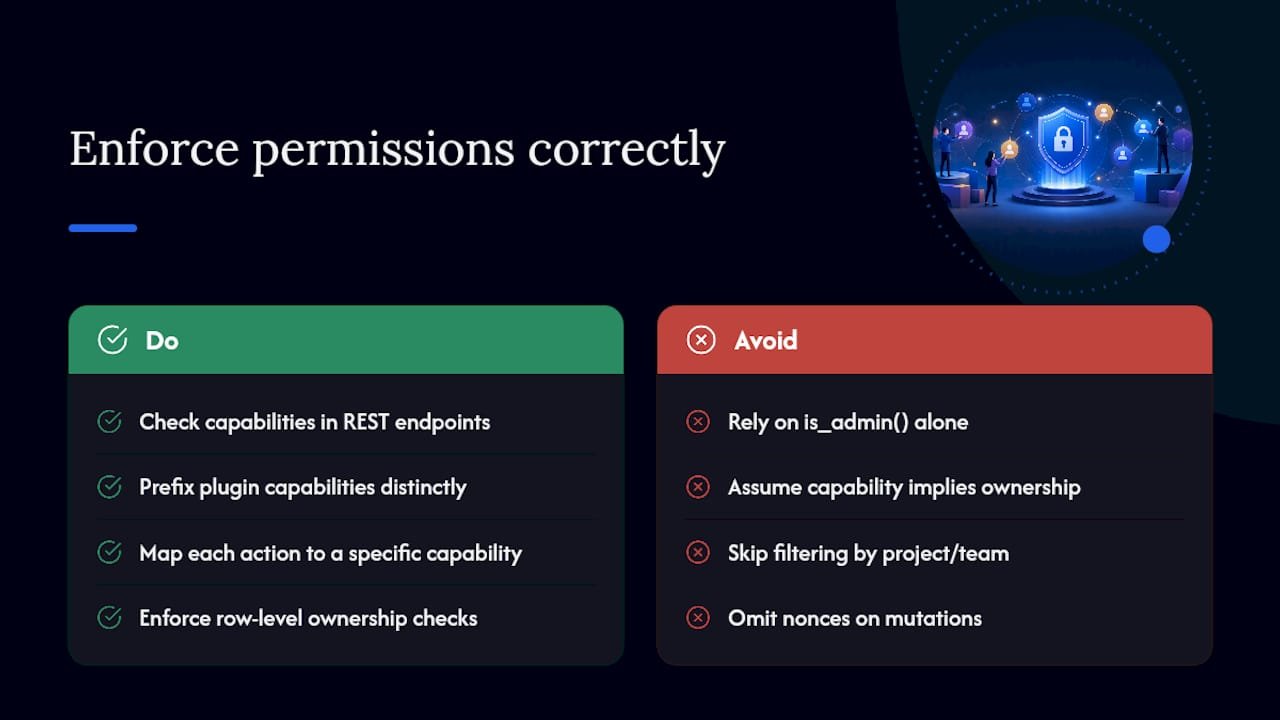
Settings screens are only half the job. If your plugin’s REST endpoints don’t check capabilities independently of the admin UI, a client with browser dev tools open can potentially call an endpoint the interface never shows them.
Every mutation, every task edit, every board delete, every time-entry update, needs a current_user_can() check against the specific prefixed capability, not just a check for is_admin(). That last point trips up a lot of custom plugin code: is_admin() only tells you the request came from the wp-admin area, not that the user is actually an administrator. It’s one of the most common false-security assumptions in WordPress development.
Design granular custom roles with capability-scoped REST APIs: prefix plugin capabilities distinctly, map every action to a specific capability, enforce those checks on REST endpoints as well as the UI, and add row-level ownership verification so a user can only modify records tied to their own project or team.
Ownership verification is the piece that catches what capability checks alone miss. A Contractor might legitimately hold edit_task, but that shouldn’t let them edit a task on a different client’s board just because the capability exists on their account. Filtering every query by project or team ownership, sometimes called row-level security, is what closes that gap, according to IT Influentials’ breakdown of WordPress role-based access. Nonces on every mutation prevent a related but separate problem: cross-site request forgery, where a malicious page tricks a logged-in browser into submitting a request it never intended.
How Often Should You Audit Team Permissions?
Permissions decay quietly. Nobody notices a departed contractor still has edit access until something goes wrong, which is exactly why a fixed audit schedule matters more than reactive fixes.
- Monthly: Review new accounts added recently and confirm each one used a template rather than a custom, one-off configuration.
- Quarterly: Run a full audit across every active project, checking for inactive accounts, orphaned capabilities, and role counts that don’t match your template definitions. Webmastered recommends this exact quarterly cadence for multisite agency installs specifically.
- On offboarding: Remove or downgrade access the same day a contractor or client relationship ends, not at the next scheduled review.
Audit logs make this tractable. A log that records every role change, every capability grant, and every permission-related notification gives you a paper trail instead of a guess when a client asks “who could see this?”
Common Permission Mistakes and How to Fix Them Fast
Over-granting is the most frequent mistake, usually born from convenience: it’s faster to make someone an Administrator than to figure out the three capabilities they actually need. Fix it by downgrading to a template role immediately, then adding back only the specific capability that was actually missing.
Hosting-level and WordPress-level roles get confused constantly on agency infrastructure. Kinsta documents this directly: granting someone Site Admin at the hosting level and WordPress Admin on the install simultaneously creates redundant, hard-to-track privilege. Match each system’s roles to actual tasks, separately.
- Over-granted roles: downgrade to template, add capabilities individually as needed
- Staging access: grant temporarily, revoke on merge to live
- Plugin conflicts: check for compatibility shims before contacting the plugin author directly
Handling Permission Inheritance and Conflicts in Complex Team Setups
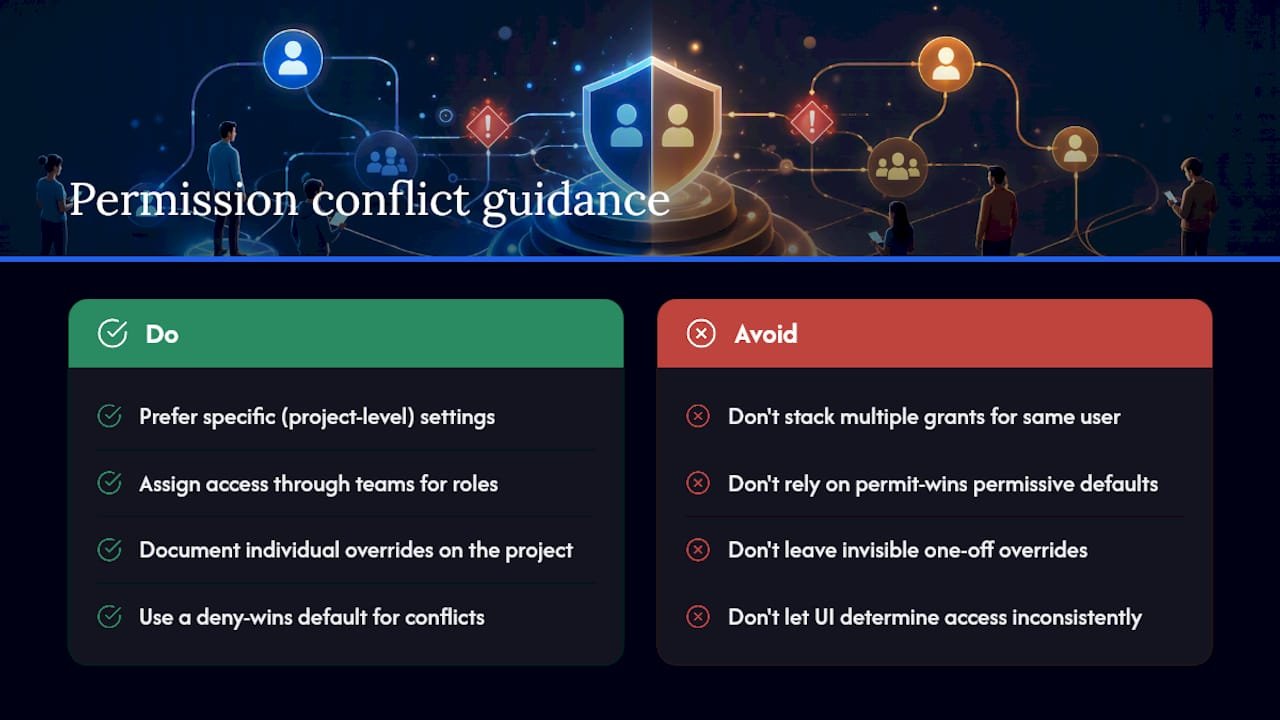
Inheritance gets messy the moment someone belongs to more than one team or holds a role at both the workspace and project level. If a Project Manager template grants delete access at the workspace level but a specific project’s template restricts deletion to the PM assigned to that project, which one wins?
The general rule that holds up best: the more specific scope overrides the broader one. A project-level permission setting should take precedence over a workspace-wide default, the same way a page-specific style overrides a site-wide stylesheet in CSS. If your plugin doesn’t make this precedence explicit, you’ll end up with situations where a user’s actual access depends on which screen they’re viewing, not on any coherent rule.
Conflicts also show up when someone is added to a project through two different paths, once as an individual collaborator, once as a member of a team that’s linked to the project. If the individual grant is more restrictive than the team grant, most systems default to the more permissive one unless explicitly configured otherwise, which is rarely what you want for a client-facing role.
The practical fix is to avoid stacking grants in the first place. Assign access through teams for standard roles, reserving individual overrides for genuine exceptions, documented against that specific project rather than left as an invisible one-off setting. When a conflict does surface, the deny-wins principle is usually safer than permit-wins: if any applicable rule restricts a specific action, that restriction should hold even if another rule would allow it. It’s a more conservative default, but for client data and billing information, conservative is the right failure mode.
Onboarding Team Members and Clients on Permission Use
Most permission confusion isn’t a settings problem, it’s a training problem. A new contractor doesn’t know they can’t see billing information because nobody told them that’s by design, not a bug they should report.
Build a two-minute walkthrough into your onboarding process, not a written policy document nobody reads. Show the new team member their actual dashboard, point out what’s visible and what isn’t, and explain the reasoning in one sentence: “You see your own board because that’s what your role template grants; the billing tab and other clients’ boards aren’t part of that.”
For clients specifically, set expectations before they ever log into the portal. A short note explaining that they’ll see their own project only, and that private planning notes stay internal, prevents the “why can’t I see X” support ticket before it happens. This matters more for client accounts than internal hires, because clients have no baseline expectation for how project software should behave, so unexplained restrictions read as a limitation rather than a design choice.
Revisit onboarding language whenever you update a template. If the Contractor role gains a new capability, a one-line note in your next check-in call, “you can now log time directly on tasks,” takes thirty seconds and heads off confusion the next time that contractor opens the plugin. Skipping this step is how you end up fielding the same question from three different people in the same month.
What Real Permission Failures in WordPress Projects Look Like
The most common failure pattern in agency work isn’t malicious, it’s structural: a client relationship starts small, gets one-off elevated permissions to move faster, and nobody ever walks that access back down. Six months later, a client who was granted temporary edit access to unblock a launch still has it, and now they’re editing tasks on a project phase they were never supposed to see.
A second recurring pattern involves contractor turnover on multi-project teams. A contractor works across three client boards, leaves the engagement on one, but their account, being a single WordPress user with capabilities granted per project, quietly keeps access to the other two if offboarding only touches the project they were let go from. This is exactly why template-based, per-project assignment matters more than it seems at setup time. It makes offboarding a matter of checking a list rather than reconstructing who has access to what from memory.
The client-portal visibility gap shows up constantly too. Agencies build what they think is a clean client-facing view, then discover the client can see a linked internal task through a comment thread or an activity feed that wasn’t scoped the same way as the main board. The fix, in most cases documented by plugin vendors themselves, is to gate at the data layer with a privacy flag on the task itself rather than trying to hide it purely through UI filtering, which is exactly the private-task pattern WP Project Manager implements.
Best Practices for Team Permissions Across WordPress Multisite
Multisite complicates permission management because WordPress’s default model applies certain roles network-wide, which conflicts directly with the project-scoped, per-client permission model agencies actually need.
The fix that scales is a template subsite: one canonical site that holds your role and capability definitions, exported and imported into every new client subsite rather than configured from scratch each time. This is the approach Webmastered documents for multisite agencies, and it pairs naturally with a capability-management plugin like PublishPress Capabilities or User Role Editor for the export/import mechanics.
Limit Super Admin access aggressively on multisite installs. Super Admin sits above every subsite’s own role structure, so anyone holding it can see or touch every client’s project data regardless of what their subsite-level role says. Most agencies need a very limited number of Super Admins total, not a role assigned broadly to senior team members.
Run regular audits at the network level, not per subsite. A capability that looks fine in isolation on one client’s site can be a real problem if the same account holds elevated access across a dozen subsites simultaneously, something a per-site review alone won’t surface.
Integrating Third-Party Plugins for Stronger Permission Control
Most project-management plugins ship with a workable default permission model, but agencies running complex, multi-client setups often add a dedicated capability manager on top for finer control than the base plugin exposes.
Tools like PublishPress Capabilities and User Role Editor let you inspect, edit, and clone roles at a granular level, which is particularly useful when you need a permission tweak that your project plugin’s own settings screen doesn’t expose directly. The tradeoff is real, though: every additional plugin touching role management is another moving part that can conflict with your project plugin’s own capability checks, especially after a core WordPress update changes how roles are stored or queried.
Before adding a third-party role manager, check whether your project-management plugin already exposes the control you need through its own settings, since a native permission model that respects role transparency usually causes fewer downstream conflicts than layering an external tool on top. When you do need to add one, test it against a staging clone of a real client project first, not a blank install, since permission conflicts rarely show up until real data and real role assignments are in play.
Why Self-Hosted Permission Control Matters More Than It Seems
Most permission advice treats WordPress roles as a technical footnote, something you configure once and move on from. That’s backwards. Permission design is the actual product experience for anyone who isn’t you: it’s how a client understands your professionalism, and how a contractor knows whether they’re trusted with real responsibility or being handed access nobody bothered to scope properly.
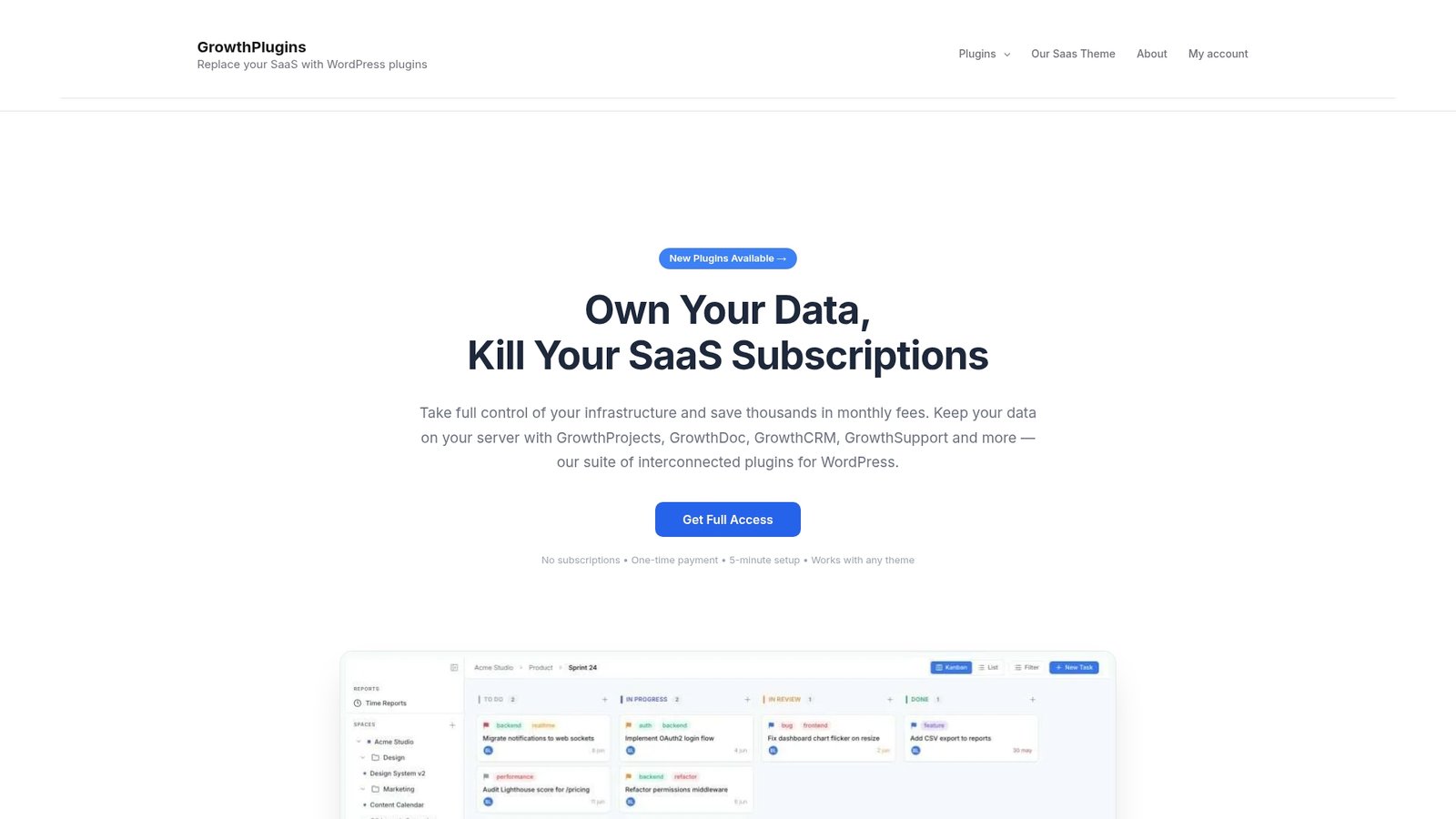
GrowthPlugins builds its project management tools around exactly the pattern this guide describes: Kanban boards, time tracking, and a client portal running inside one dashboard on infrastructure you control, set up in under five minutes rather than configured piece by piece. Because everything lives on your own server, the permission model isn’t fighting against a SaaS vendor’s fixed role structure, you decide what a Client sees, what a Contractor can touch, and what stays private, without waiting on a support ticket to change it.
The overlooked part is data ownership as a permission feature in its own right. When project data sits on your server, “who can access this” is a question you answer directly, not one filtered through a third party’s terms of service.
— Antonio
Get Secure Project Permissions Running in Minutes, Not Sprints
If you’ve been piecing together role editors, capability plugins, and a project tool that wasn’t built with client-facing permissions in mind, GrowthPlugins replaces that whole stack with one self-hosted dashboard where templates, boards, time tracking, and client portals already speak the same permission language.
There’s no monthly subscription pulling from your margin the way tools like Asana or ClickUp do, and no client data leaving your server to sit on someone else’s cloud. You set up Client, Contractor, Developer, and Project Manager templates once, apply them to every new project, and get the ownership checks and role transparency this guide covers built into the interface from day one. If you’re currently paying for a SaaS seat per collaborator, compare the numbers against GrowthPlugins’ self-hosted alternative to ClickUp and see what a one-time plugin purchase looks like against an ongoing subscription. Start with a project you’re setting up this week and apply a template to it directly.
Sources
- Kinsta — Agency client access management
- weDevs WP Project Manager README
- IT Influentials — WordPress role-based access
- Webmastered — Role-scoped multisite permissions guide
FAQ
What Is the Best Permission Model for WordPress Project Plugins?
Capability-based, least-privilege access scoped to individual projects and boards works best, using canonical templates for roles like Client, Contractor, Developer, and Project Manager rather than reusing broad WordPress core roles.
How Do I Stop Clients From Seeing Internal Tasks?
Use a task-level privacy flag rather than relying on portal navigation alone. Plugins like WP Project Manager hide any task marked private from client accounts entirely, regardless of what project they’re assigned to, according to the plugin’s own documentation.
How Often Should Team Permissions Be Audited?
Review new accounts monthly and run a full permission audit quarterly, checking for inactive accounts, role mismatches, and capabilities that don’t match your template definitions.
Can GrowthPlugins Handle Client Portals and Permission Templates?
Yes. GrowthPlugins runs Kanban boards, time tracking, and a client portal in one self-hosted dashboard, letting you apply permission templates per project without a monthly subscription or third-party data hosting.
What’s the Difference Between WordPress Roles and Project Permissions?
WordPress core roles like Administrator or Editor control access to the site’s dashboard and content, while project permissions govern what a team member or client can view, edit, or delete within a specific project, board, or task inside a project-management plugin.
Recommended
- Mastering Project Management in WordPress: A Step-by-Step Guide with GrowthPlugins – GrowthPlugins
- Optimizing Your WordPress Site for Project Collaboration: Harnessing GrowthPlugins for Success – GrowthPlugins
- Best Teamwork Alternatives for WordPress Agencies in 2026
- Microsoft Project Alternatives for WordPress Agencies (2026)